Inviting Members
Grow your team by inviting people by email straight from the team page. Only team Owners and Admins can send invitations.
Regular members can view the team list but cannot send invitations. See Roles & Permissions to understand what each role can do.
How to Invite a Member
Open the members list
Go to the team page. The members card shows all active and pending people.
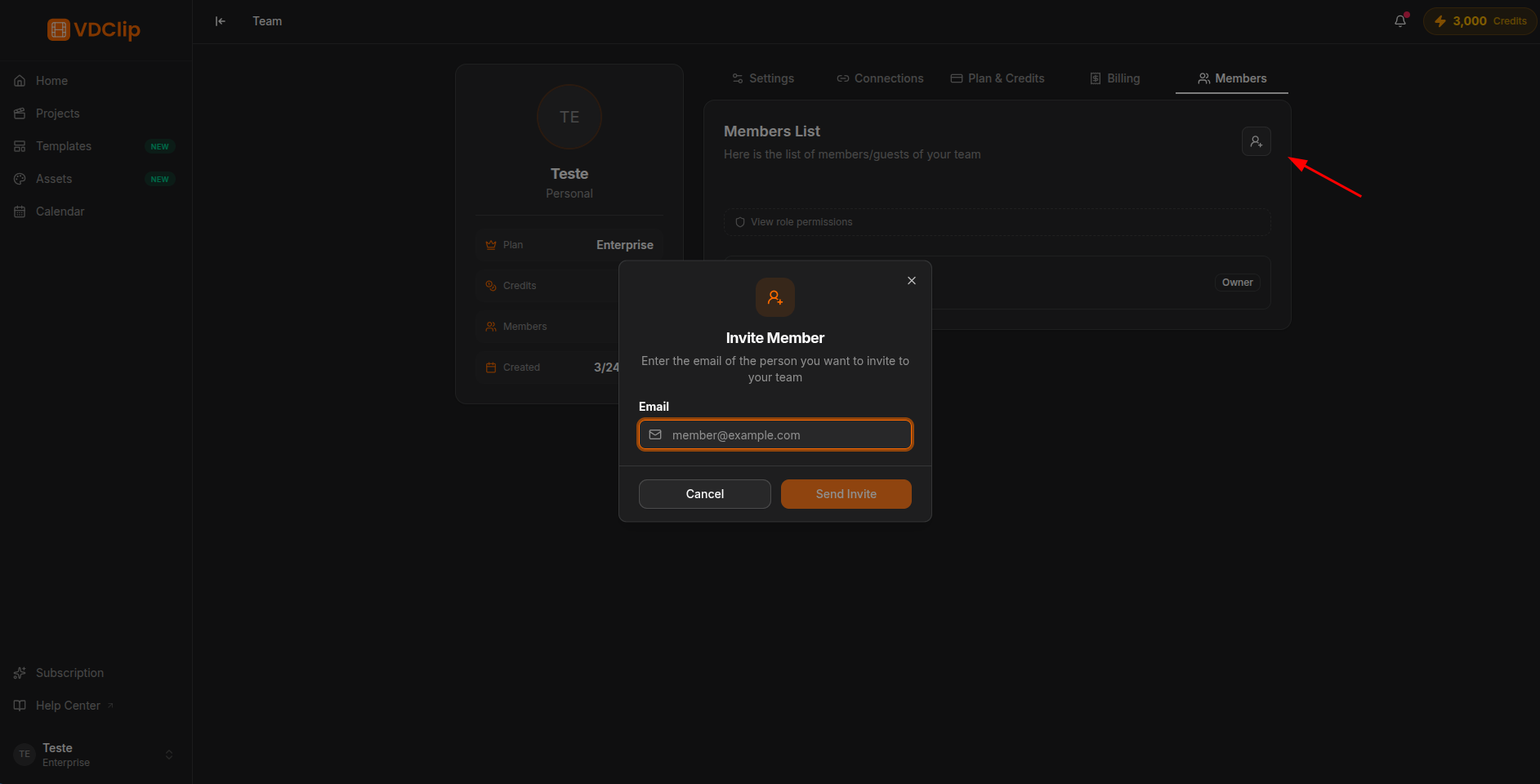
Click the invite button
In the top-right corner of the members card, click the invite icon (person with a plus sign) to open the dialog.
Enter the email
Type the person’s email address. The field validates the format before sending, so double-check it is correct.
Send the invitation
Click Send. The person appears in the pending members section of the list until they accept.
Pending Invitations
After sending, the invited person appears in the Pending section at the bottom of the members card. These invitations stand out because of:
- A dashed border that distinguishes them from active members.
- An amber Pending badge with a clock icon.
- A Cancel button (visible to Owners and Admins) to revoke the invitation.
Cancelling an Invitation or Removing a Member
To revoke a pending invitation, find the person in the list, click Cancel next to their name, and confirm. The entry disappears and the invitation is no longer valid.
To remove an active member, click Remove next to their name and confirm. Access to the team ends right away.
The Owner cannot be removed, and only the Owner can change another member’s role. Details in Roles & Permissions.