Uploading Videos
VDClip gives you two ways to add videos for processing: paste a link from a supported platform or upload a file directly from your device. Both methods lead to the same AI processing pipeline, so choose whichever is most convenient. If you would rather edit a video yourself without AI processing, use Editing Your Own Video to open the editor directly.
Paste a Link
Paste a URL from YouTube, Vimeo, or other supported platforms. VDClip downloads and processes the video automatically.
Upload a File
Upload a video file from your computer. Drag and drop or use the file picker. A progress bar tracks the upload.
Paste a Link
The default input mode on the Dashboard. If your video is already published online, this is the fastest option.
Go to the Dashboard
Paste the video URL
https://youtube.com/watch?v=...Click Process
Configure processing options
Wait for processing
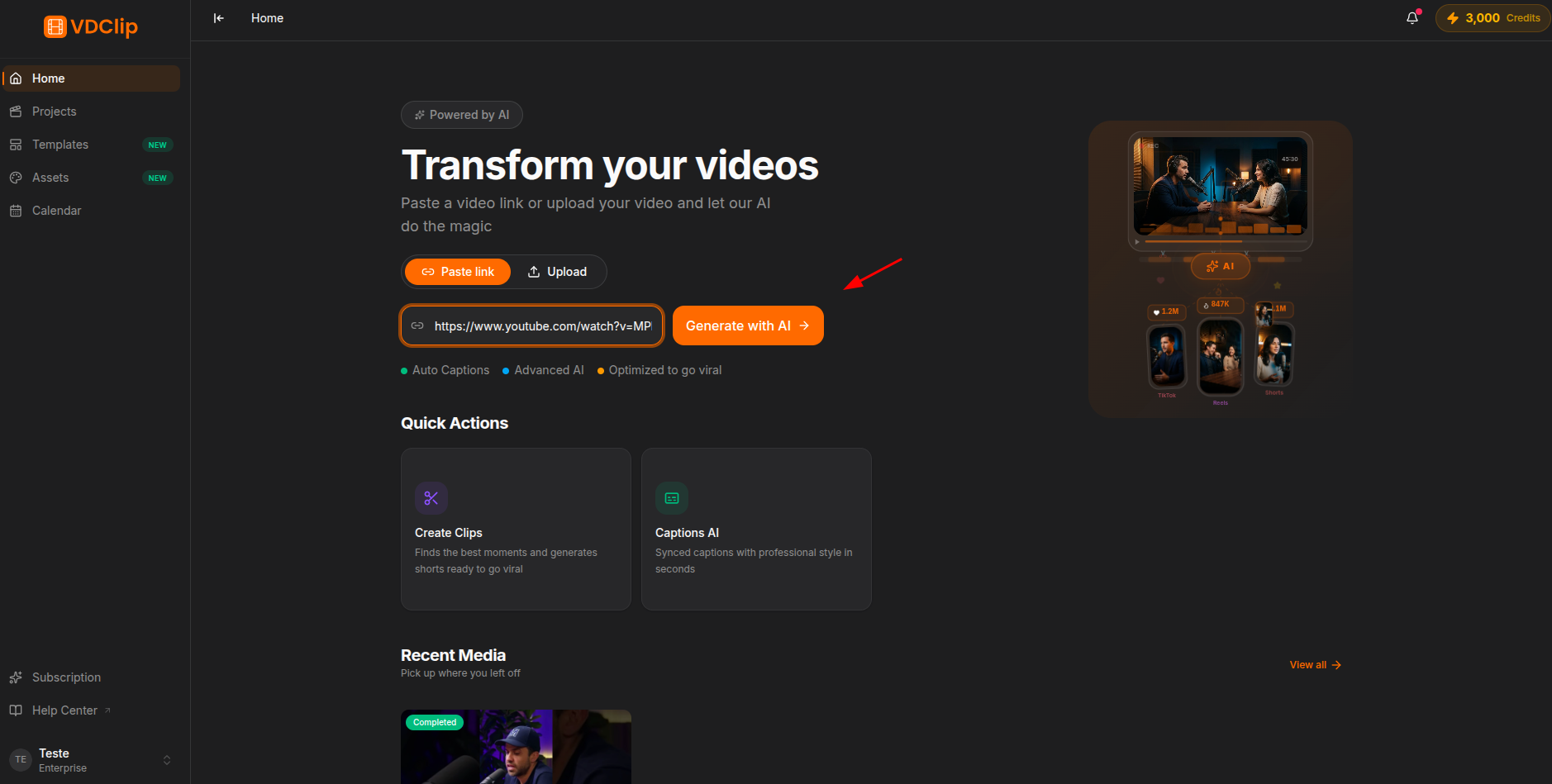
Supported Platforms for Links
Video hosting and publishing
Short video platform
Photo and video sharing
Social networking
Live streaming platform
Video hosting platform
Video sharing platform
Video platform
Live streaming platform
Short video platform
Cloud storage
The URL must be publicly accessible. Private or restricted videos cannot be processed through links.
Upload a File
If you have a local video file on your device, use the upload option instead.
Switch to Upload mode
Select your video file
Wait for the upload to complete
Configure processing options
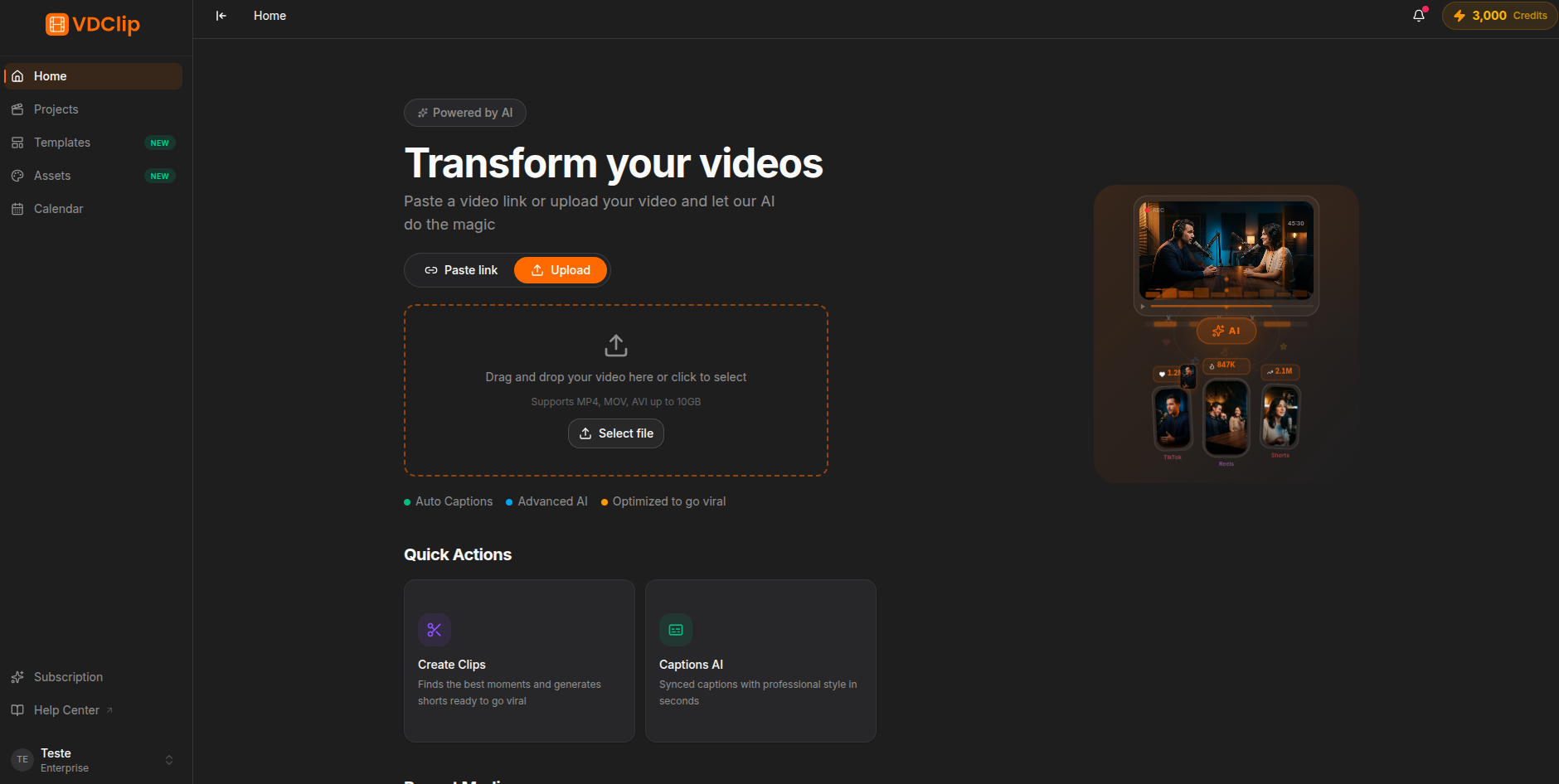
Supported Formats
VDClip accepts the most common video formats:
- MP4 (recommended for best compatibility)
- MOV
- AVI
- MKV
- WebM
- FLV
For the smoothest experience, use MP4 with H.264 encoding. This format is universally supported and produces reliable results.
Video Requirements
- Minimum duration: Depends on the processing type. AI Clipping requires at least 2 minutes of content. AI Captions requires at least 5 seconds.
- Maximum duration: Up to 10 hours.
- File size limits: Vary by plan. Visit the pricing page for your plan’s limits.
- Audio quality: Clear audio improves AI transcription and clip selection accuracy.
What Happens During Upload
When you upload a file:
- A progress bar shows the upload percentage in real time
- You can navigate away from the page. The upload continues in the background
- You will receive an email notification when upload and processing are complete
- If the connection drops, you can retry the upload from the Dashboard
Processing Options
After adding your video (via link or upload), choose how VDClip should process it:
AI Clipping
AI analyzes your video and extracts the most engaging moments as short clips. Best for long-form content like podcasts, interviews, and presentations.
AI Captions
Automatically generates synchronized captions for your entire video. Great for accessibility and social media engagement.
Learn more about each tool in the AI Systems section.
After Processing
When processing finishes:
- You will receive an email notification
- Your results appear on the Medias page
- Click on any result to open it in the editor for further adjustments
- From the editor, you can fine-tune clips, adjust captions, change templates, and export
Tips & Best Practices
MP4 with H.264 encoding provides the most reliable results. Other formats are supported but may take slightly longer to process.
Clear audio with minimal background noise helps the AI generate more accurate transcriptions and identify better clip moments.
A 10-minute video processes much faster than a 2-hour one. If you only need clips from a specific section, consider trimming before uploading.
If your video is already online, pasting the link is faster than downloading and re-uploading. It also preserves the original quality.
You can drag a video file directly onto the Dashboard from your file manager. The upload area will activate automatically.