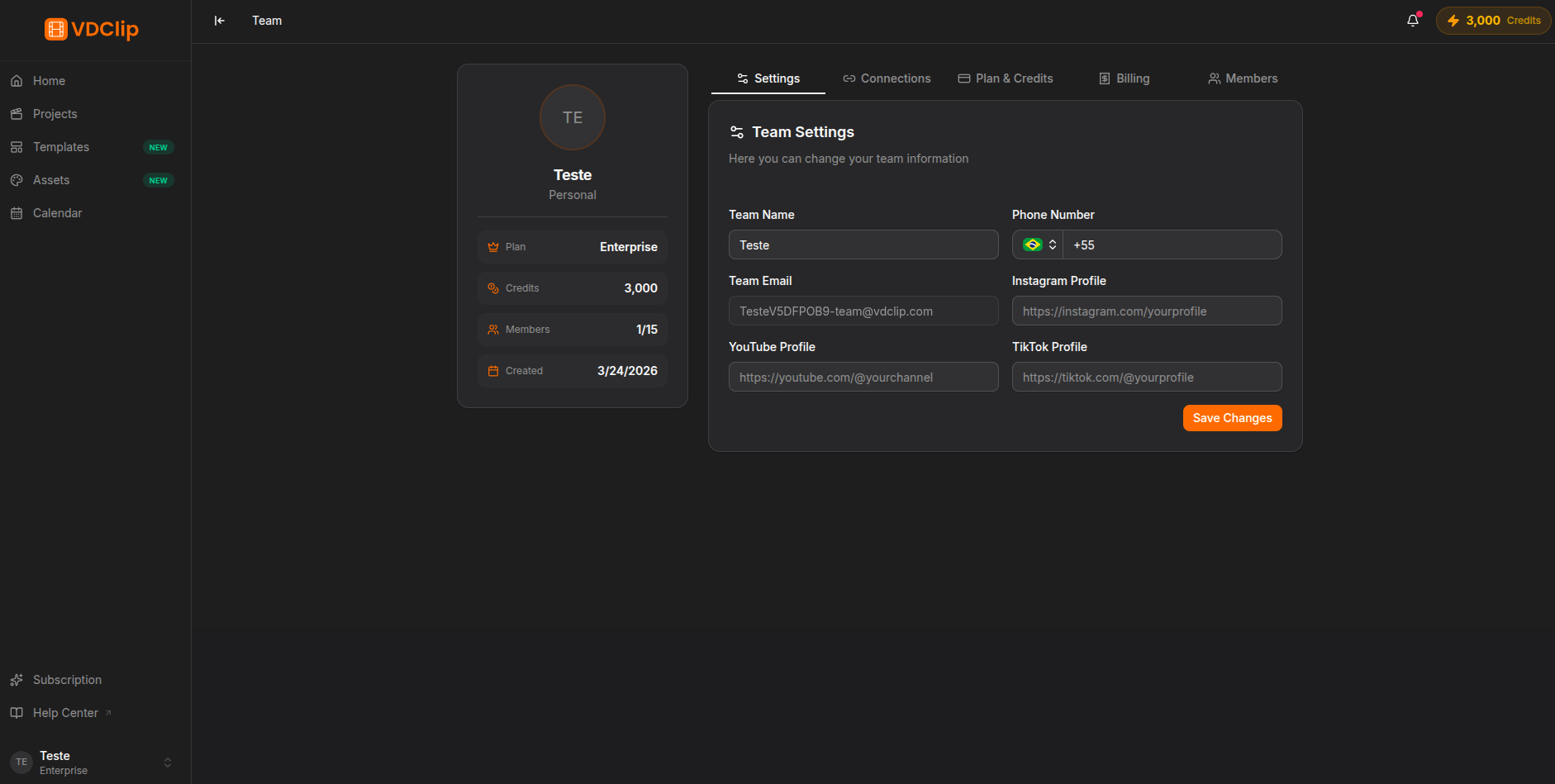
Team Settings
The Team Settings page brings together your team’s identity and profile data in one place: name, picture, phone, and social media links. It only appears when you are on a team account. On a personal account, you are redirected to the Profile page.
Team settings are only visible when you are on a team account. Use the account switcher in the sidebar to select your team before opening this page. In addition, only the team Owner can change these settings.
What You Will Find on the Page
The page has three parts: the sidebar with the team profile card, the settings card for editing the details, and the members list.
In the sidebar you see a summary of the team:
- Avatar: click it to upload a new picture (PNG, JPEG, or WebP, max 512KB).
- Name and category: the name appears prominently, with the category right below (Agency, Personal, among others).
- Quick stats: current plan, available credits, member count, and creation date.
- Social links: shortcuts to the team’s Instagram, YouTube, and TikTok profiles, when configured.
In the settings card you edit the team name (up to 50 characters), the phone number (with country code selector and validation), and the social profiles (Instagram, YouTube, and TikTok URLs, validated per platform). The team email is read-only: it is set when the team is created.
How to Update the Settings
Select your team account
Open the dropdown at the bottom of the sidebar and choose your team from the account list.
Open the team settings
Click the Team option in the sidebar dropdown to get to the team page.
Edit the information
Update the name, the phone number, or the social profile URLs as needed. To change the picture, click the avatar and select an image.
Save the changes
Click Save. A success notification confirms the update.