Skip to Content

Layout

Layout settings control how your video content is arranged and displayed. Configure aspect ratios, enable face tracking, and choose from multiple layout styles to create the perfect composition for your content.

📐
Access the dashboard to edit the template layout configuration:

Open Layout Settings →

Aspect Ratio

Choose the target aspect ratio for your final video output. This determines the proportions your content will be exported in, matching your destination platform requirements.

📐

Auto

Current aspect ratio

Uses the original video proportions

📱

Portrait

9:16

TikTok, Reels, Shorts

🖥️

Landscape

16:9

YouTube, Twitch, Vimeo

Square

1:1

Instagram, LinkedIn

Face Tracking

Face tracking automatically adapts the layout to highlight faces on screen whenever possible, ensuring speakers and subjects remain in focus throughout your video.

How It Works

When face tracking is active and multiple layouts are selected, the system intelligently switches between layouts based on face detection:

👥
1-4 Faces

Uses selected layout or automatically switches as needed

👥👥
4+ Faces

Defaults to Fit mode to avoid cropping

🚫
No Faces

Defaults to Fit mode

When to Use Face Tracking

🎤

Interviews

Perfect for keeping speakers centered and in focus

📹

Vlogs

Ideal for single-person content where the face is the main focus

💬

Conversations

Great for dialogue-heavy content with multiple speakers

Layout Options

Select the desired layouts for the entire video. When multiple are selected, the AI will switch between them based on scene content.

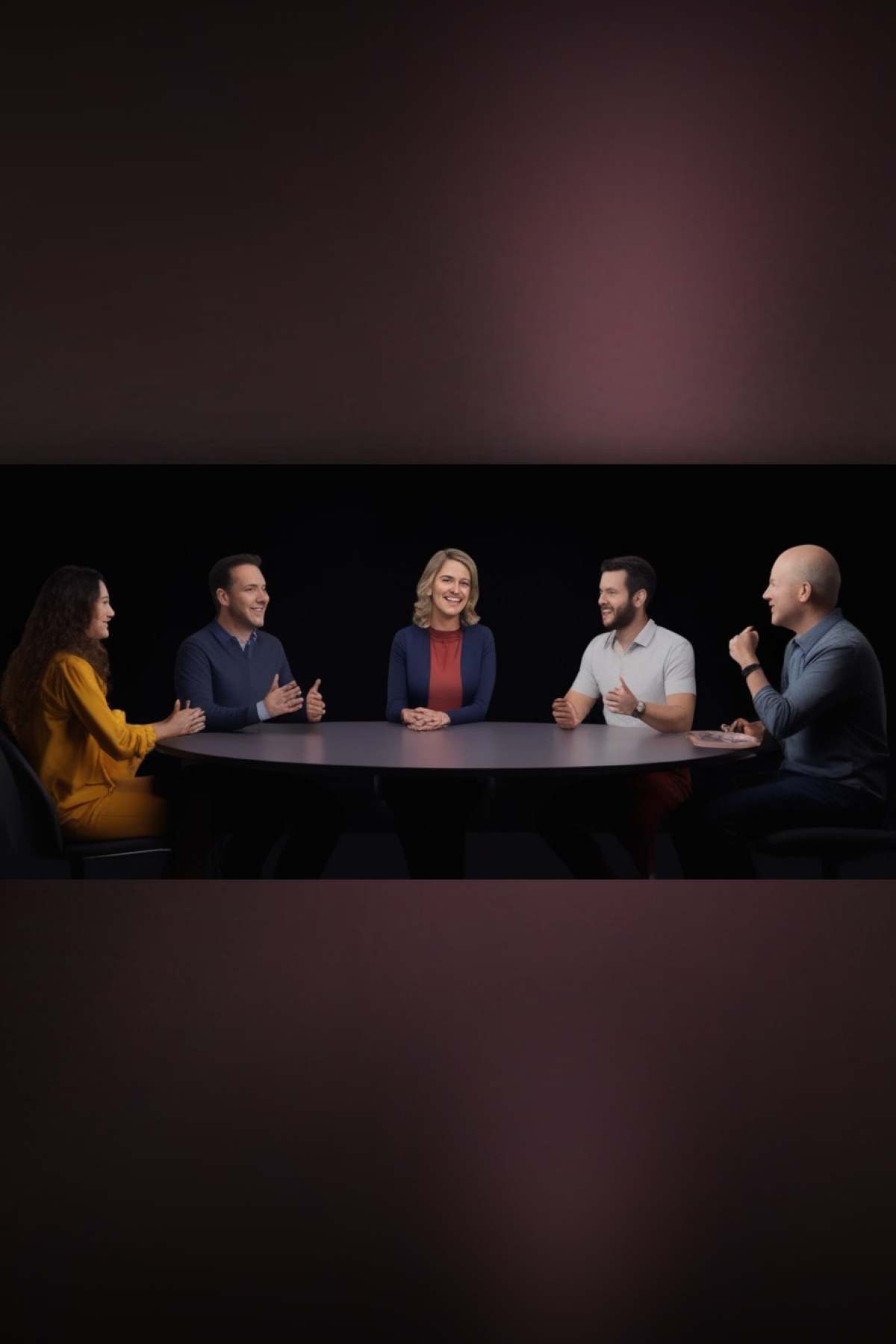
Fit layout preview showing video frame preserved without cropping
📐

Fit

Preserves the entire video frame without cropping. Best when all content is important.

Fill layout preview showing video frame completely filled, may crop edges
🖼️

Fill

Fills the frame completely, may crop edges. Ideal for cinematic look without black bars.

Face Tracking
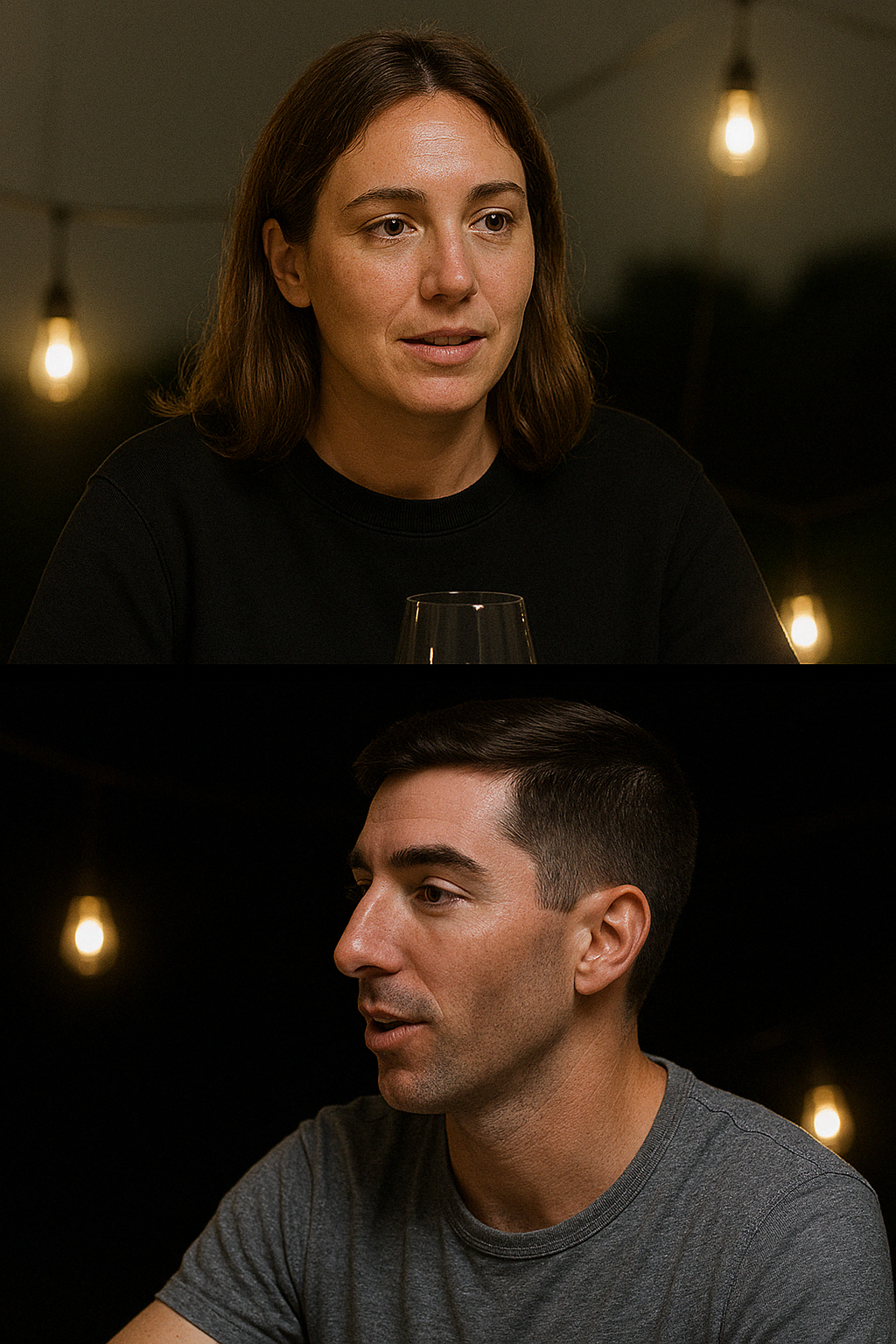
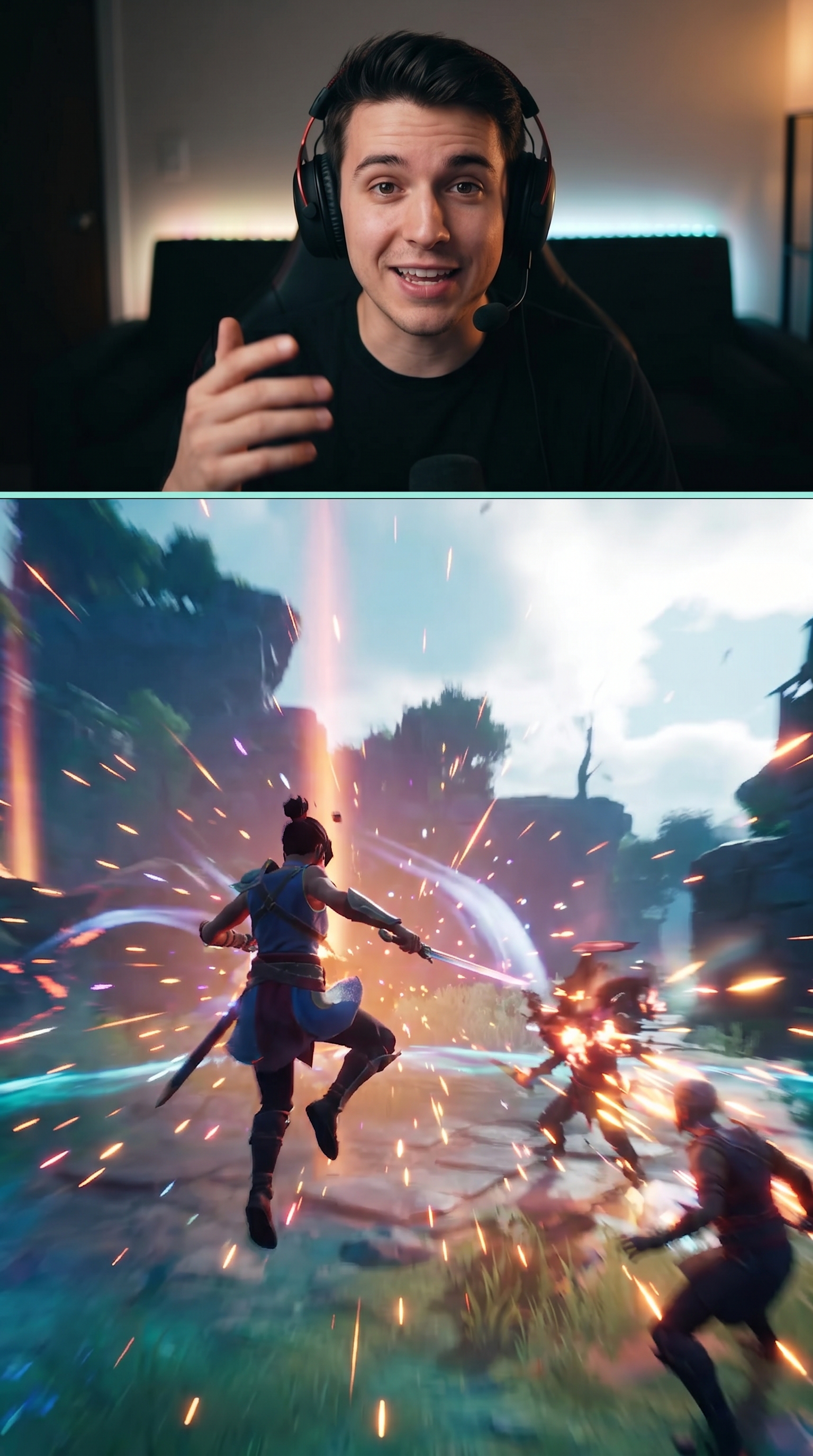
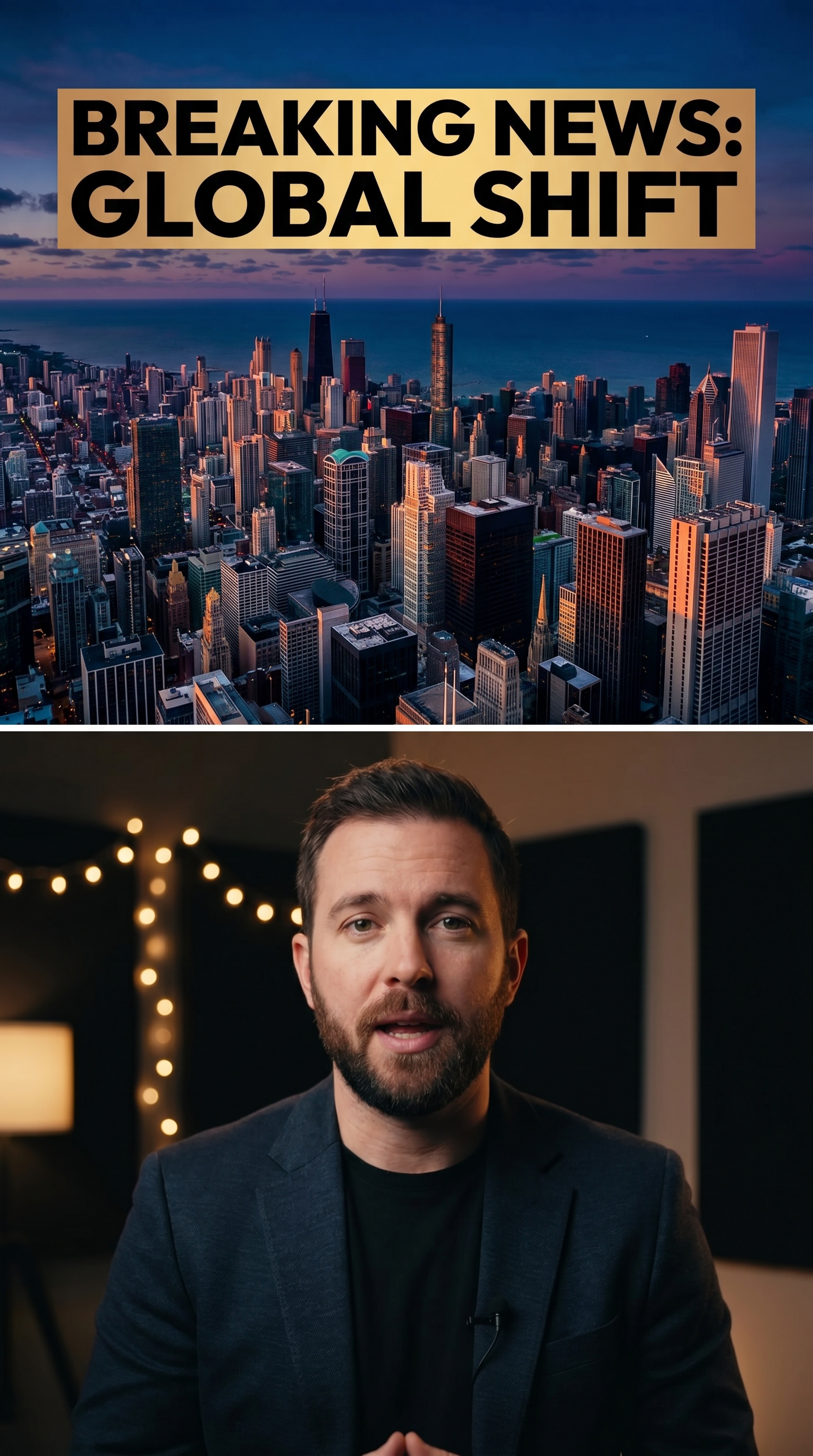
Split layout preview showing two sections for side-by-side content
↔️

Split

Two sections for side-by-side content. Perfect for comparisons and presentations.

Requires face tracking

Face Tracking
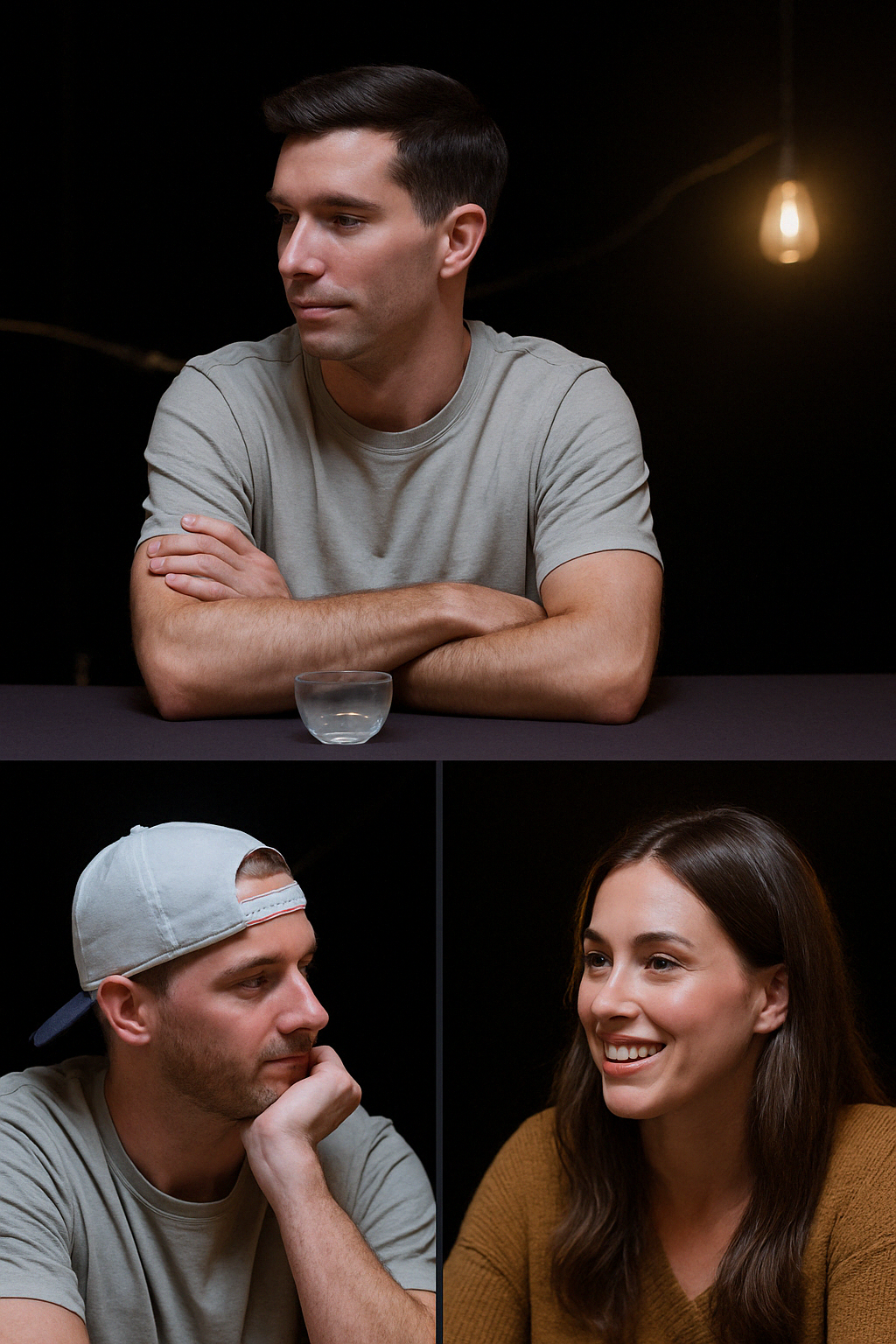
Three layout preview showing three sections for multiple angles or dynamic compositions
🔲

Three

Three sections for multiple angles or dynamic compositions.

Requires face tracking

Face Tracking
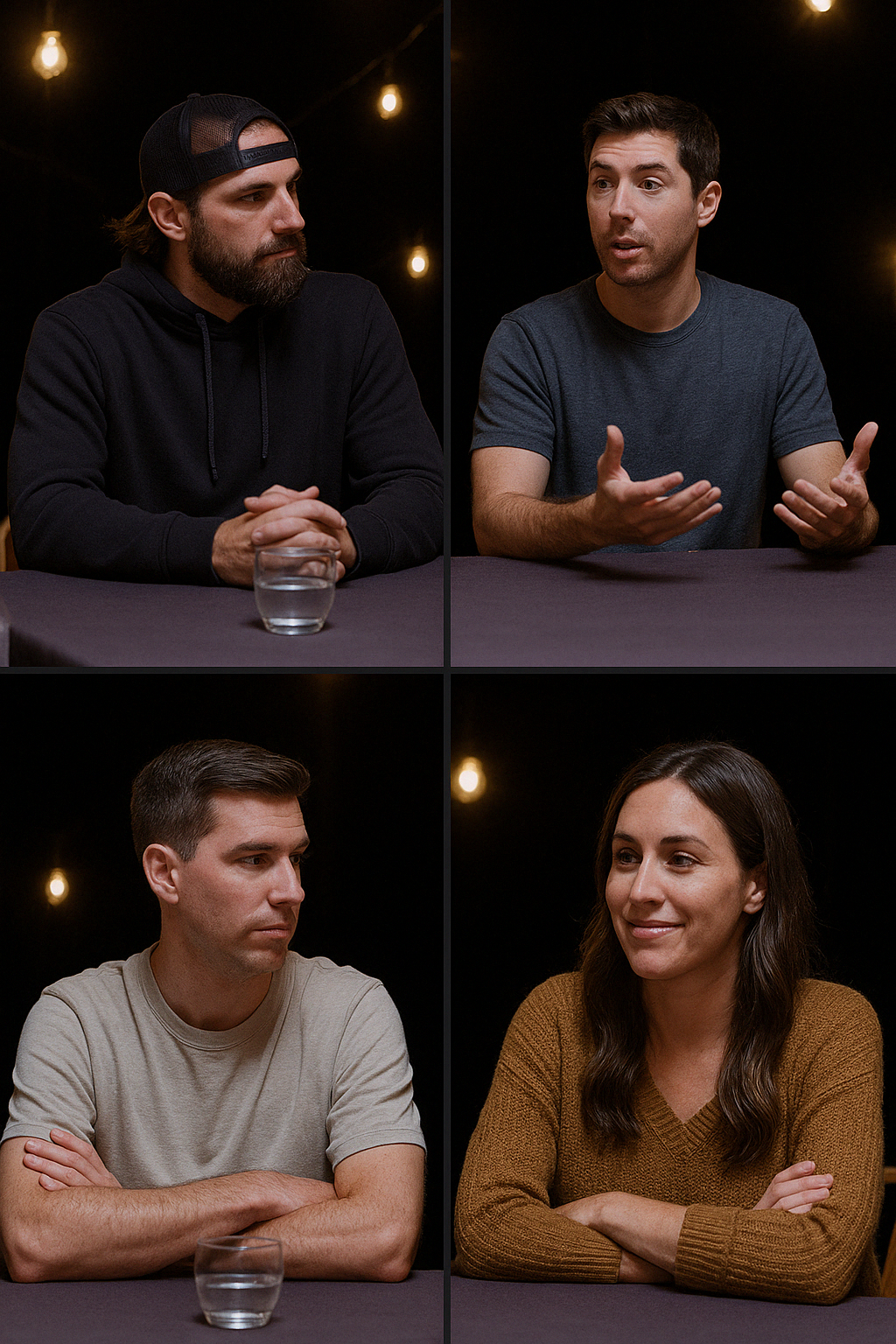
Four layout preview showing four-panel grid for multiple speakers or organized displays
🔳

Four

Four-panel grid for multiple speakers or organized displays.

Requires face tracking

💡 Tip: If face tracking is enabled, it’s recommended to keep all layouts activated for better quality and optimal automatic switching between layouts based on detected faces.

Best Practices

1

Platform-Specific Templates

Create separate templates for each platform you use. TikTok/Reels work best with 9:16 Portrait, while YouTube prefers 16:9 Landscape.

2

Test on Different Devices

Preview your layouts on mobile, tablet, and desktop to ensure they look good across all screen sizes.

3

Use Face Tracking for People

Enable face tracking for content featuring people to ensure faces remain centered and visible throughout the video.

4

Combine Multiple Layouts

Select multiple layout options to let the AI automatically switch between them based on scene content for more dynamic videos.

5

Maintain Safe Zones

Keep important content (text, faces, logos) within safe zones to avoid cropping on different devices and platforms.

Last updated on
VDClip | Layout