Managing Posts
The calendar allows you to manage all your scheduled posts in one place. You can view post details, edit content before publication, and cancel posts you no longer want to publish.
When to Manage Posts
You should manage your scheduled posts when you need to:
- Update Content: Change descriptions, titles, or other post details before they go live
- Cancel Posts: Remove posts from your schedule that are no longer relevant
- Review Status: Check which posts have been published, are pending, or encountered errors
Accessing the Calendar
To start managing your posts, navigate to the Calendar section in your VDClip dashboard.
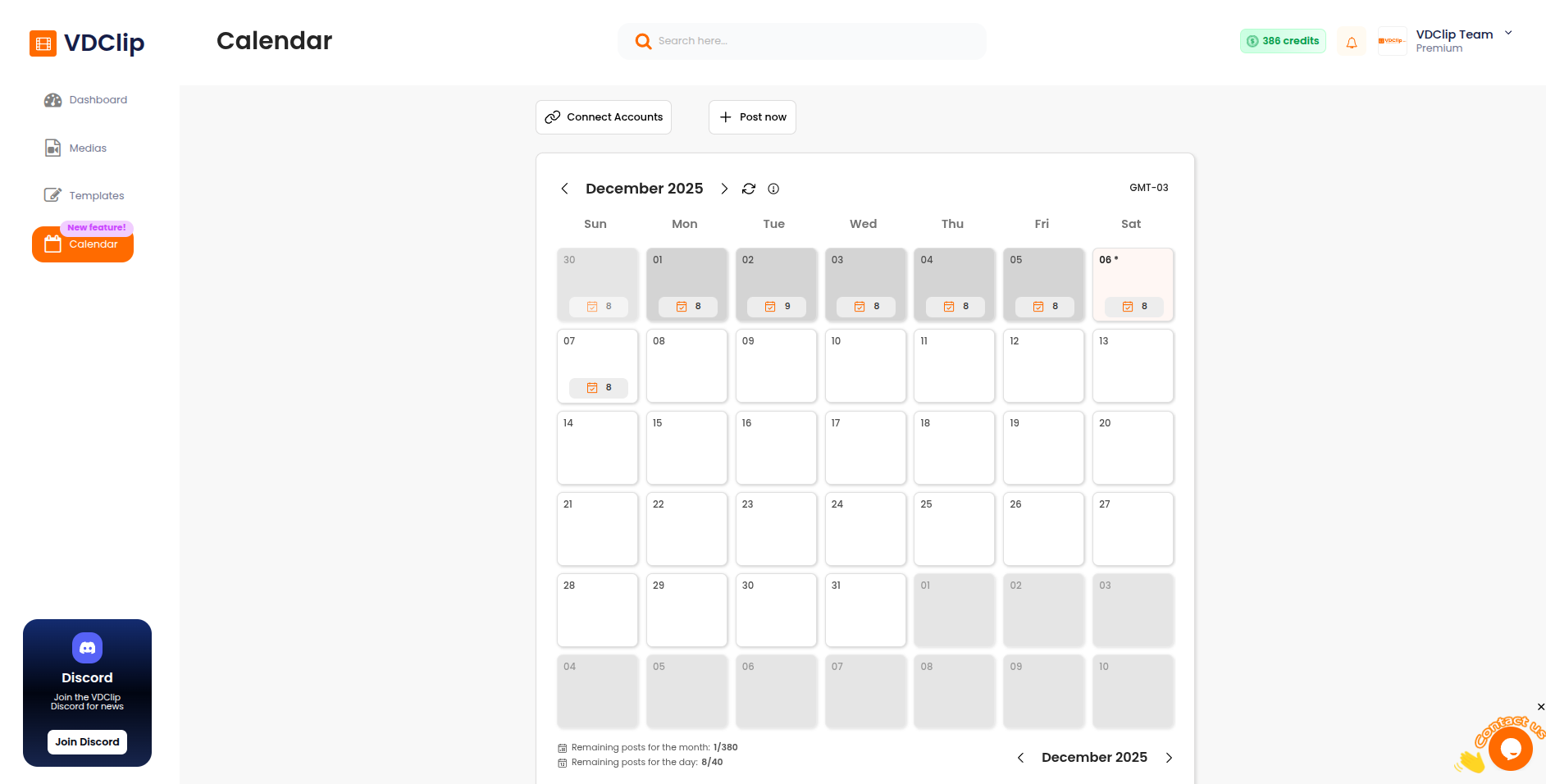
Once in the calendar, you’ll see a monthly view with all your scheduled posts. Days with scheduled content are marked with an orange icon showing the number of posts for that day.
Viewing Scheduled Posts
To view the posts scheduled for a specific day, click on that day in the calendar. A modal window will open displaying all posts scheduled for that date.
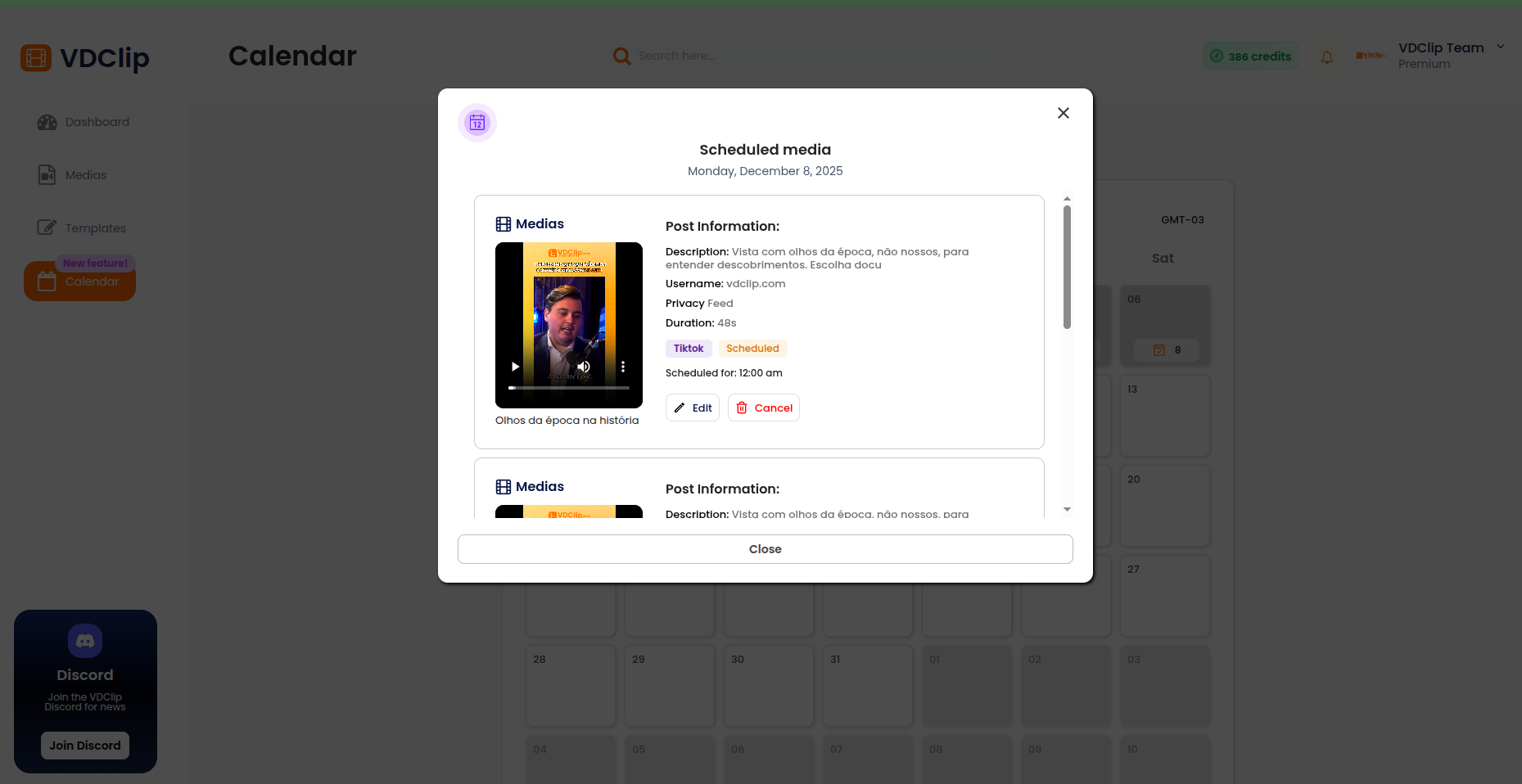
In the modal, you can see:
- Each post’s media preview
- The platform where it will be published
- Scheduled time
- Current status
- Post description and details
From this view, you can edit or cancel any post that hasn’t been published yet.
Editing Posts
To edit a scheduled post:
- Click on the day containing the post you want to edit
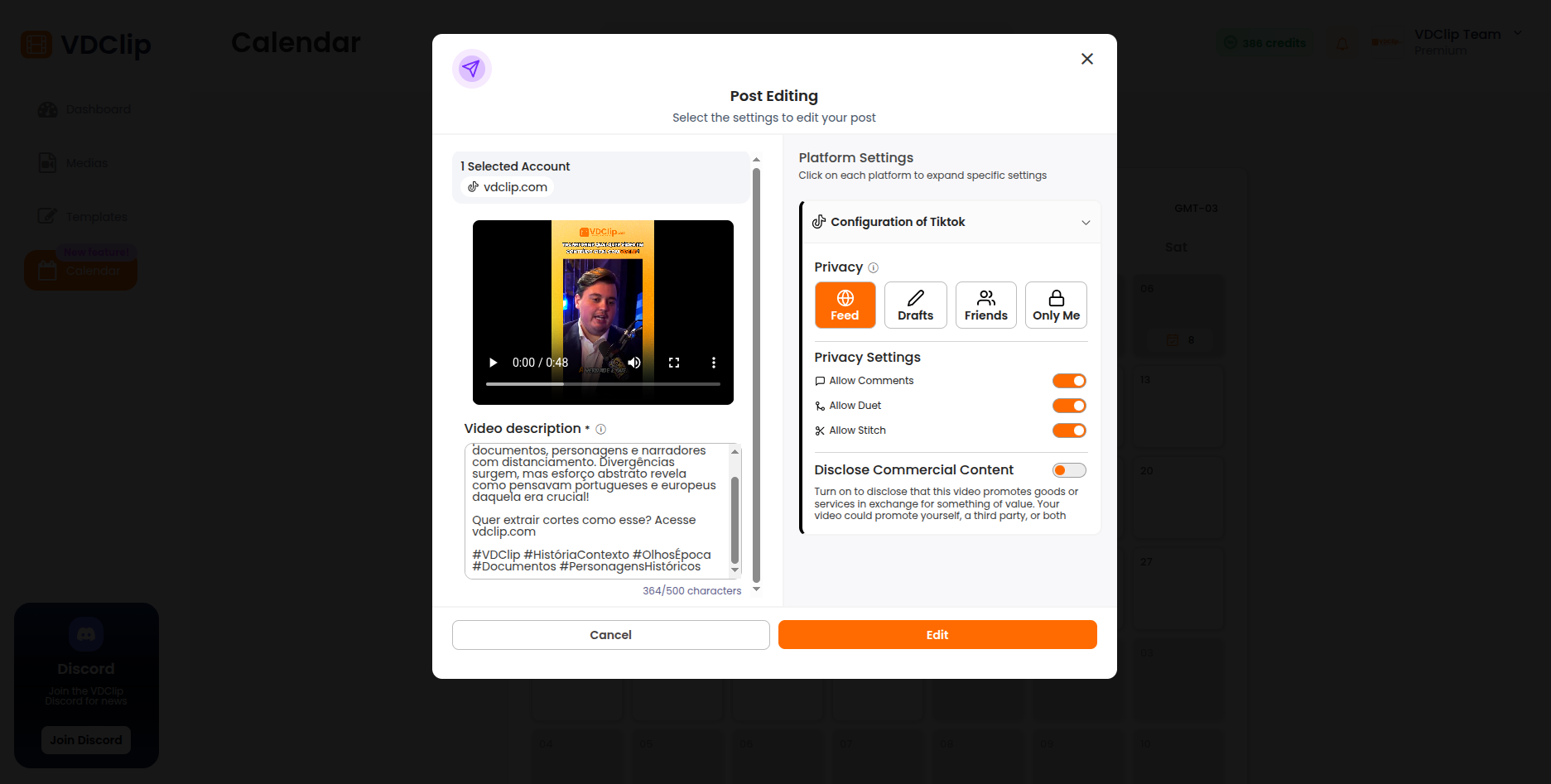
- In the modal, click the “Edit” button (pencil icon) on the post
- Make your changes in the edit modal
- Save your changes
💡 Note: Once a post has been published, you can no longer edit it through the calendar. Manage it directly on the social media platform.
Canceling Posts
To cancel a scheduled post:
- Click on the day containing the post you want to cancel
- In the modal, click the “Cancel” button (trash icon) on the post
- Confirm the cancellation when prompted
The post will be removed from your schedule and will not be published.
⚠️ Important: Canceling a post permanently removes it from your calendar.