Social Accounts
Connect your social media accounts to VDClip to enable scheduling and posting features. Once connected, you can schedule posts and manage content across all your platforms from one central location.
Supported Platforms
VDClip supports connecting accounts from the following platforms:
How to Connect an Account
To connect a social media account to VDClip, follow these steps:
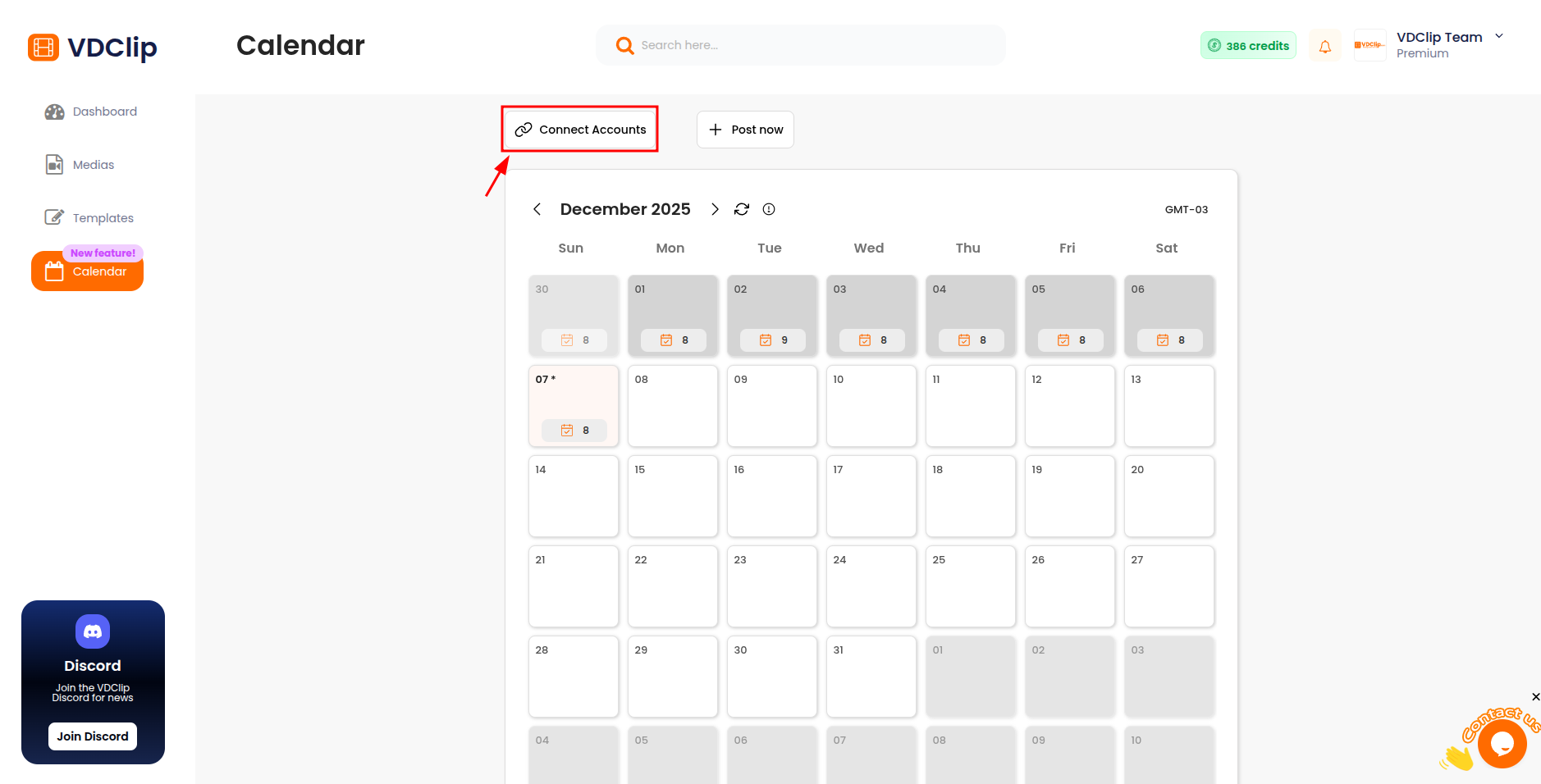
- Click “Connect Accounts”: In the Calendar section, click the “Connect Accounts” button
- Select Platform: A popup will open showing available platforms. Choose the social media platform you want to connect
- Click “Connect Account”: Click the “Connect Account” button for your chosen platform
- Authorize on Platform: You’ll be redirected to the platform’s authorization page. Accept all requested permissions to successfully connect your account
- Confirm Connection: After completing the authorization, you’ll be redirected back to VDClip. You can now see your connected account in the Calendar
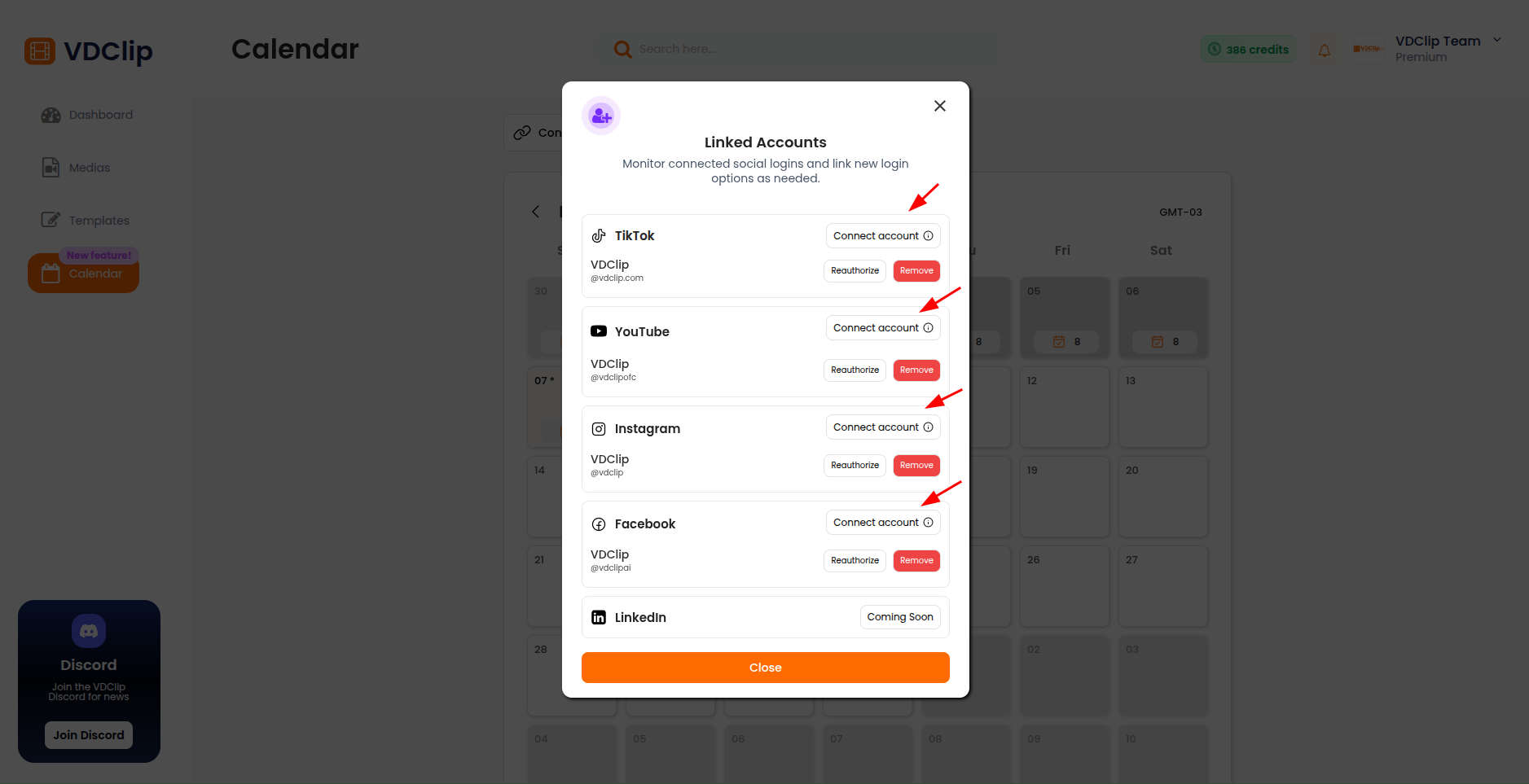
ℹ️ Note: Some social networks and the number of accounts you can connect are limited to certain plans. Check the pricing page to see the limits for your plan.
Reauthorizing Accounts
Sometimes you may need to reauthorize your connected accounts. This can happen when:
- Token Expiration: Access tokens expire after a certain period
- Permission Changes: You’ve changed permissions on the platform
- Security Updates: Platform security requirements have changed
- Manual Reconnection: You want to update account permissions
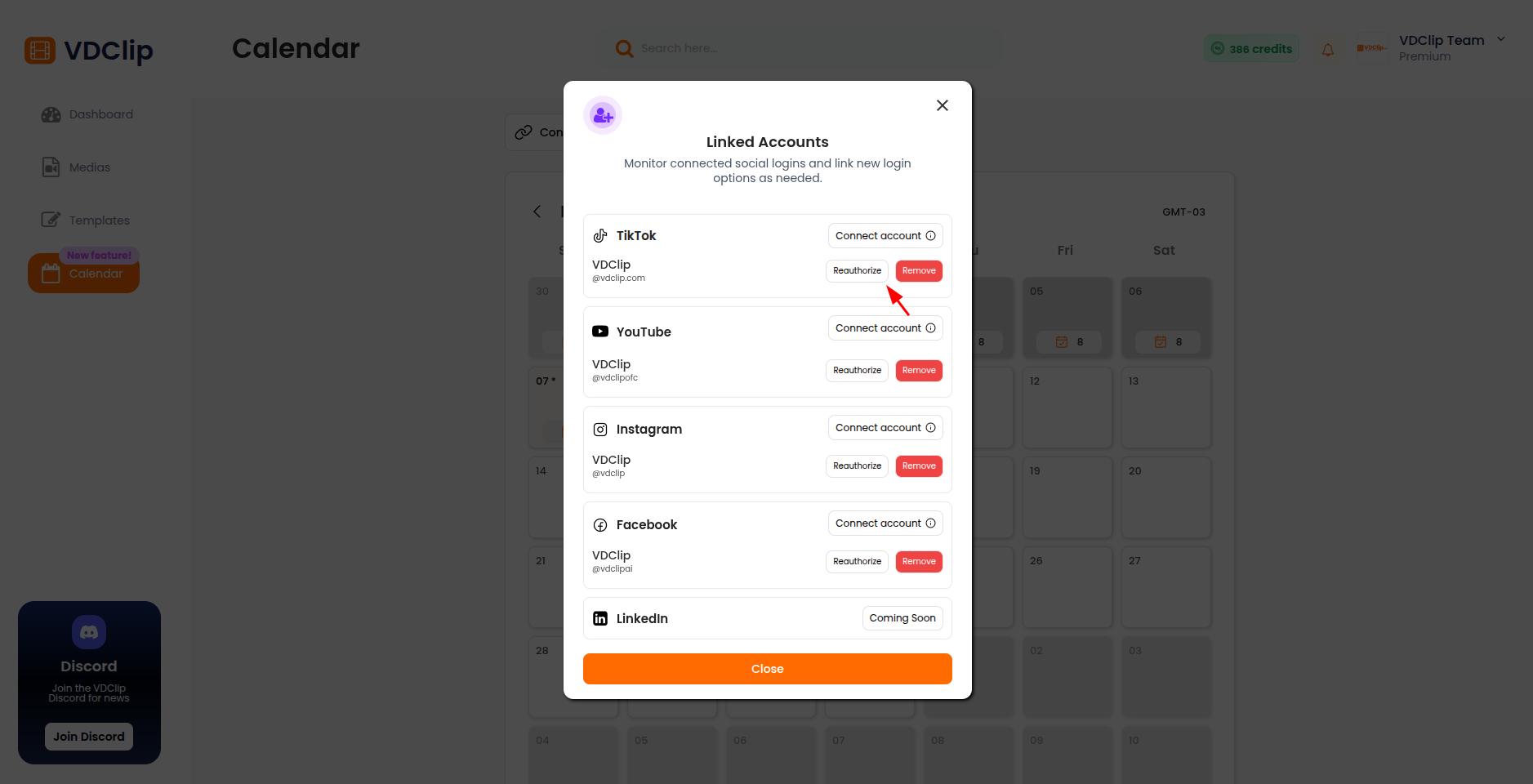
To reauthorize an account:
- Find the account that needs reauthorization in the Calendar
- Click “Reauthorize”
- Follow the same authorization process as the initial connection
- Accept all requested permissions
- Confirm the reauthorization is successful
Disconnecting Accounts
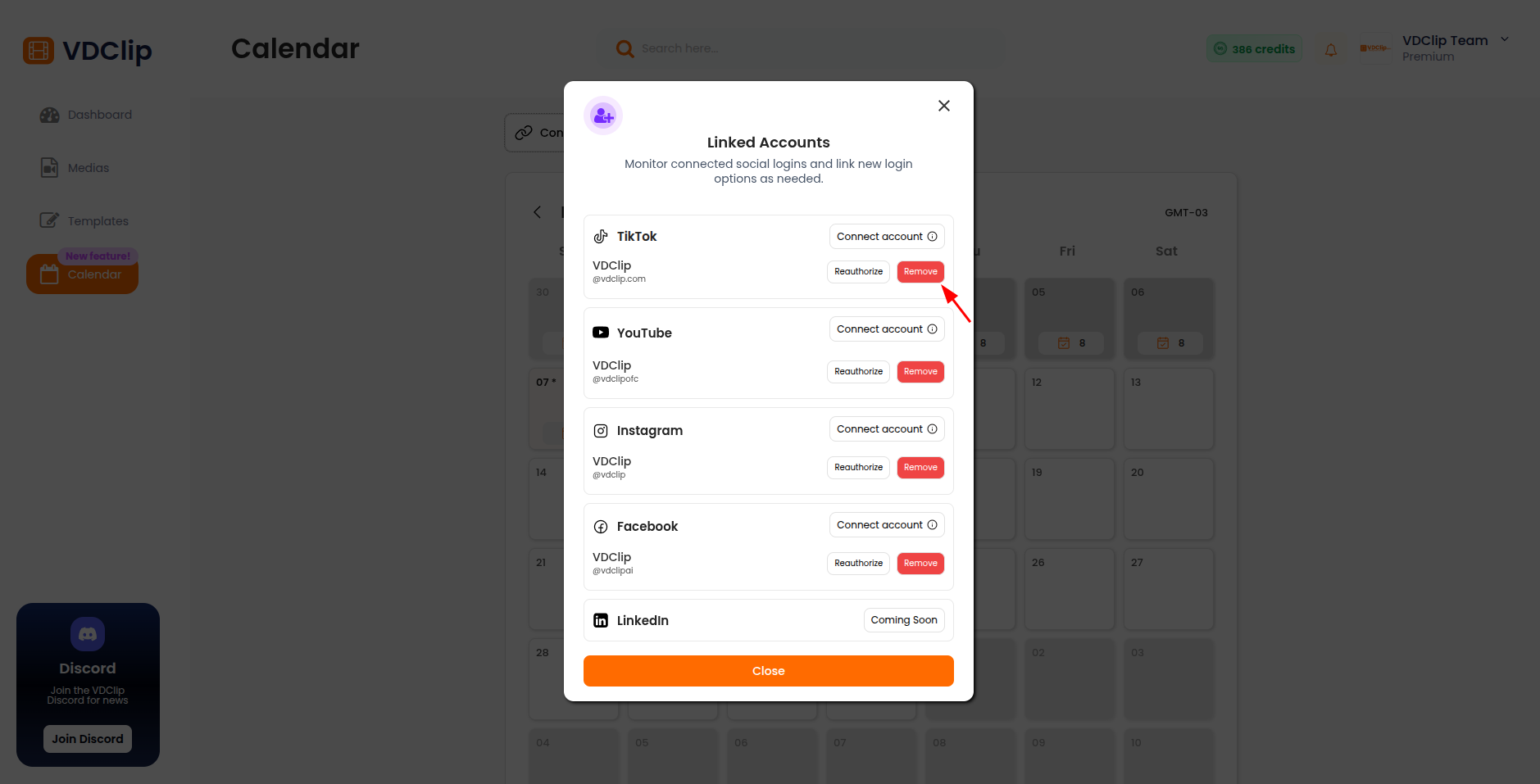
To disconnect an account:
- Find the account you want to disconnect in the Calendar
- Click “Remove”
- Confirm the disconnection
- The account will be removed from your connected accounts list
⚠️ Warning: Disconnecting an account will cancel any scheduled posts for that platform.
Last updated on