Layout
Layout settings control how your video content is arranged and displayed. Configure aspect ratios, enable face tracking, and choose from multiple layout styles to create the perfect composition for your content.
Screenshot: Layout templates | Add image at /img/docs/templates/layout-templates.png
Open Layout Settings →
Aspect Ratio
Choose the target aspect ratio for your final video output. This determines the proportions your content will be exported in, matching your destination platform requirements.
Auto
Current aspect ratio
Uses the original video proportions
Portrait
9:16
TikTok, Reels, Shorts
Landscape
16:9
YouTube, Twitch, Vimeo
Square
1:1
Instagram, LinkedIn
Face Tracking
Face tracking automatically adapts the layout to highlight faces on screen whenever possible, ensuring speakers and subjects remain in focus throughout your video.
How It Works
When face tracking is active and multiple layouts are selected, the system intelligently switches between layouts based on face detection:
Uses selected layout or automatically switches as needed
Defaults to Fit mode to avoid cropping
Defaults to Fit mode
When to Use Face Tracking
Interviews
Perfect for keeping speakers centered and in focus
Vlogs
Ideal for single-person content where the face is the main focus
Conversations
Great for dialogue-heavy content with multiple speakers
Layout Options
Select the desired layouts for the entire video. When multiple are selected, the AI will switch between them based on scene content.
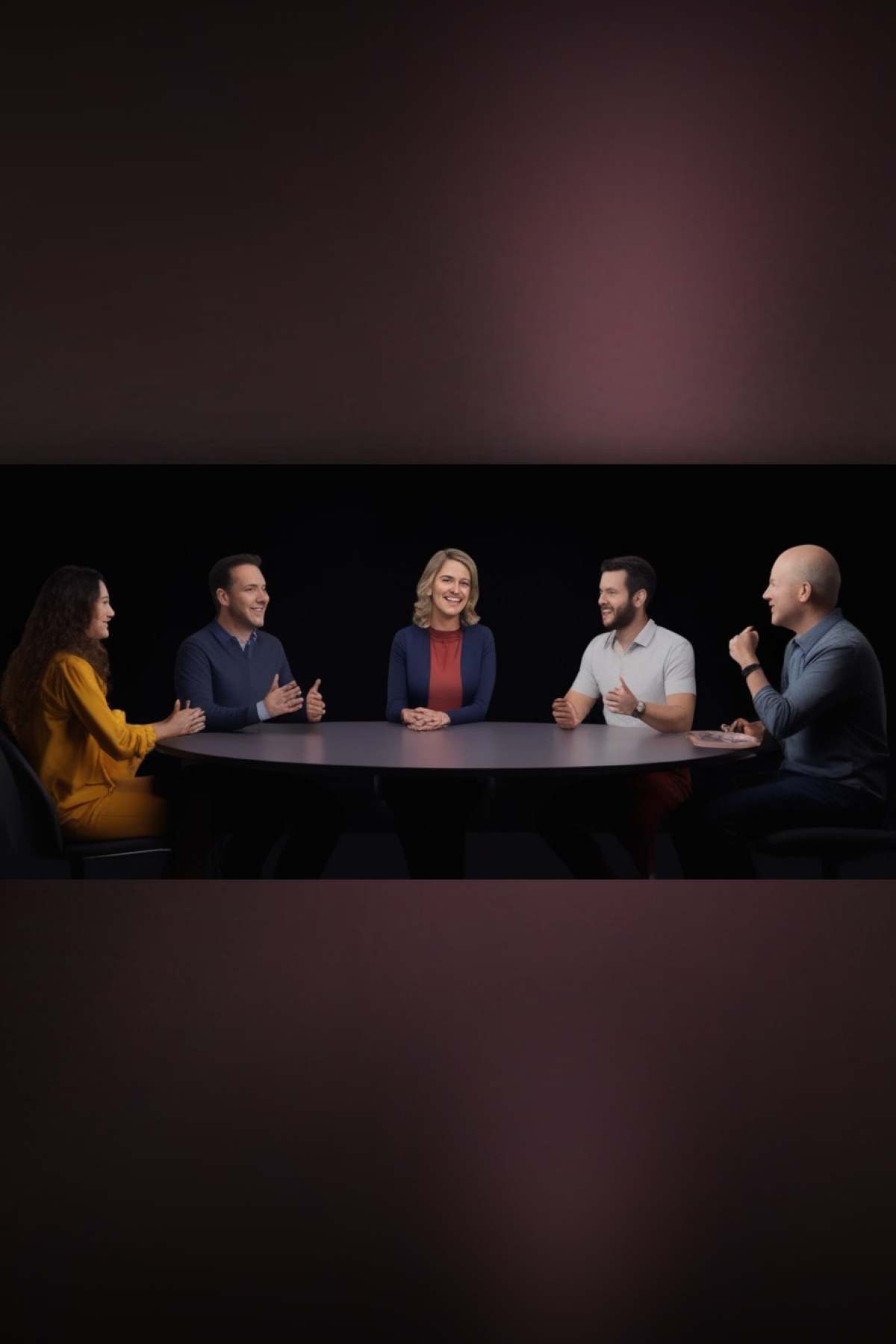
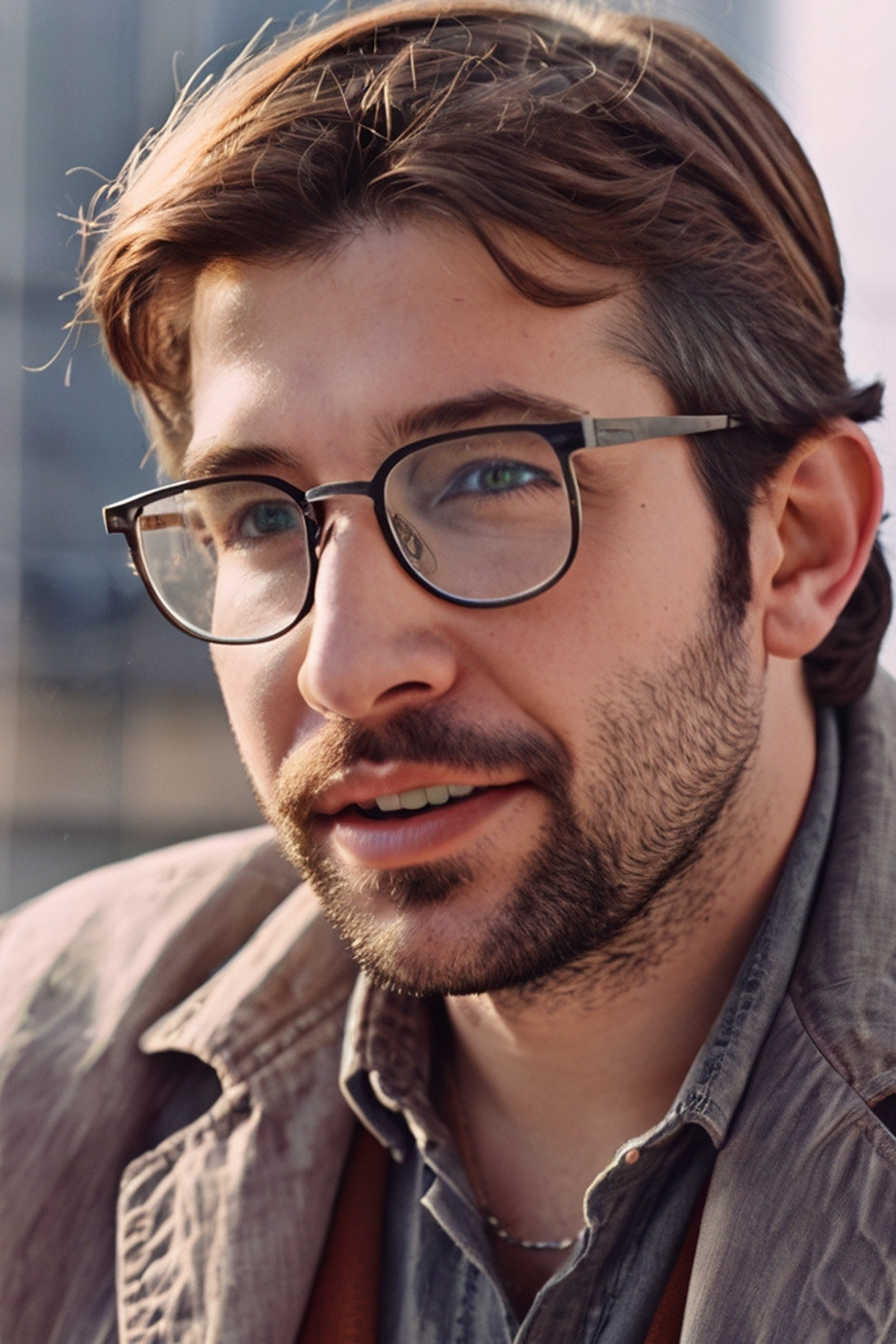
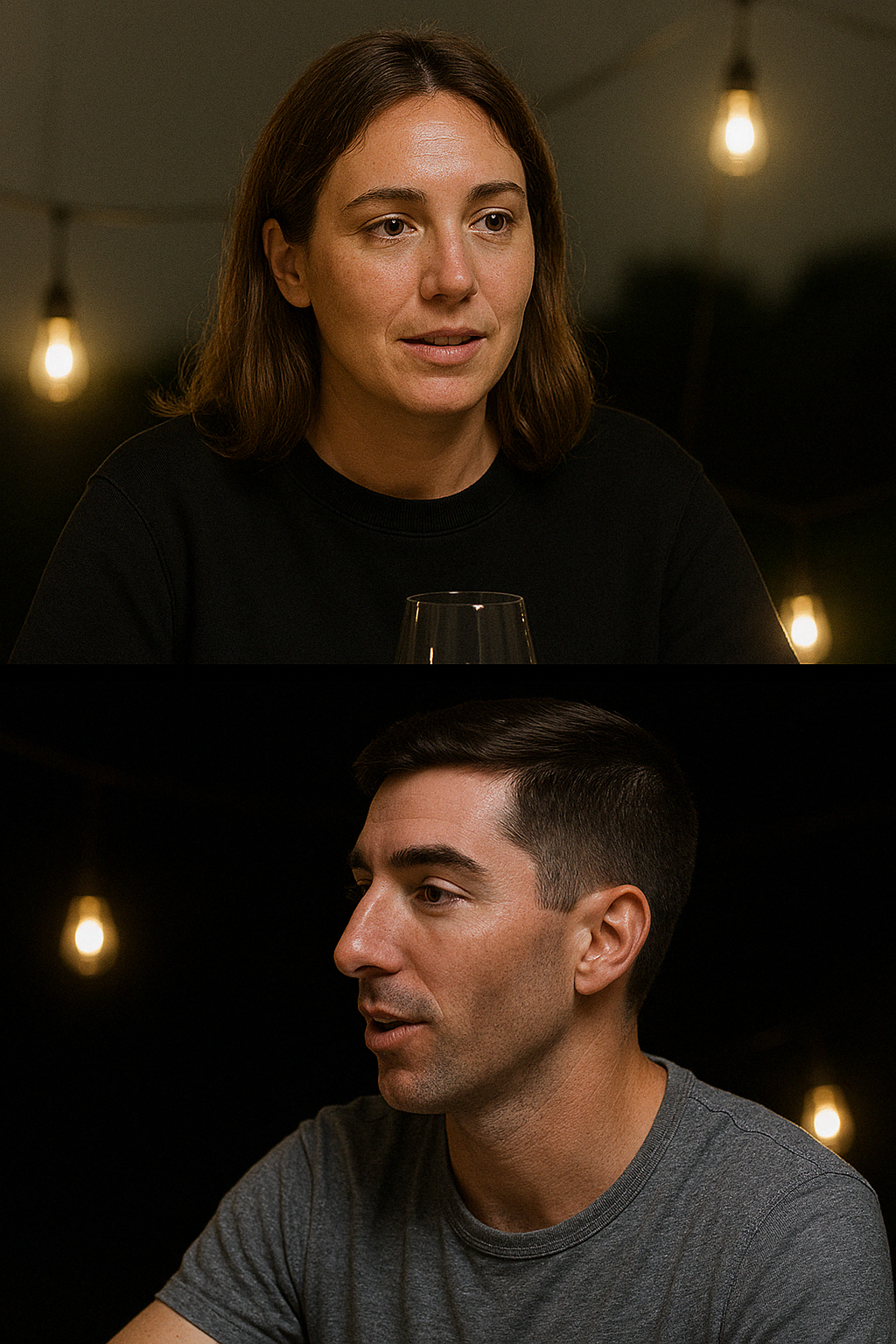
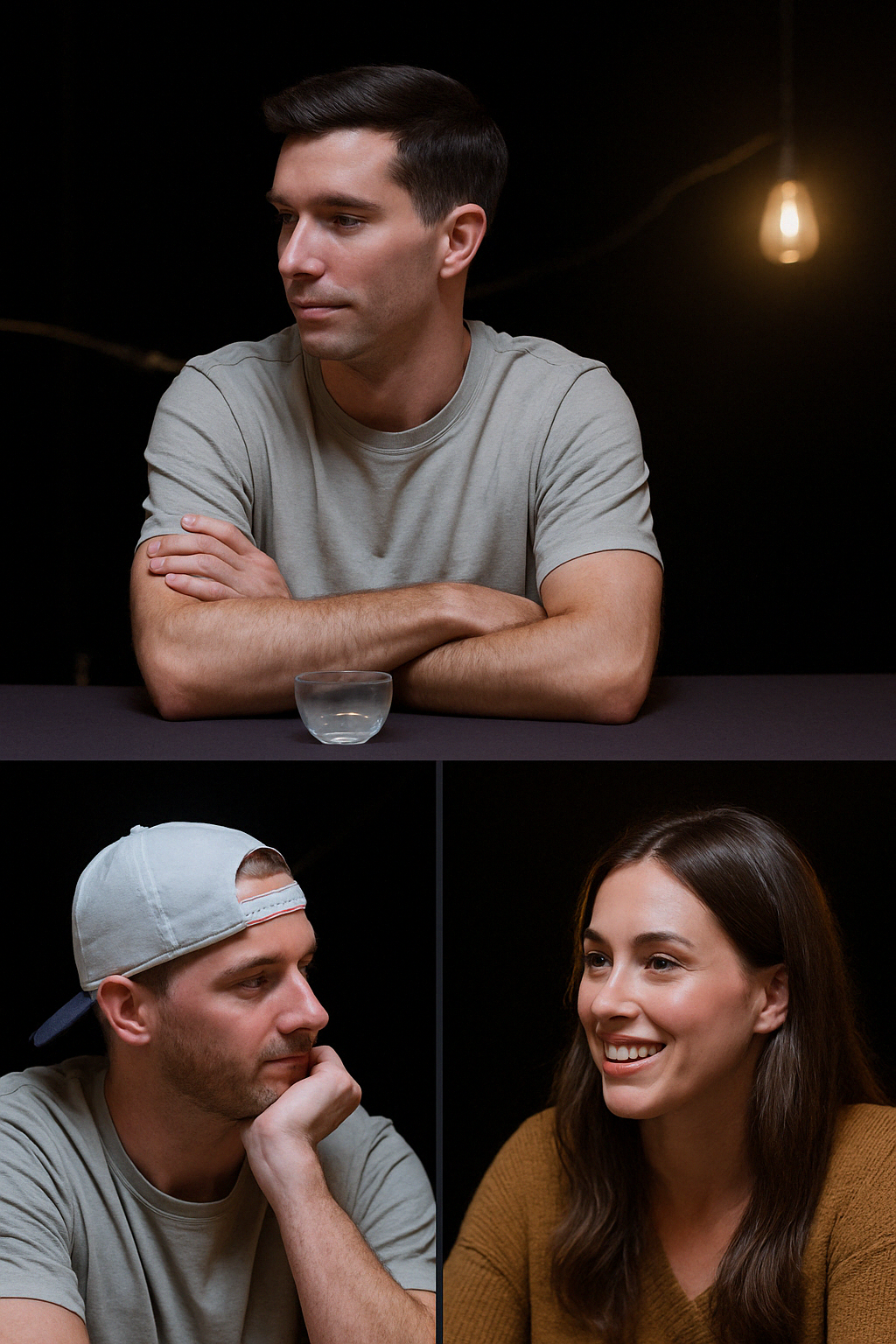
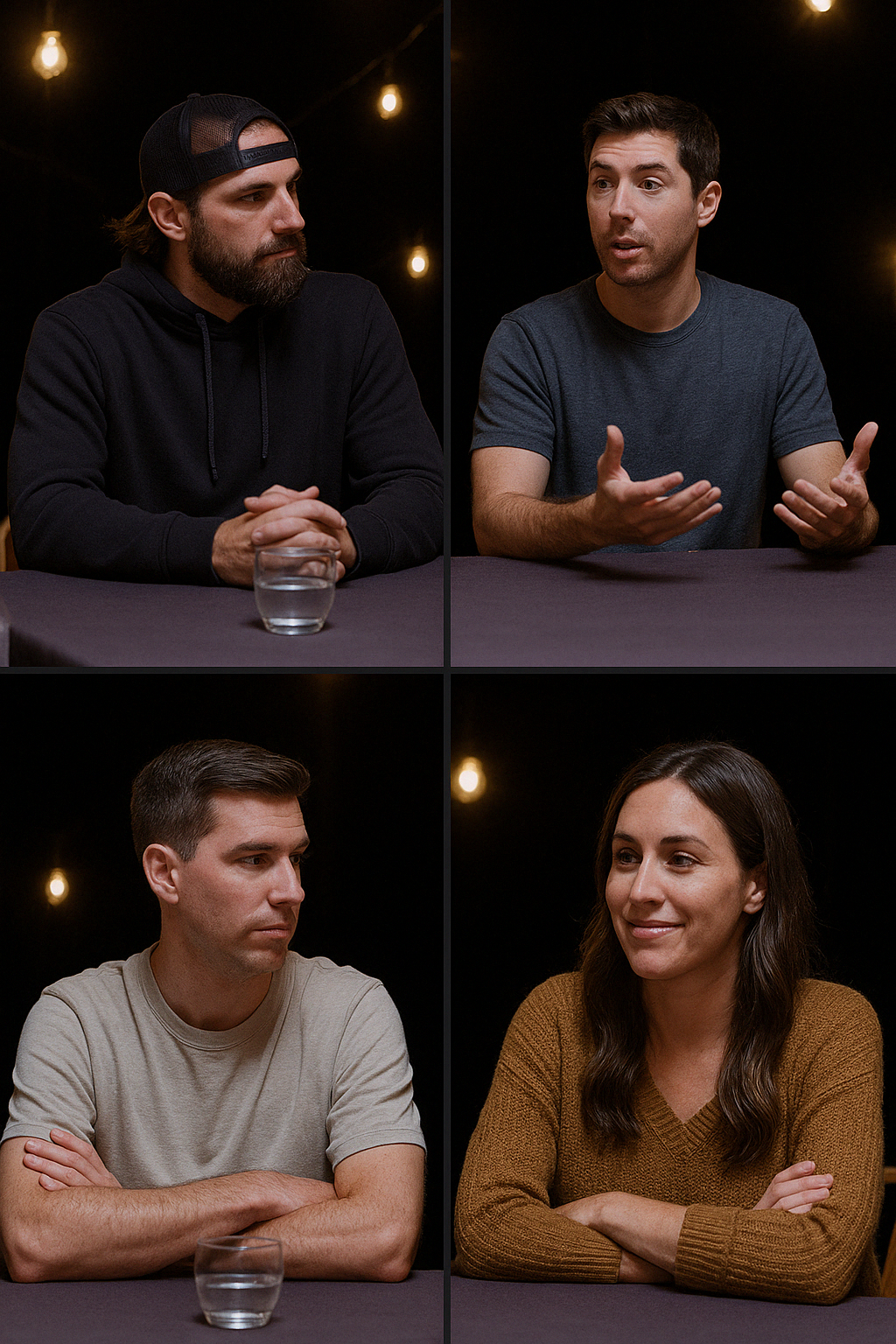
💡 Tip: If face tracking is enabled, it’s recommended to keep all layouts activated for better quality and optimal automatic switching between layouts based on detected faces.