Connecting YouTube
Connect your YouTube channel to schedule and post videos directly from VDClip. This guide will walk you through everything you need to know before and during the connection process.
Before You Start
Before attempting to connect your YouTube channel, make sure you have all the following requirements ready:
- ✓YouTube Channel
You must have a YouTube channel created. A Google account is required to create a YouTube channel.
- ✓Compliance with YouTube Guidelines
Your YouTube channel must comply with YouTube’s community guidelines and terms of service.
Step-by-Step Connection Guide
Follow these detailed steps to connect your YouTube channel to VDClip:
📅 Step 1: Access Calendar and Social Accounts
Navigate to the Calendar section in your VDClip dashboard, then access the Social Accounts settings.
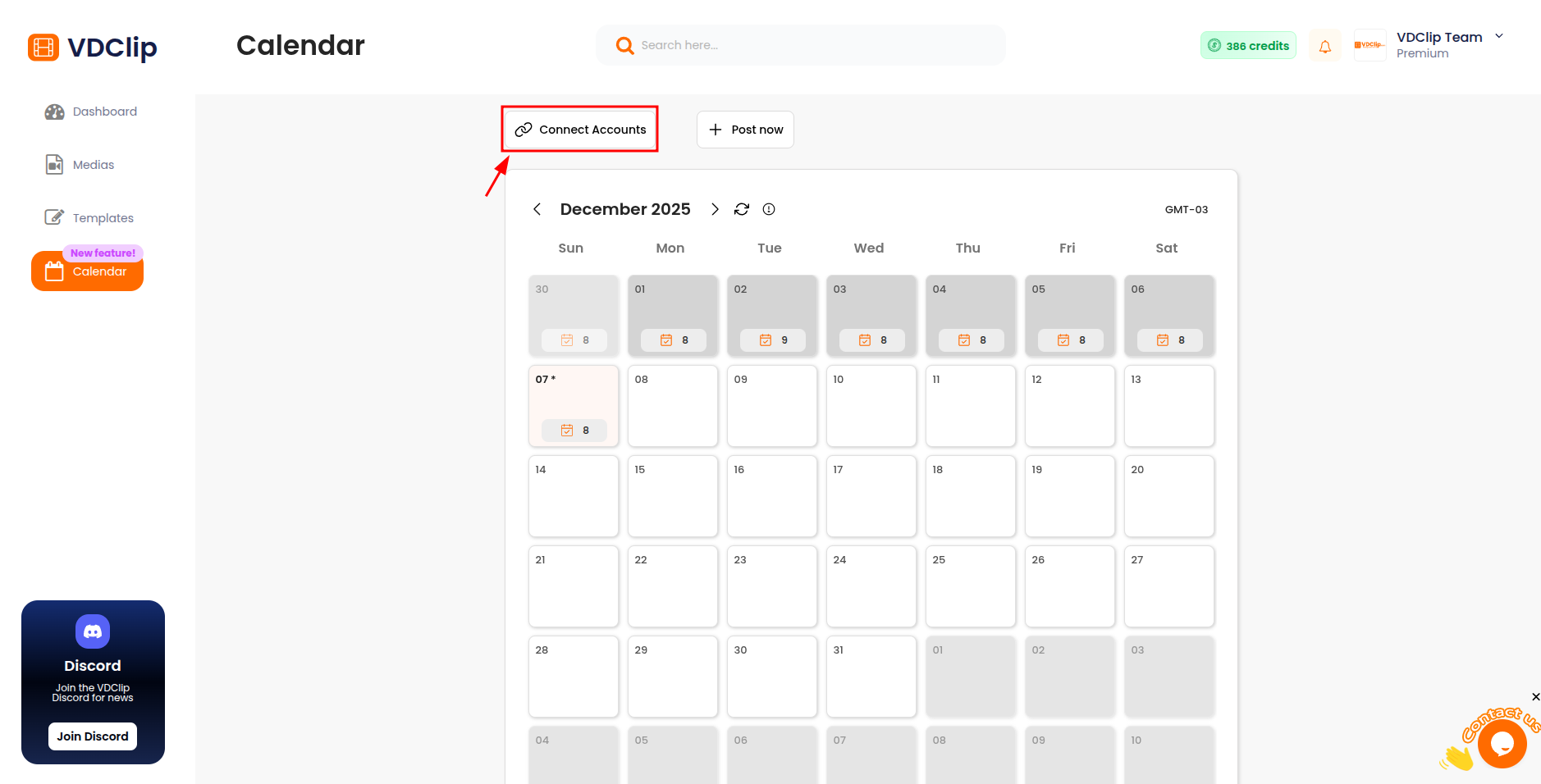
🔗 Step 2: Click “Connect Account” and Select YouTube
In the Social Accounts section, click on the “Connect Account” button. This button is used to connect social media accounts. A popup will open showing available platforms. Select YouTube from the available options to begin the connection process.
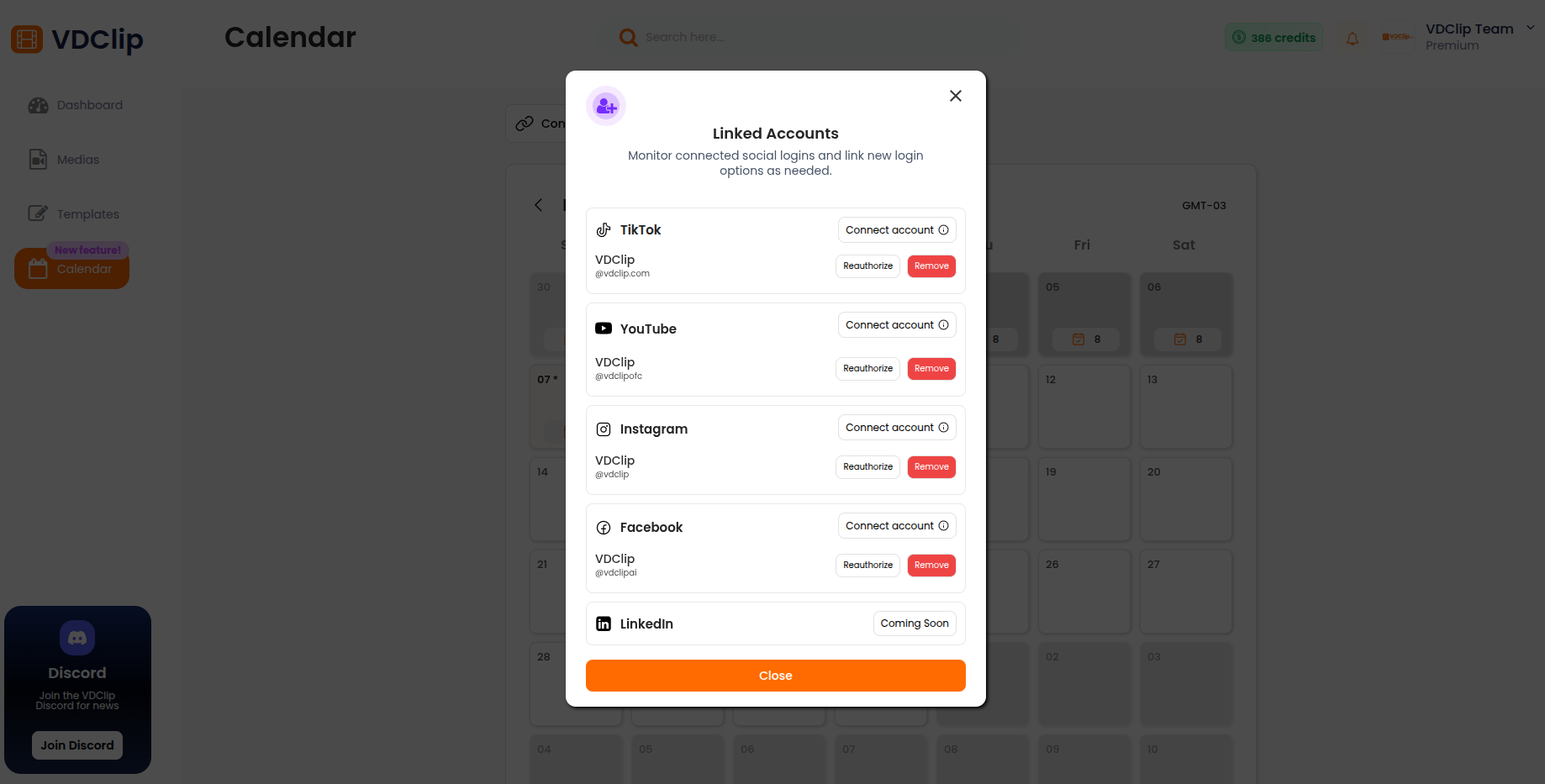
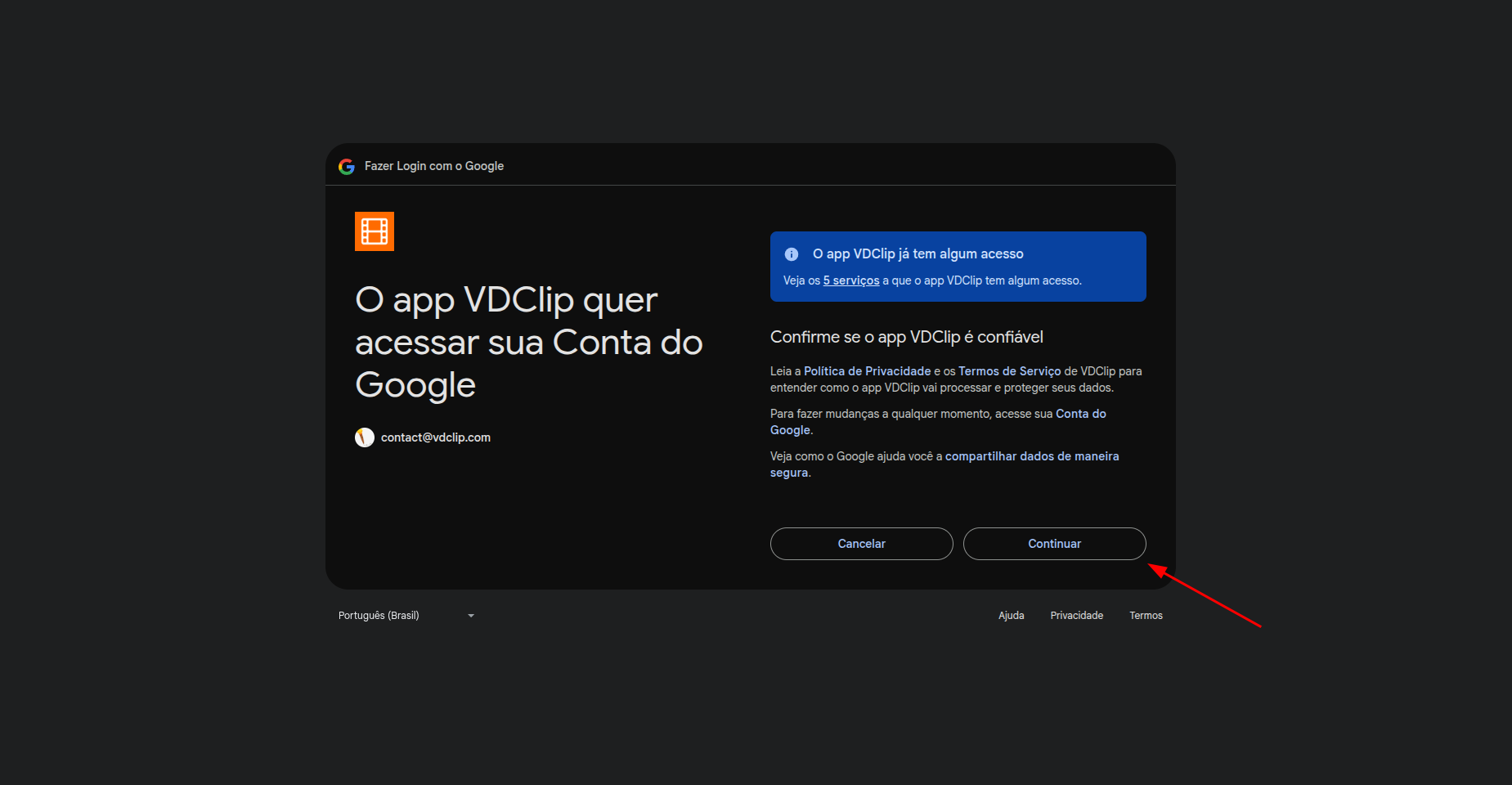
🔐 Step 3: Google OAuth Authorization
You’ll be redirected to Google’s authorization page. Important: YouTube uses Google authentication, so you’ll authorize through your Google account. Follow these steps:
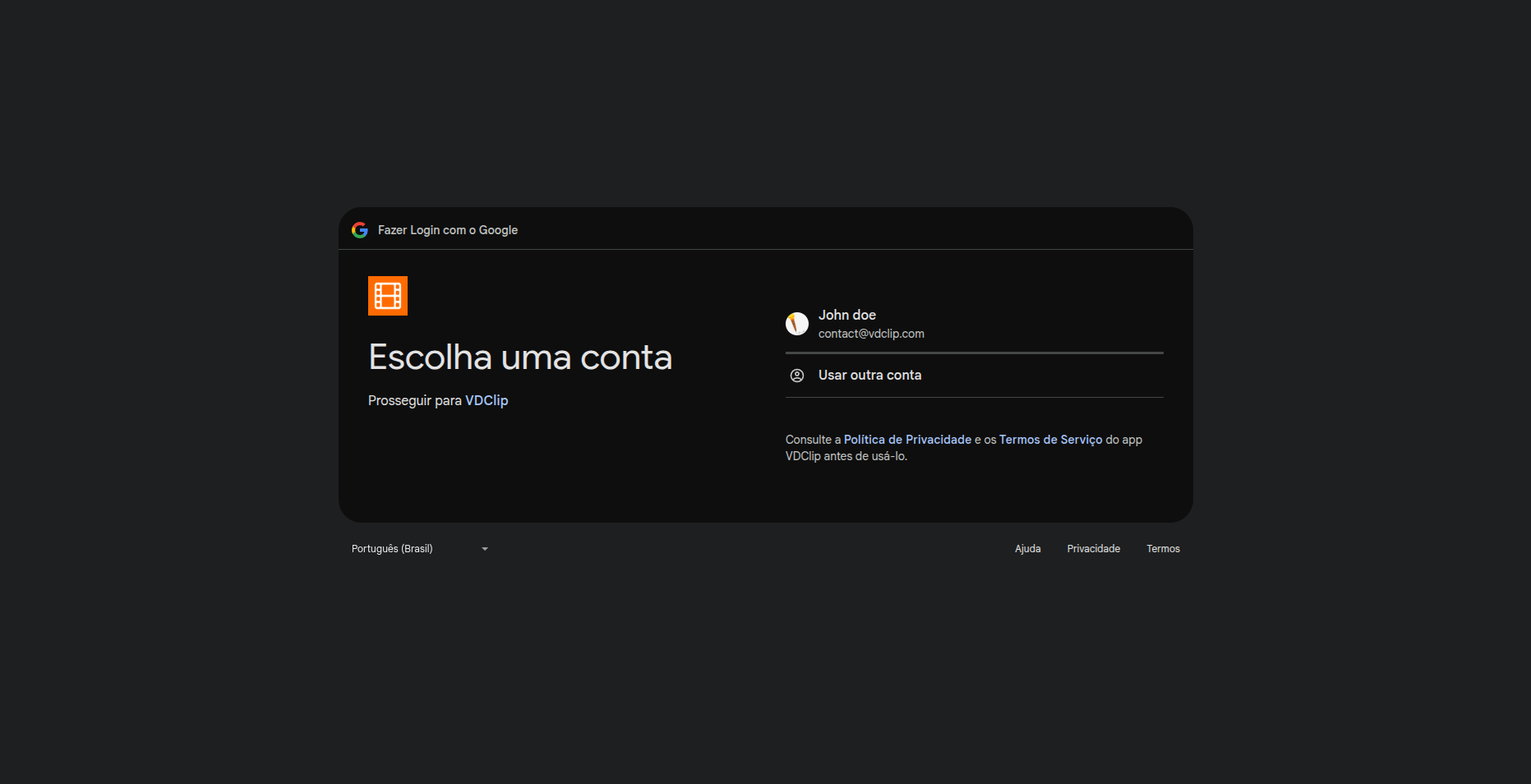
3.1 Select Google Account
Select the Google account that has access to the YouTube channel you want to connect. Make sure you’re logged into the correct account.
3.2 Select YouTube Channel
If you have access to multiple YouTube channels, select the channel you want to connect to VDClip.
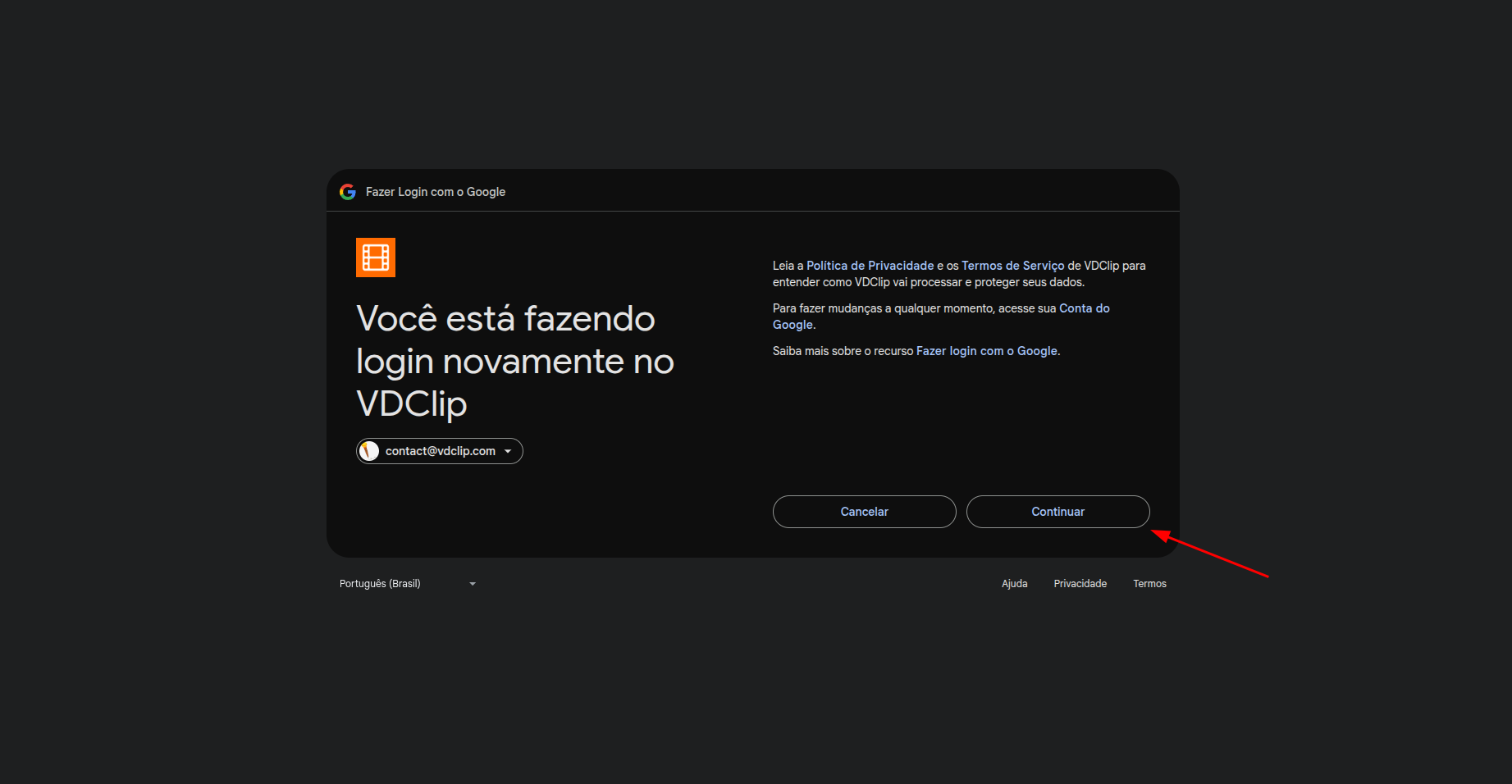
3.3 Accept Permissions
Accept the necessary permissions to allow VDClip to manage your YouTube channel, upload videos, and publish content.
✨ Step 4: Connection Successful
After completing the Google authorization, you’ll be redirected back to the VDClip platform. Your YouTube channel connection has been successfully completed. You can now see your connected YouTube channel in the calendar’s account listing and start using it immediately for scheduling and posting videos.