Face Motion
Face Motion uses AI-powered face detection to automatically track and follow faces in your video. The camera dynamically adjusts the crop to keep the speaker centered, creating a smooth, cinematic panning effect without any manual keyframing.
How It Works
Click on a video clip in the timeline or canvas
In the properties panel, find the Face Motion section and enable it
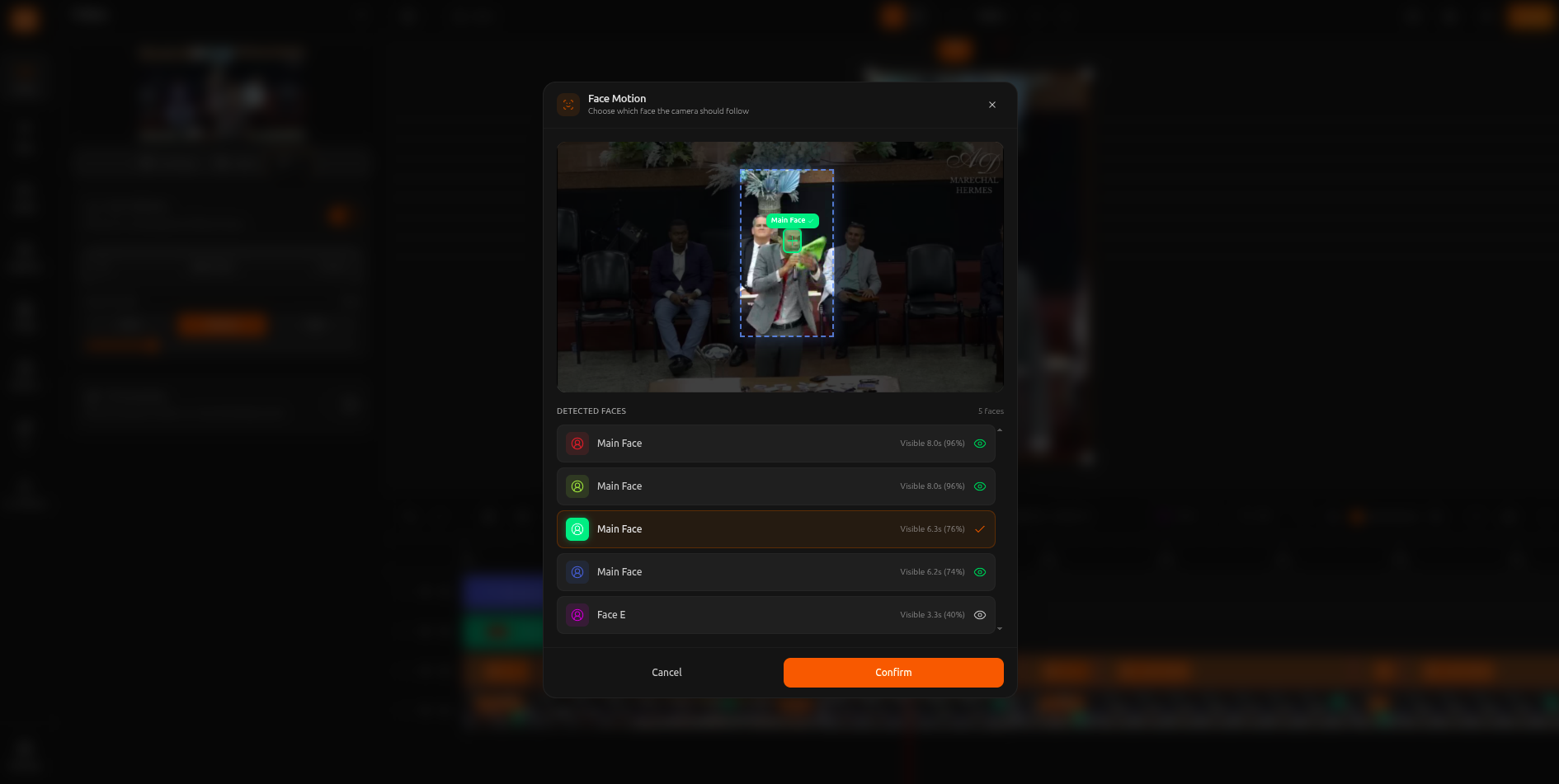
The editor detects all faces in your video. Choose which person to follow.
Face Motion Controls
Face Selection
The editor detects all faces and shows how much each person appears in the video. Select the main speaker or switch between tracked faces at any time.
Zoom
Controls how much the camera zooms in on the face. A lower value shows the widest view, while a higher value creates a tight close-up frame around the speaker. The zoom level applies to all panels equally.
Face Motion with Layouts
Face Motion works with multi-panel layouts too. In Split or Grid layouts, each panel can track a different face.
Podcast Split Screen
Track each speaker in their own panel for a professional podcast layout
Interview Grid
Follow the interviewer and guest simultaneously in a multi-panel grid
Reaction Videos
Keep the original content in one panel and the reactor in another, both auto-tracked
Per-Panel Face Tracking
This means you can have a podcast layout where the left panel follows Speaker A and the right panel follows Speaker B. Each panel selects its own face to track.
Tips & Best Practices
Combine with Split Layout for Podcasts
Use Split Horizontal layout with Face Motion on each panel to automatically follow each speaker in a two-person conversation.
Preview Before Exporting
Always preview your video with Face Motion enabled to make sure the tracking looks natural and the framing is correct throughout.
Use with Grid Layouts for Group Content
In Grid 3 or Grid 4 layouts, assign a different face to each panel to create multi-speaker compositions automatically.