Text & Captions
The editor offers two types of text: text overlays for titles, callouts, and decorative text you can position freely, and captions that are automatically synchronized with the speech in your video.
Free Text
Create titles, callouts, and decorative text positioned anywhere you want on the canvas
Captions
Text automatically synchronized with your video’s audio, ideal for accessibility and engagement
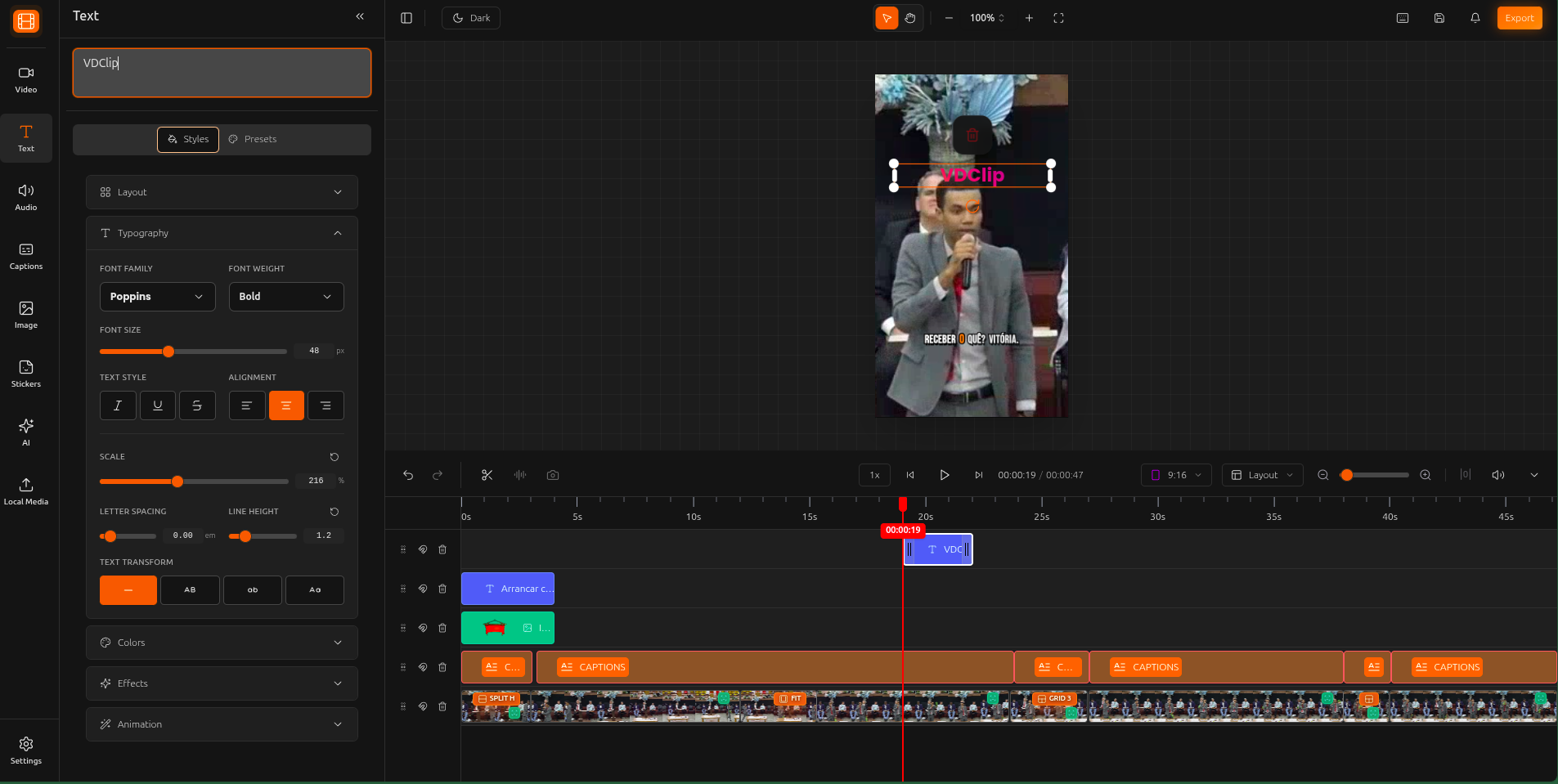
Adding and Editing Text
Click on “Text” in the sidebar to see all text options
Pick a pre-styled text preset for a quick start, or add a blank text to customize entirely
Drag to move, resize with the corner handles, and double-click to edit the text content
Customize Text Appearance
Select a text element to access the full range of styling options in the properties panel.
Font & Typography
Choose from hundreds of Google Fonts, adjust size, weight, and spacing
Colors
Set a solid color or gradient for your text
Background
Add a colored box behind your text with padding and rounded corners
Stroke
Add an outline around your text for emphasis and contrast
Shadow
Create depth with customizable text shadows
Special Effects
Apply glow, neon, and extrude effects for creative text styles
Working with Captions
Captions are automatically generated from your video’s audio and synchronized word-by-word with the speech.
Captions are created automatically from your video’s audio using AI
Click on any word to correct the text. Use the filter to remove filler words or unwanted segments from your captions.
Combine multiple caption segments into one to control how many words appear on screen at the same time.
Change fonts, colors, background, stroke, shadow, and special effects. Same styling options as text overlays.
Word Highlight (Karaoke)
Make your captions more engaging by highlighting each word as it’s spoken. Choose from four highlight modes:
Bounce
The active word bounces when spoken
Scale
The word grows larger when spoken
Underline
An underline appears under the active word
Wave
A wave effect passes through the spoken word
Position Your Captions
Choose where captions appear on screen. The most common positions are:
Top
Captions appear at the top of the video
Center
Centered vertically. Most popular choice
Bottom
Captions appear at the bottom of the video
💡 Tip: 9 position options are available in total (top-left, top-center, top-right, center-left, center, center-right, bottom-left, bottom-center, bottom-right).
Tips & Best Practices
Captions Boost Engagement by Up to 80%
Most viewers watch videos on mute. Adding captions makes your content accessible and keeps viewers watching longer.
Use Karaoke Mode for More Engagement
Word-by-word highlighting keeps the viewer's attention focused and makes your content feel more dynamic and professional.
Choose Large, High-Contrast Fonts
Pick fonts that are large enough and have good contrast against your video background to ensure readability on small screens.
Center Captions for Instagram Reels
Position captions in the center of the frame to avoid overlap with Instagram's interface elements at the top and bottom.