Layouts & Crop
Layouts control how your video fills the canvas, and crop lets you select exactly which part of a video or image is visible. Together, they give you full control over framing and composition.
Available Layouts
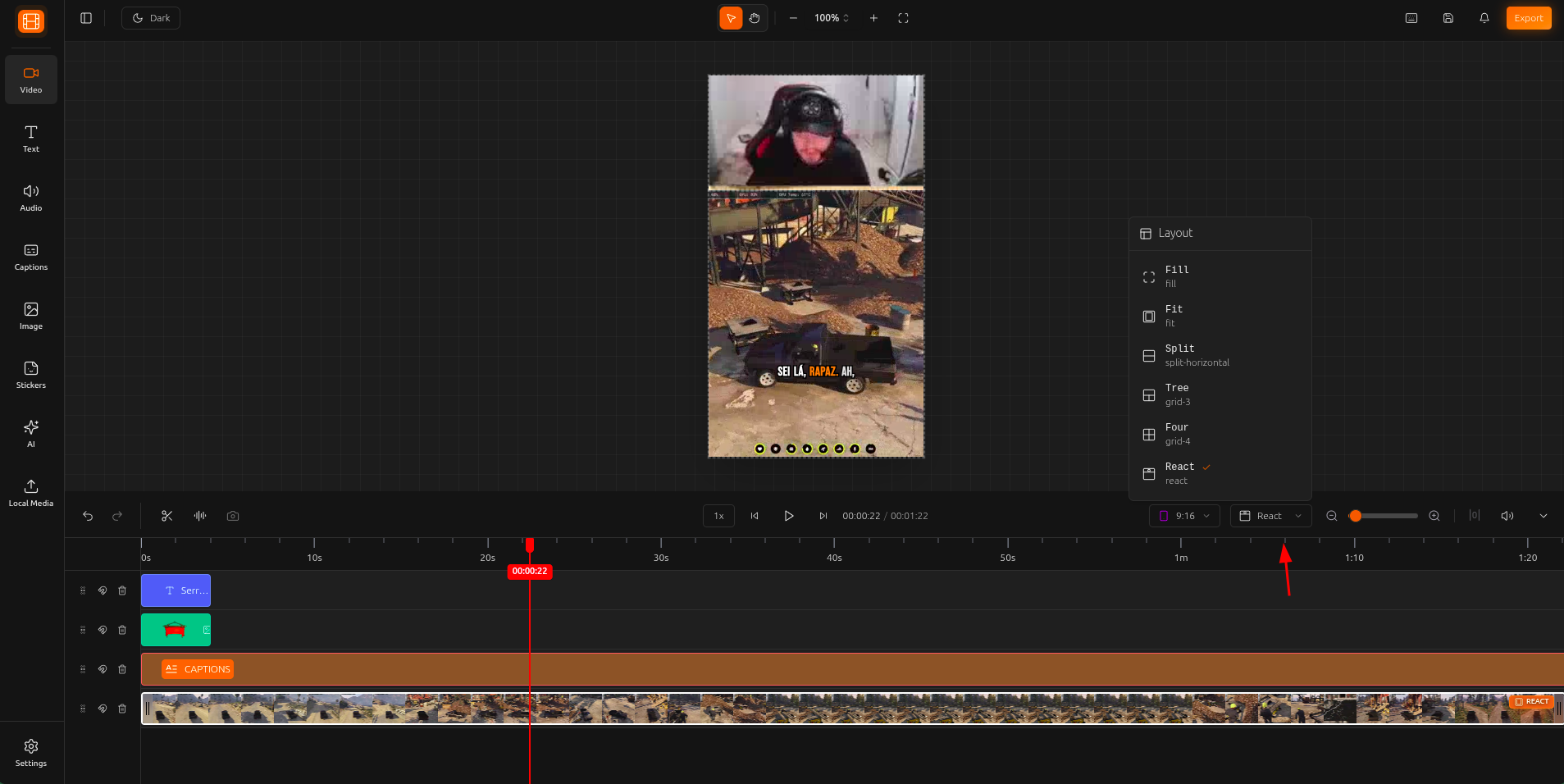
Choose a layout to control how your video fills the canvas. Each layout is designed for a specific use case.
Fill
The video fills the entire canvas, cropping edges if the aspect ratio does not match. Best for single clips that need full-screen presence.
Best for: YouTube, Twitch, full-screen content
Fit
The video fits inside the canvas without cropping. A blurred version of the video fills the remaining space. No content is lost.
Best for: vertical video on landscape canvas, preserving full frame
Split Horizontal
Side-by-side split screen with two video panels. Each panel can be cropped and tracked independently.
Best for: reaction videos, comparisons, podcast with two speakers
Grid 3
Three-panel grid layout. Each panel shows a different section of the video with independent crop and tracking controls.
Best for: multi-angle footage, group discussions, highlight reels
Grid 4
Four-panel grid layout. Great for roundtable discussions, multi-camera setups, or compilation-style content.
Best for: roundtables, multi-camera, compilations
React
Reaction layout with a small picture-in-picture panel over the main video. Perfect for recording reactions or commentary over existing content.
Best for: reaction videos, commentary, gaming reactions
How to Change Layout
Select your video element
Open layout settings
Choose a layout
Crop Tool
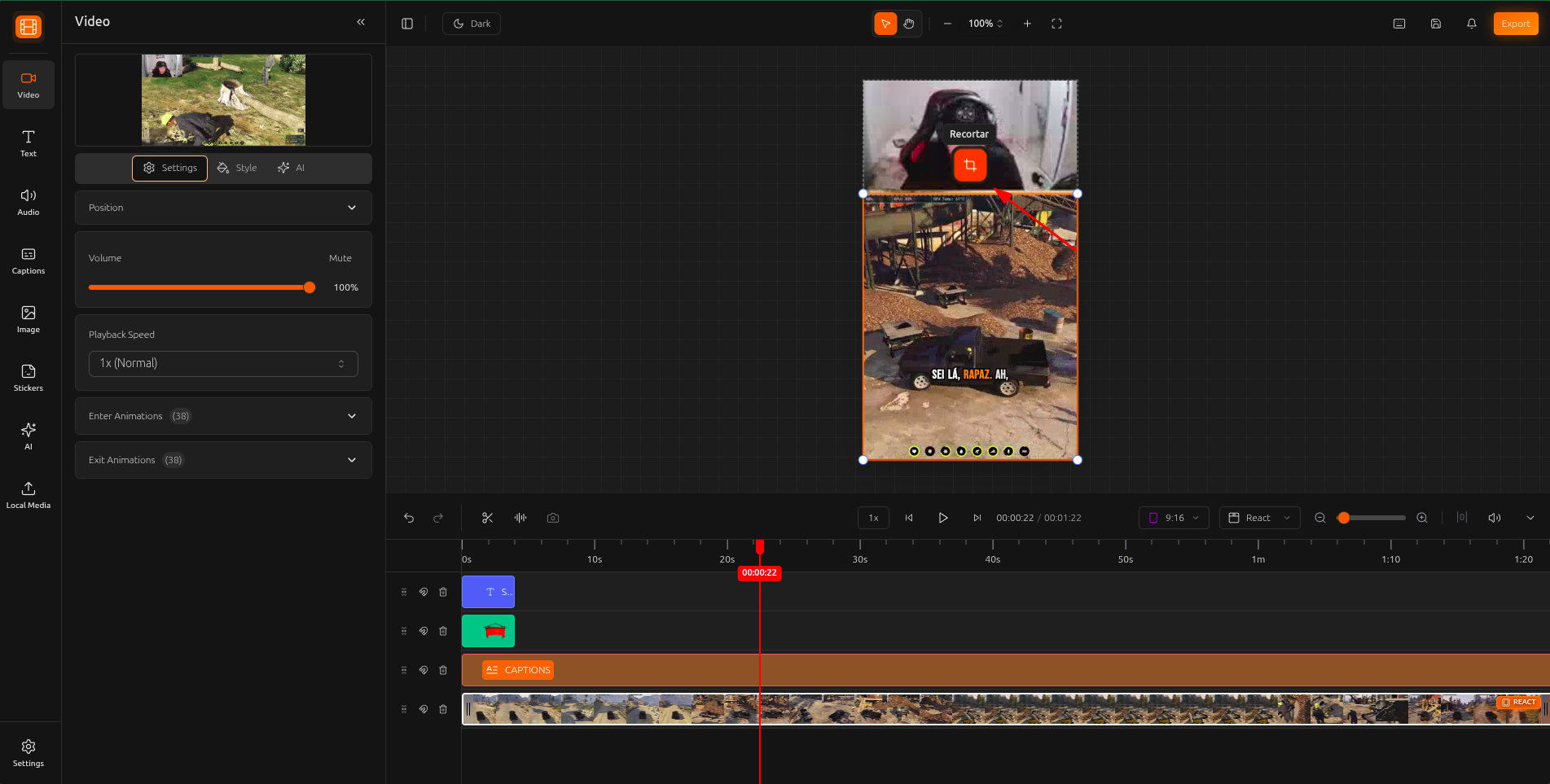
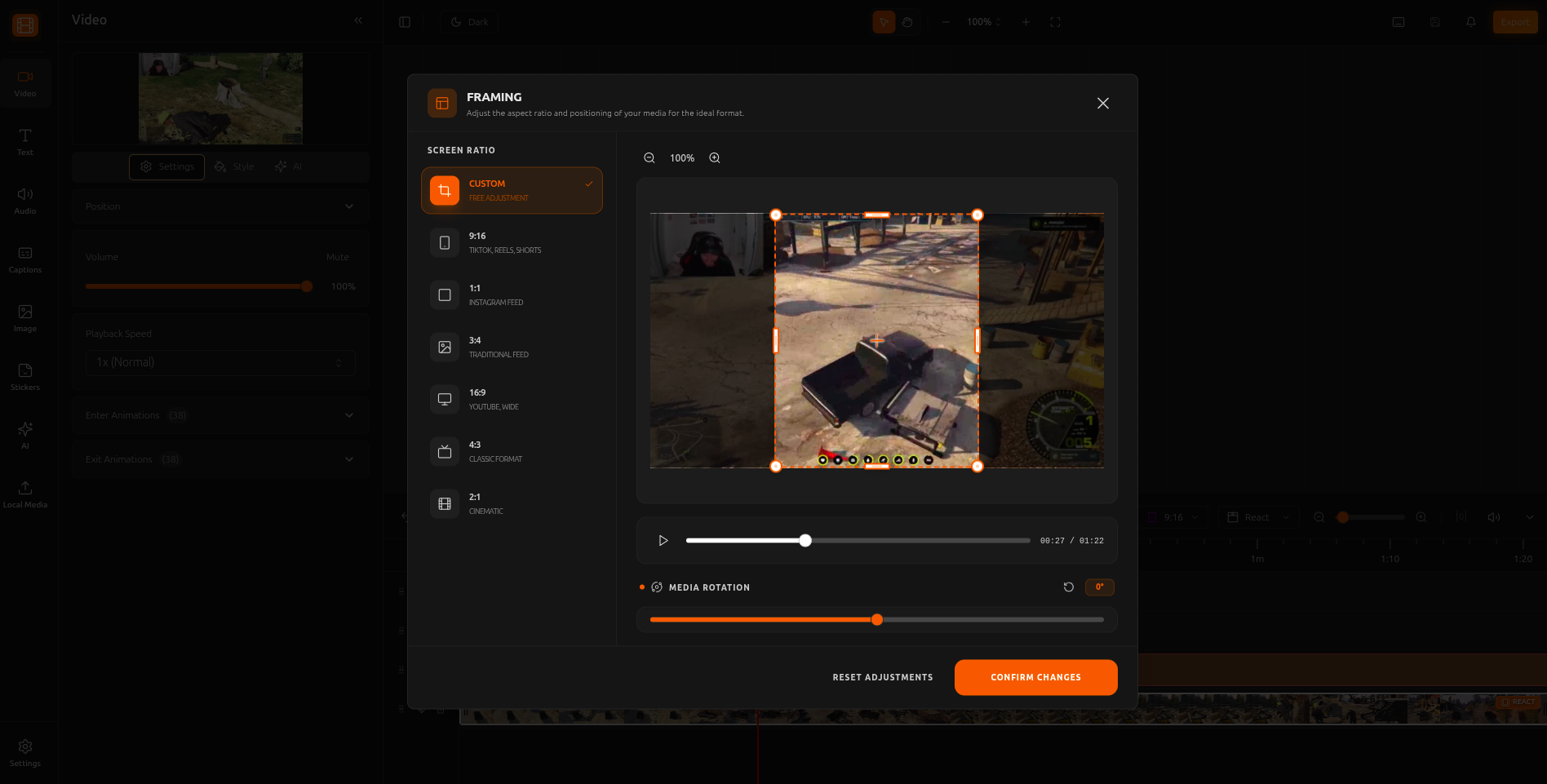
Select the exact area of your video or image you want to show. Crop is useful for removing unwanted edges, focusing on a specific part of the frame, or creating custom compositions.
Select an element
Open crop settings
Adjust the crop area
Panel-Level Crop
Independent Crop per Panel
When using Split or Grid layouts, you can crop each panel individually to focus on a specific part of the video. This is especially powerful when combined with Face Motion tracking, where each panel can follow a different speaker.
Tips & Best Practices
When placing a vertical video on a landscape canvas, the Fit layout adds a beautiful blurred background instead of black bars.
The Split Horizontal layout is perfect for reaction videos. Place the original content in one panel and the reactor in the other.
Set your crop area first, then enable Face Motion. The tracking will work within the cropped region for precise framing.
Use Grid 3 or Grid 4 when you have multiple speakers in a single video. Each panel can track a different face.