Adding Media
The editor comes with a built-in library of free stock media and also lets you upload your own files. You can add videos, images, music, stickers, and GIFs, all without leaving the editor.
Browse the Library
Search and browse free media from popular stock providers, all integrated directly into the editor.
Videos
Search free videos from Pexels and Pixabay directly in the editor
Images
Find high-quality photos from Pexels and Pixabay
Stickers & GIFs
Add animated stickers and GIFs from Klipy
Music & Audio
Choose royalty-free songs from Incompetech, integrated into the VDClip music library
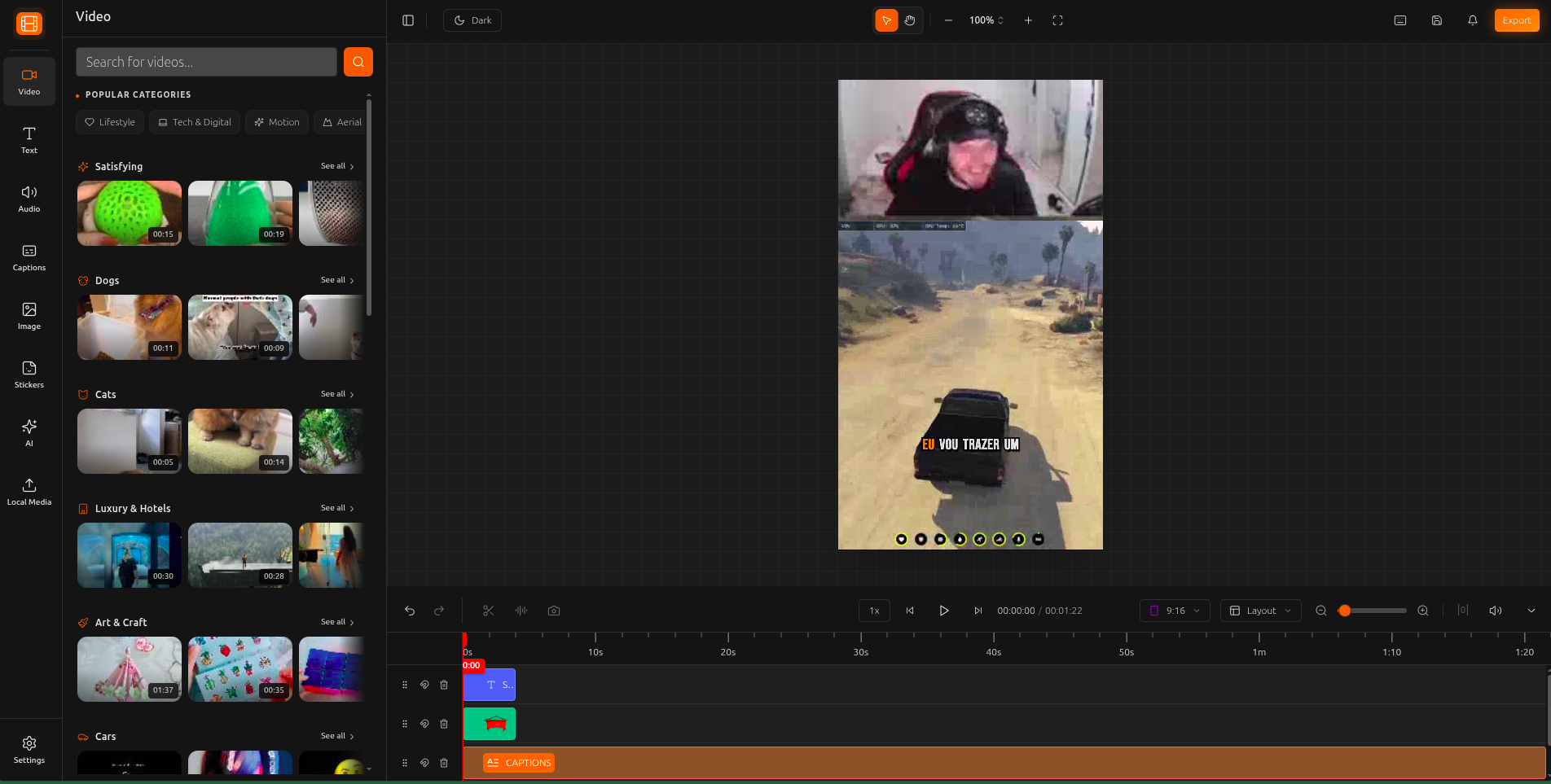
How to Add Media to Your Project
Open the panel you need
Search or browse
Click to add
Upload Your Own Files
You can also use your own videos, images, and audio files in the editor.
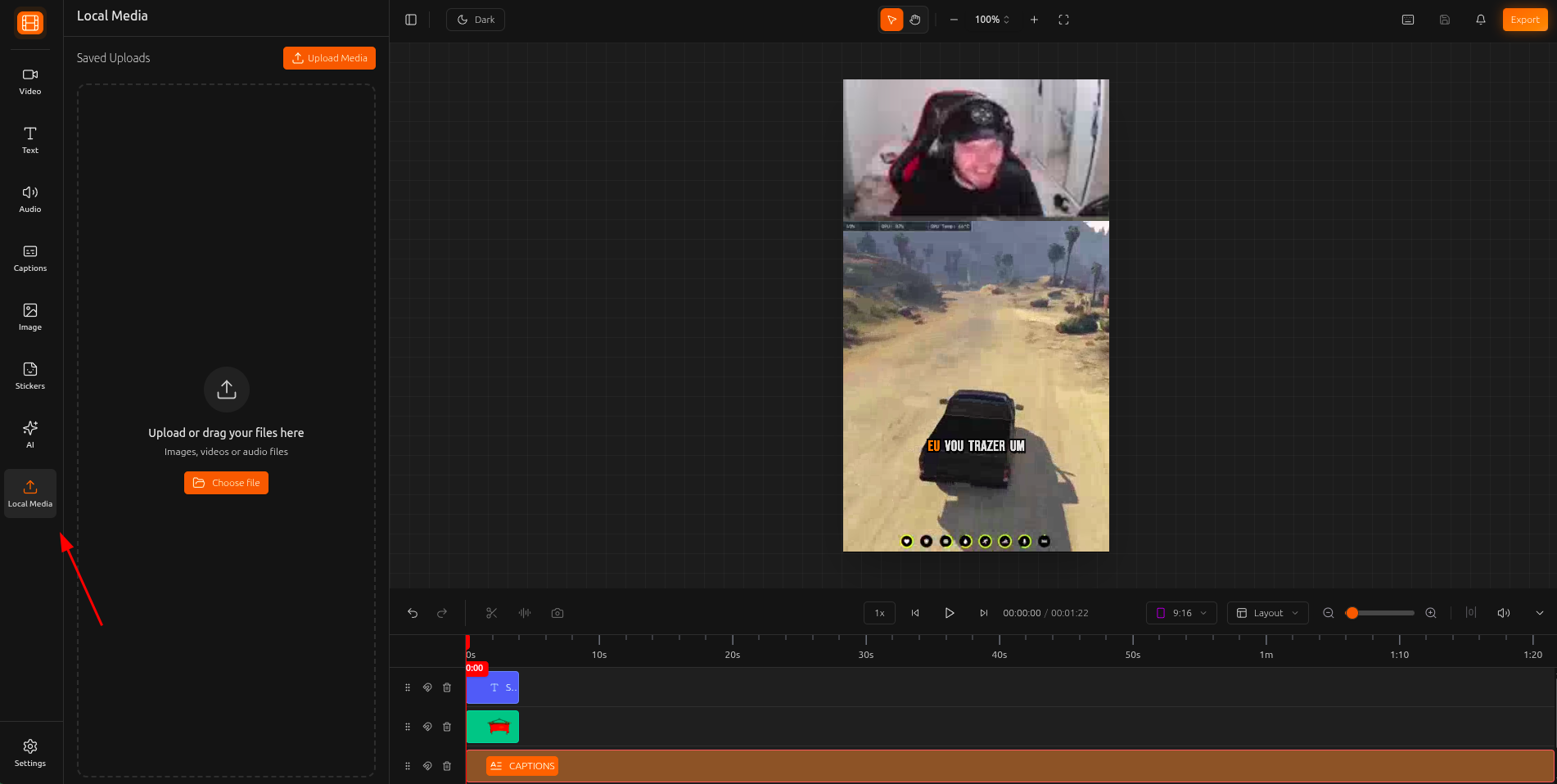
Open Local Media
Upload your file
Use in your project
The maximum file size varies depending on your plan. Check the pricing page for details on file size limits for each plan.
After Adding Media
Once media is on the timeline, you can customize how it looks and sounds using the editor’s tools.
Layouts & Crop
Control how your video fills the canvas with Fill, Fit, Split Screen, or Grid layouts. Crop to show only the part you want.
Learn more →Face Motion
AI-powered face tracking that keeps speakers centered with smooth, cinematic camera movement.
Learn more →Audio & Music
Adjust volume, add fade effects, set start positions, and use silence removal on your audio tracks.
Learn more →Filters & Effects
Add entrance/exit animations, apply cinematic filters, or use chroma key for green screen effects.
Learn more →Tips & Best Practices
Use specific keywords when searching the stock library. Instead of "nature", try "forest aerial view" or "ocean sunset" for more relevant results.
For TikTok and Reels, use 9:16 portrait format. For YouTube, use 16:9 landscape. Choose the right format before adding media.
Click on stock media items to preview them before adding to your timeline. This saves time and keeps your project organized.
Layer different media types on separate timeline tracks. Keep your video on one track, overlays on another, and audio on its own for easier editing.