Profile
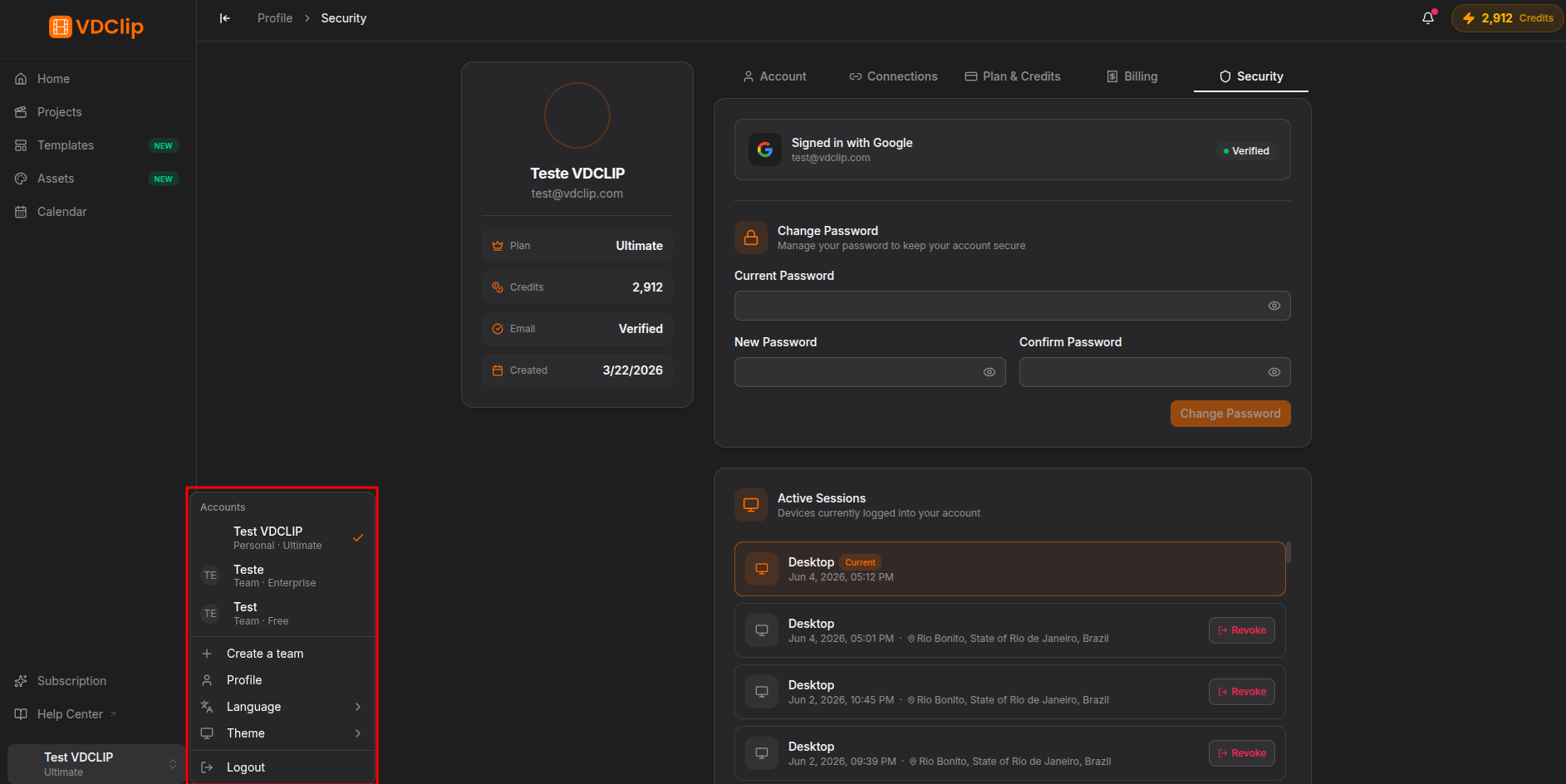
The profile page brings together everything about your VDClip account. Use it to update your details, connect social media accounts, track your plan and credits, and review your account security.
Accessing Your Profile
1
Open the user menu
Click your avatar or name in the top-right corner of the dashboard.
2
Select Profile
Choose Profile from the dropdown menu. You open on the Account tab by default.
3
Navigate between tabs
Use the sidebar on the left to switch between Account, Connections, Plan, and Security.
What Is in Each Tab
The page is organized into four tabs in the sidebar:
- Account: update your name, email, phone, and picture, and check your email and phone verification status. See details.
- Connections: connect and manage your YouTube, TikTok, Instagram, and Facebook accounts. Reconnect or disconnect whenever needed. See details.
- Plan: view your current plan, the cycle’s credit balance, and the available packages, and access the upgrade. See details.
- Security: change your password and review active sessions (IP, browser, and last activity), revoking any you do not recognize. See details.
Frequently Asked Questions
Last updated on