Music
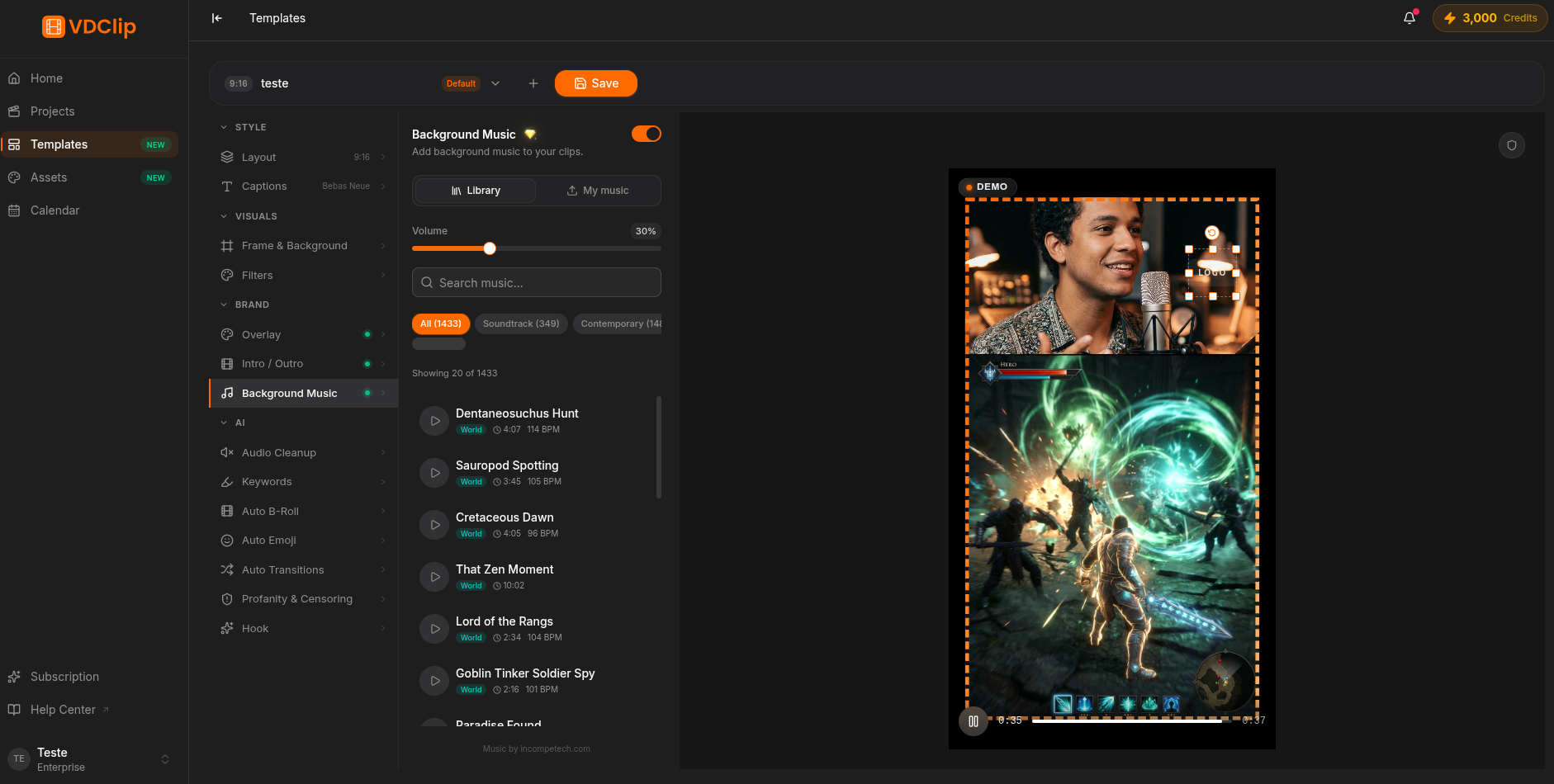
The background music plays under the speech in every clip generated by the template. Pick a track, set the volume, and smooth out the entry and exit.
How to set it up
Pick the track
In the Music panel, open the selector and choose the track. Tracks come from your Assets: only the files registered there appear in the list.
Adjust the volume
Set the music level relative to the voice. Keep it low for podcasts, interviews, and talking-head videos; raise it for ambience-only clips with no speech.
Smooth the entry and exit
Enable fade in for the music to rise from silence at the start and fade out for it to fall to silence before the clip ends. It avoids harsh cuts.
Enable loop
Turn on auto loop when the track is shorter than the clip. It repeats continuously until the end; if it is longer, it is cut off.
Supported formats
The track can be uploaded in MP3 (compact and universal), AAC (light, common in exported audio), or WAV (uncompressed, maximum fidelity). To add new tracks, go to the Assets page; what is there appears in the selector of all templates.
Upload only royalty-free music or tracks you have the right to use. Copyrighted tracks can be blocked or muted on social networks.