AI Enhancements
The AI section of the template applies automatic enhancements to every clip generated. Configure once and each processed video receives the same treatment.
How to set it up
Enable audio cleanup
Turn on remove filler words to cut verbal tics like “um”, “like”, and “you know”, and remove silent pauses to tighten the pace. It only acts on the speech track, is more effective with a single presenter, and does not affect music or effects.
Configure AI captions
Enable keyword highlight to emphasize the most important terms in each sentence (from subtle to dense), and auto emojis to insert contextual emojis alongside the text. Both can be on at the same time.
Turn on auto b-roll
Enable auto b-roll to let the AI read the transcription and insert images from a licensed library that illustrate the speech. The original audio keeps playing underneath, with no upload needed from you.
Add auto transitions
Enable auto transitions to insert soft cuts between scenes (cut, dissolve, wipe, and others), with adjustable style and duration.
Set the profanity filter
Choose how aggressive detection is: Off censors nothing, Mild handles only the strongest profanity, and Strict covers a broader vocabulary, in audio (beep or silence) and in captions (asterisks). The censored-word lists added on Assets still apply at any level.
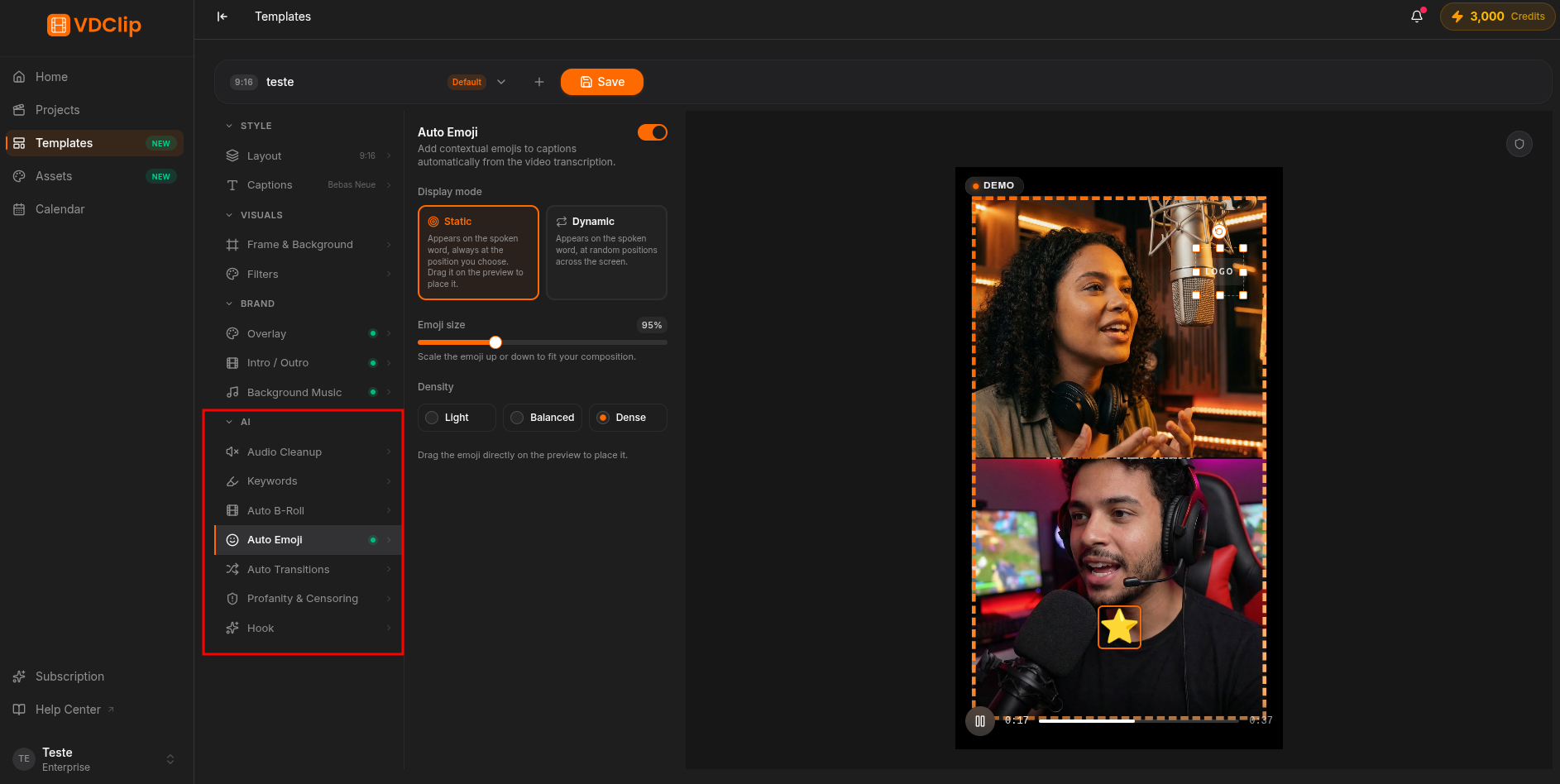
What each feature affects
Audio cleanup and AI captions operate on different layers, so they work independently: you can tighten the speech pace even with captions off, and emojis coexist with keyword highlight. B-roll and transitions shape the visual pace without you needing to edit anything.