Skip to Content
ProfileAccount Settings

Account Settings

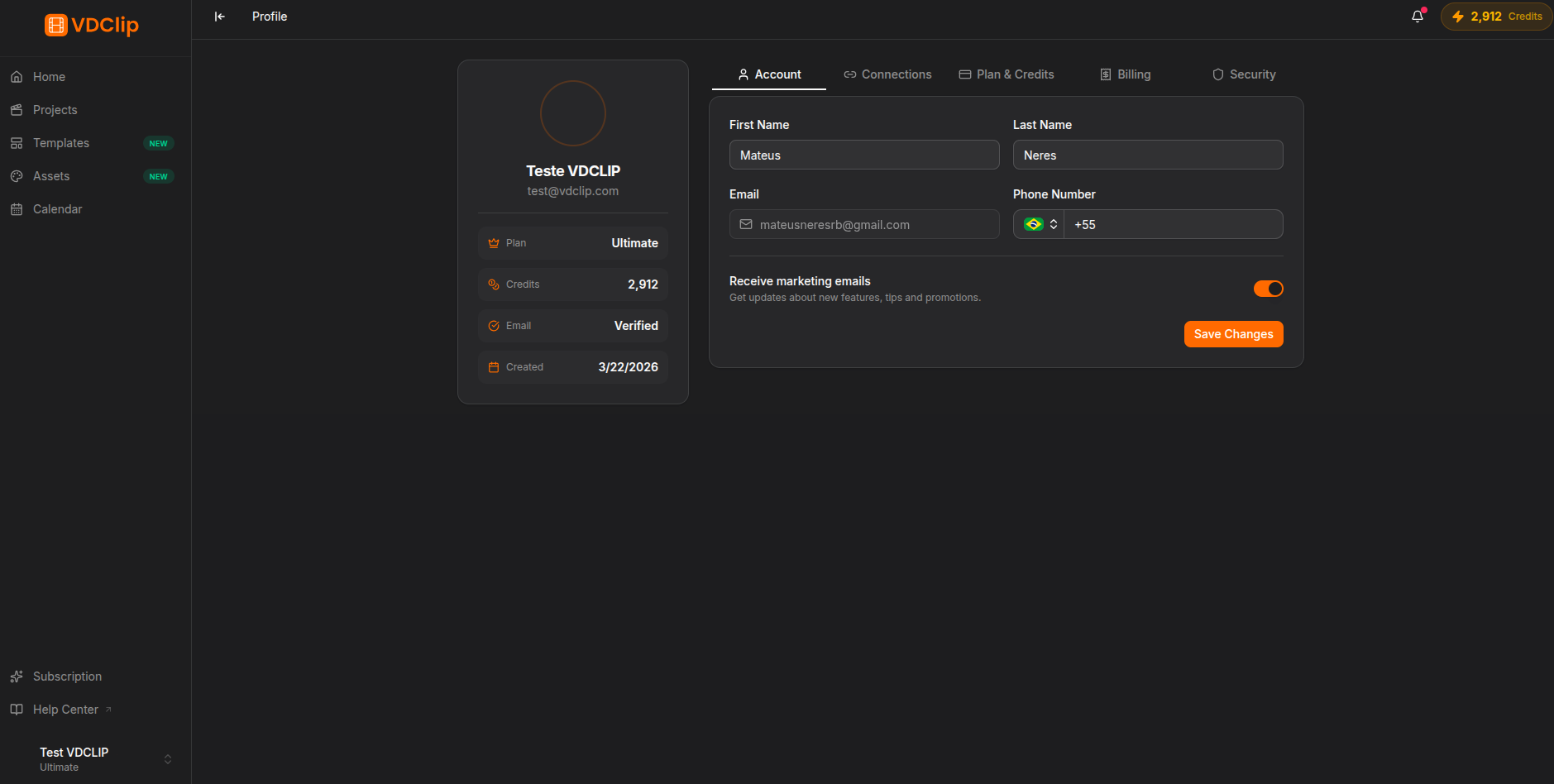
The Account tab is the default view when you open your profile. Here you can manage your personal information, update your profile picture, and verify your email and phone number.

Account settings tab showing personal info form and profile picture

Personal Information

The personal information section displays and lets you edit the following fields:

Name

Your display name shown across the platform. This appears in your profile, team views, and any content you share.

Email

Your primary email address used for login, notifications, and account recovery. Changing your email requires verification of the new address.

Phone Number

An optional phone number for additional account verification. When added, you can verify it to enable phone-based notifications.

Updating Your Name

1

Go to the Account tab

Open your profile and make sure you are on the Account tab (this is the default view).

2

Edit your name

Click the name field and type your new display name.

3

Save changes

Click the Save button to apply the update. Your new name will appear across the platform immediately.

Profile Picture

Your profile picture is displayed in the top-right corner of the dashboard and in team views. To update it:

1

Click your current picture

In the Account tab, click on your profile picture or the upload area next to it.

2

Select a new image

Choose an image file from your device. Supported formats include JPG and PNG.

3

Confirm the upload

The new picture will be uploaded and displayed automatically. The change takes effect immediately across the platform.

Profile picture upload area with current avatar displayed

Email Verification

Your email verification status is shown next to your email address. A verified email is required for full access to account features.

1

Check your verification status

Look for the verification badge next to your email address. If it shows as unverified, you will see an option to send a verification email.

2

Send verification email

Click the Verify button. A verification email will be sent to your address.

3

Confirm in your inbox

Open the email and click the verification link. Return to VDClip to see the updated status.

i
Email Changes

When you change your email address, the new address must be verified before it becomes active. You will continue to receive notifications at your old email until verification is complete.

Phone Verification

Adding and verifying a phone number is optional but recommended for additional account security.

1

Enter your phone number

In the Account tab, type your phone number in the phone field, including the country code.

2

Request verification

Click the Verify button next to the phone field. You will receive a verification code via SMS.

3

Enter the code

Type the verification code you received and confirm. Your phone number will then show as verified.

Tips and Best Practices

Keep your email up to date

Your email is used for account recovery, billing notifications, and security alerts. Always ensure it is current and verified.

Use a recognizable profile picture

A clear profile picture helps team members identify you, especially if you collaborate on shared projects.

Verify your phone for extra security

A verified phone number provides an additional layer of account protection and enables SMS-based notifications.

Check verification status after changes

After updating your email or phone, always complete the verification process to maintain full access to account features.

Frequently Asked Questions

Last updated on