Processing Status
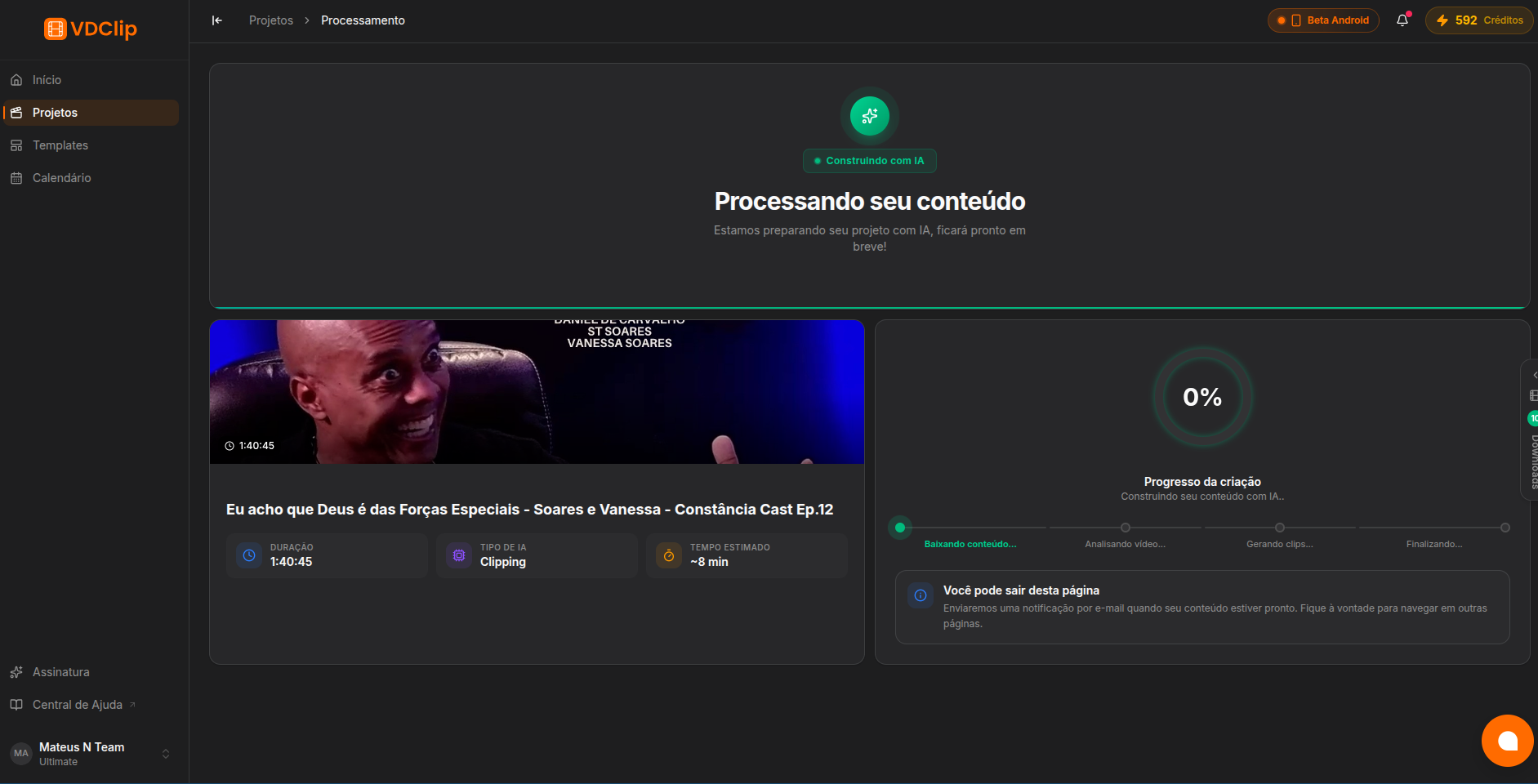
When you submit a video, VDClip opens the processing page, where you can track progress in real time. You do not need to stay on this page: you can leave and come back, or find the video in your media library at any time.
Tracking Progress
Check the video details
At the top of the page you see the thumbnail, title, and duration of the original video. Use these to confirm you uploaded the right file.
Watch the progress bar
The main card shows the progress bar, the exact completion percentage, and a text describing the current stage. Everything updates in real time.
Wait for the redirect
When it finishes, VDClip takes you automatically to the results page with the generated clips.
Status Stages
The video goes through these stages during processing:
- Queued: the video waits its turn in the processing queue. It starts shortly.
- Processing: VDClip is analyzing the video and generating the clips. The bar updates in real time.
- Completed: processing finished successfully and you are redirected to the results.
- Failed: something went wrong. This usually happens with unsupported formats or corrupted files. Upload the video again.
- Limited: your plan’s processing limit was reached during processing. Wait for the quota renewal or upgrade your plan.
- Expired: processing took too long and was stopped. This usually happens with very long or complex videos.
When Processing Expires or Fails
If the processing expires, a notice appears on the page explaining that it was stopped. In that case, you can:
- Try again: upload and process the video once more.
- Use a shorter video: trim the video before uploading to reduce the processing time.
- Upgrade your plan: higher plans may offer longer time limits.
Processing time limits and video duration limits vary by plan. Check the pricing page for your plan’s limits.