Timeline & Editing
The timeline is where you control when and for how long each element appears in your video. It’s also where you cut, reorganize, and fine-tune your project.
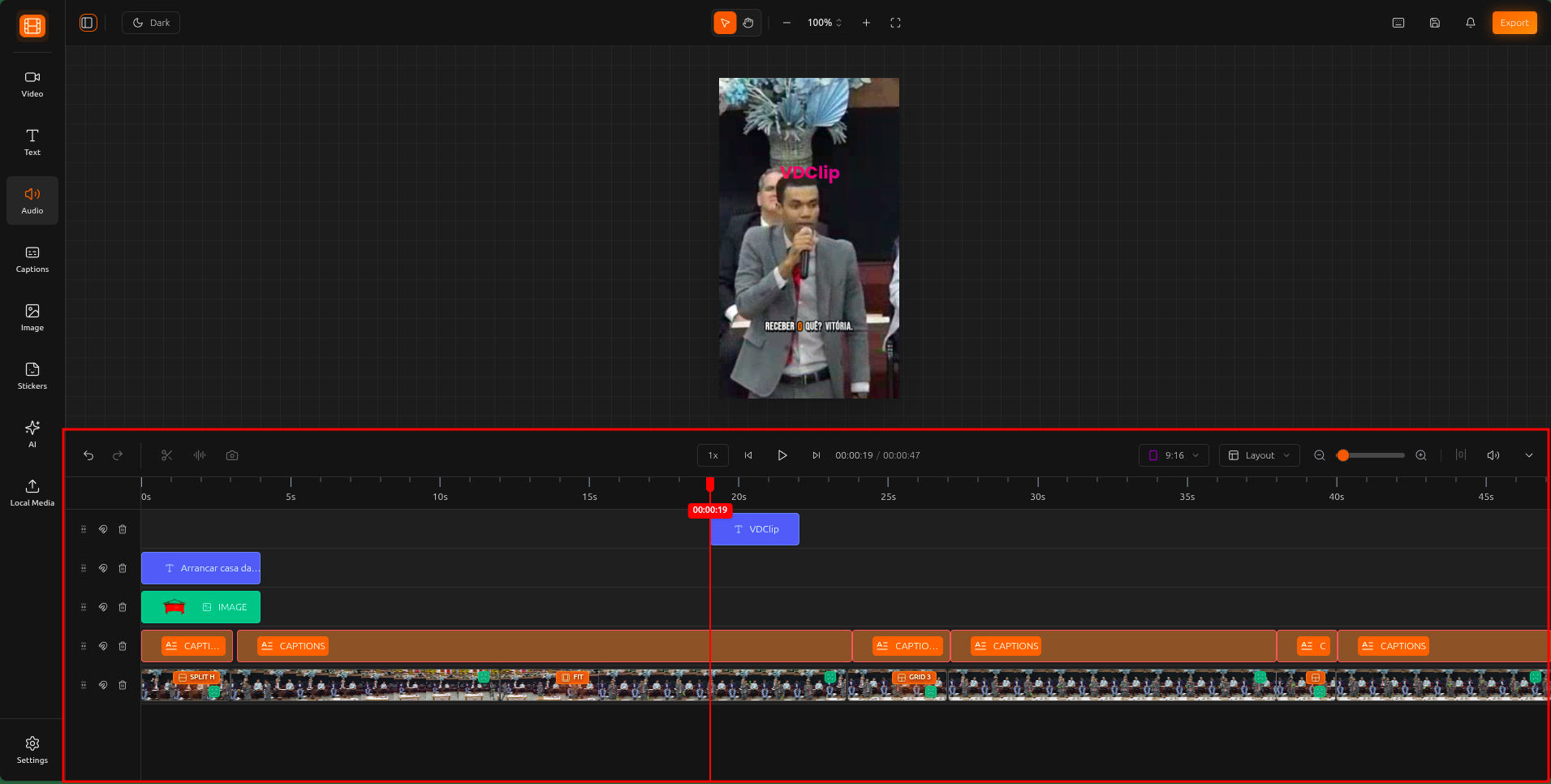
Playback Controls
Use the playback controls above the timeline to preview and navigate your video.
Play / Pause
Start or pause video playback
Navigate
Move frame-by-frame for precise editing
Volume
Mute or adjust playback volume
Speed
Change playback speed for quick review
Zoom
Zoom in for precision or out for overview
Editing on the Timeline
Organize with Tracks
Each element in your project lives on its own track (row) in the timeline. Tracks work like layers: elements on higher tracks appear in front of elements on lower tracks.
How Tracks Work
Each type of content (video, text, audio, captions, stickers) gets its own track. You can have multiple tracks of the same type to layer elements creatively.
Selecting Elements
Click on the canvas or timeline to select an element
Select multiple elements at the same time
Click on an empty area to deselect everything
Positioning on the Canvas
When you select an element, you can manipulate it directly on the canvas:
Tips & Best Practices
Use the timeline zoom to get frame-level precision when adjusting timing or making cuts.
Use the split tool to remove pauses and silence, keeping your video's pace tight and engaging.
Keep different types of content on separate tracks for a cleaner timeline and easier editing.
Magnetic snapping helps you align elements to each other automatically. Leave it enabled for easier synchronization.