TikTok Privacy Settings
When publishing to TikTok from VDClip, you can control who sees your content by setting a privacy level for each post. VDClip supports all privacy levels available through the TikTok API, giving you full control over your content visibility.
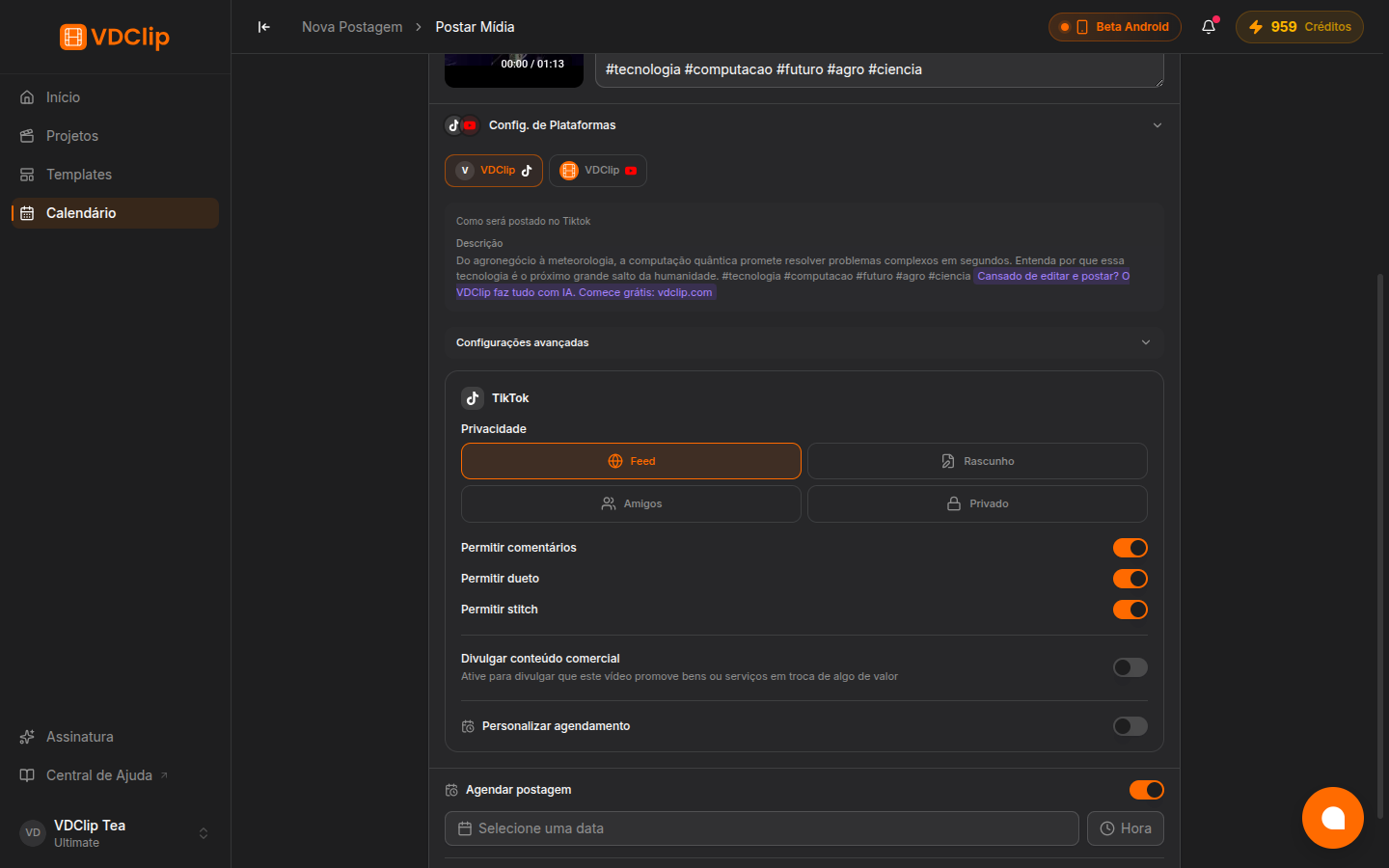
Privacy Level Options
TikTok provides five privacy levels that determine who can view your published content.
Feed (Public)
Anyone on TikTok can see your video. It may appear in the For You feed and search results. This is the best option for maximum reach.
Followers
Only your followers can see the video. It will not appear in the For You feed for non-followers.
Friends
Only mutual followers (people who follow you and whom you follow back) can see the video.
Self Only
Only you can see the video. Useful for previewing how content looks on TikTok before changing the visibility later.
Draft
The video is saved to your TikTok drafts folder instead of being published. You can review and publish it later from the TikTok app.
How to Set Privacy Per Post
Open the post scheduling view
In the VDClip calendar, create a new post or edit an existing scheduled post that includes a TikTok account.
Find the privacy setting
Look for the Privacy dropdown below the TikTok account selector. This setting appears only when a TikTok account is selected as a publishing target.
Choose your privacy level
Select one of the available options from the dropdown: Feed, Followers, Friends, Self Only, or Draft. The available options depend on what your TikTok account supports.
Schedule or publish
Continue with your post as normal. The selected privacy level is applied when VDClip publishes the content to TikTok.
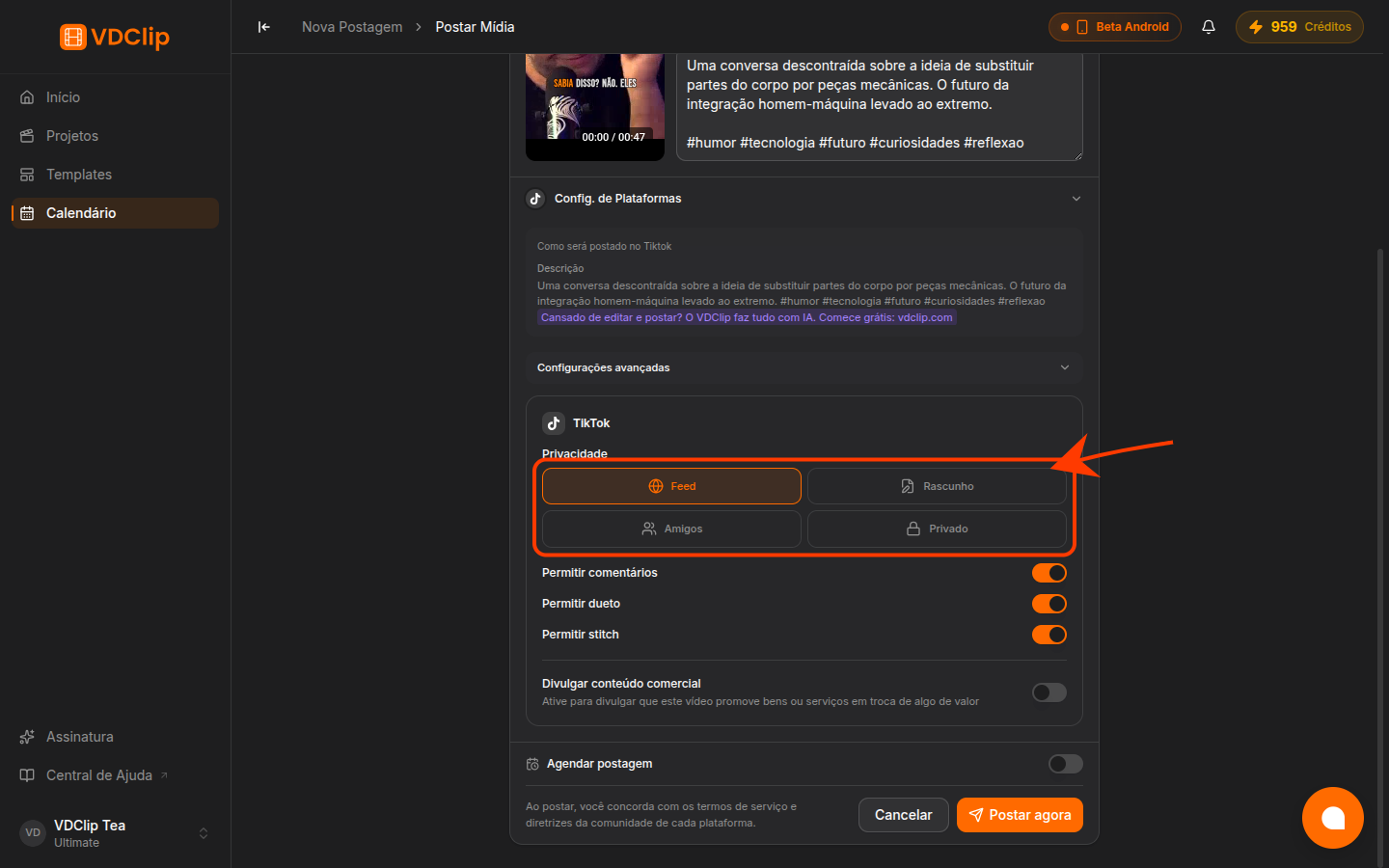
Privacy with Multiple Accounts
When you schedule a post to multiple TikTok accounts at the same time, VDClip computes the effective privacy level as the intersection of the privacy options supported by all selected accounts. This means only the privacy levels available across every selected account will appear in the dropdown.
For example, if one account supports “Feed” and “Draft” while another supports “Feed”, “Followers”, and “Draft”, the dropdown will show “Feed” and “Draft” because those are the levels both accounts support.
If VDClip cannot retrieve privacy data from TikTok for a connected account, the privacy level defaults to Draft as a safety measure. This ensures content is never published publicly without your explicit choice.
Tips & Best Practices
When setting up your publishing workflow for the first time, use Draft to verify that content reaches your TikTok account correctly. Once confirmed, switch to Feed for public publishing.
To get the most views and engagement, set the privacy to Feed. This allows your video to appear in the For You feed and be discoverable through search.
If you want to check how your video looks on TikTok before making it public, use Self Only. You can then change the privacy from the TikTok app when you are ready.
When scheduling multiple posts at once, verify the privacy setting for each post. The privacy level does not carry over automatically between different scheduled posts.