Audio & Music
Add background music, sound effects, or your own audio files to your video. The editor gives you full control over volume, timing, fades, and even automatic silence removal.
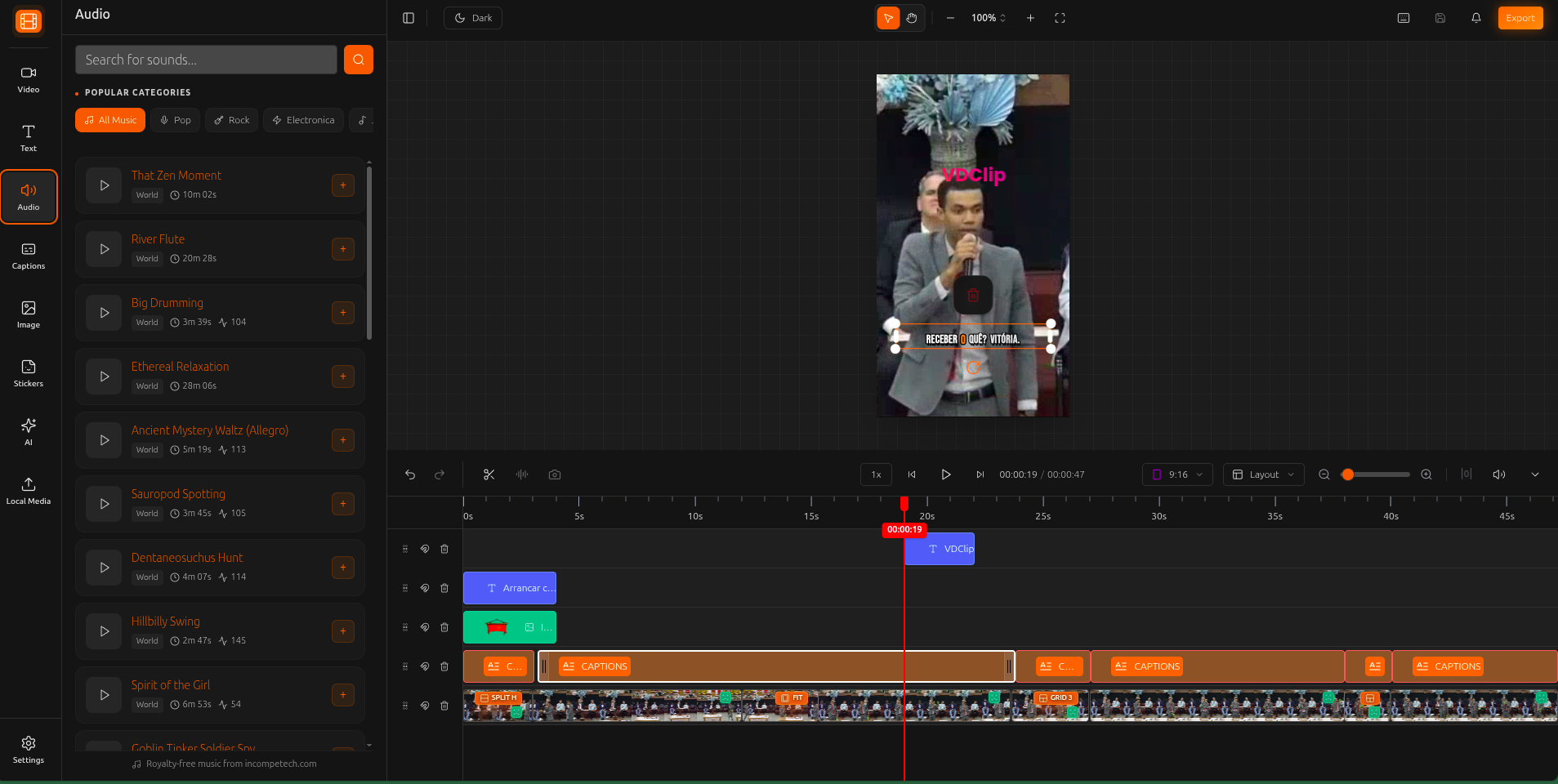
Browse the Music Library
Search and browse free music tracks directly in the editor. The VDClip music library offers a variety of genres and moods for your videos.
Open the Sound panel
Search or browse
Preview and add
Upload Your Own Audio
You can also upload your own audio files (MP3, WAV) through the Local Media panel and add them to your project.
The maximum file size varies depending on your plan. Check the pricing page for details on file size limits for each plan.
Audio Controls
When you add music or audio to your project, you get full control over how it sounds.
Volume
Adjust each audio track independently. Lower background music so it does not overpower speech.
Fade In / Fade Out
Add smooth audio transitions at the start and end of a track. Prevents abrupt audio cuts.
Start Position
Set where in the music track playback begins. Skip intros or start from the best part of the song.
Silence Removal
Detect and remove the silent sections from a selected video or audio item, from the timeline toolbar or the right-click menu.
Removing Silence
Silence removal cuts the silent gaps out of a selected video or audio item, splitting it into segments so the pace stays tight. It works well for talking-head clips.
Select the item on the timeline, then click the silence removal button in the timeline toolbar, or right-click the item and choose it. The editor analyzes the audio and removes the silent parts. It works with audio up to a maximum length.
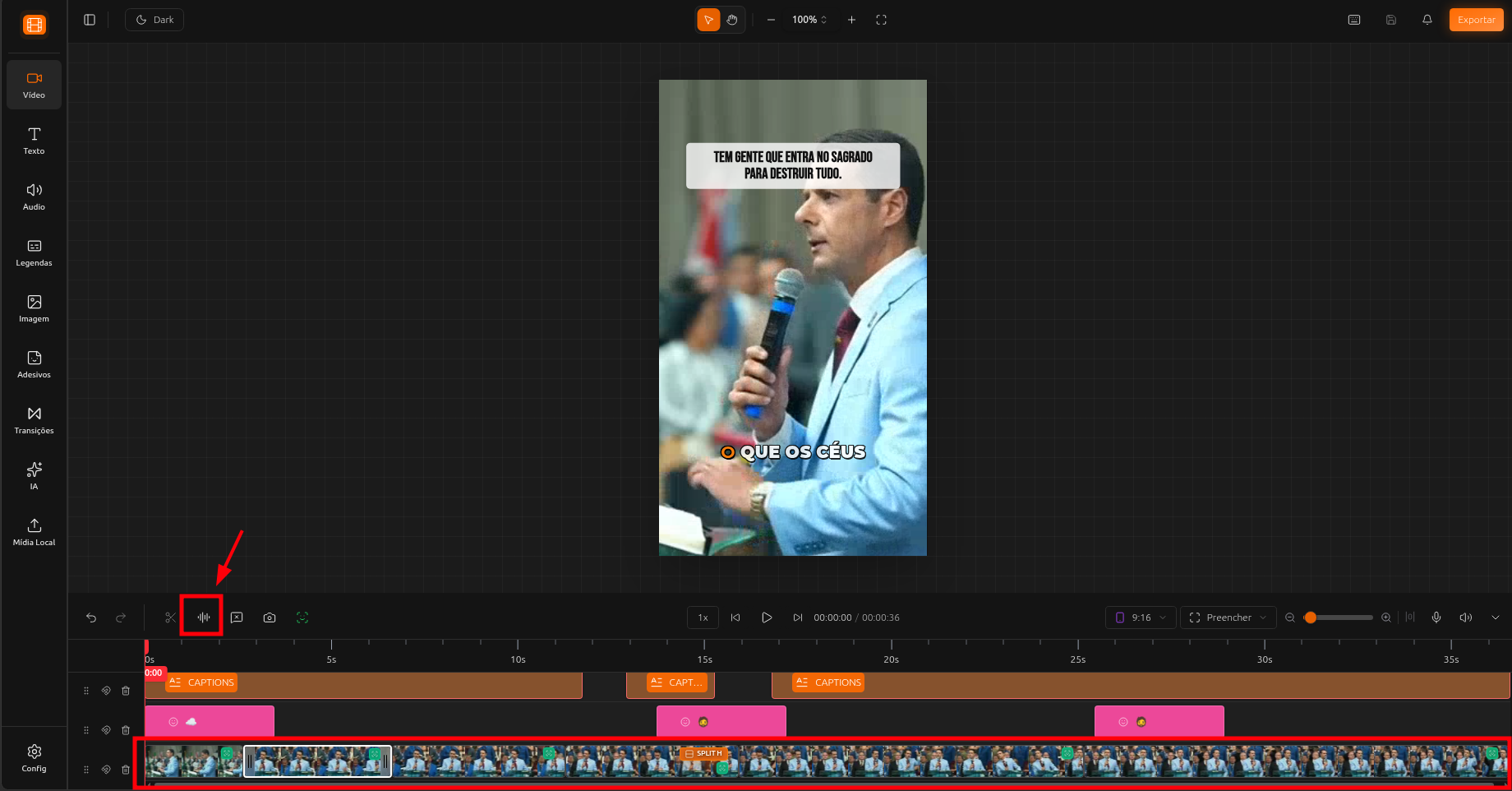
You can also remove silent pauses automatically when the video is generated, using the processing enhancement (availability depends on your plan). If it was not applied there, use the editor’s silence removal on the clip.
Tips & Best Practices
Add background music at a low volume (10-20%) to maintain engagement without overpowering speech or narration.
Adding even a short fade (0.5-1 second) to your music tracks prevents jarring audio cuts at the start and end.
Silence removal automatically cuts dead air in your audio, making talking-head content feel more dynamic and faster-paced.
You can layer music, sound effects, and voiceover on separate tracks. Adjust each volume independently for the perfect mix.