Templates
Templates are reusable recipes to process videos with the same format, captions, and visual behavior. They help when you publish on the same channel, work with a recurring brand identity, or want to reduce repetitive tweaking before each render.
In the template editor, the settings are split into four sections: Style, Visuals, Brand, and AI. The preview shows the result before saving or using the template on new videos.
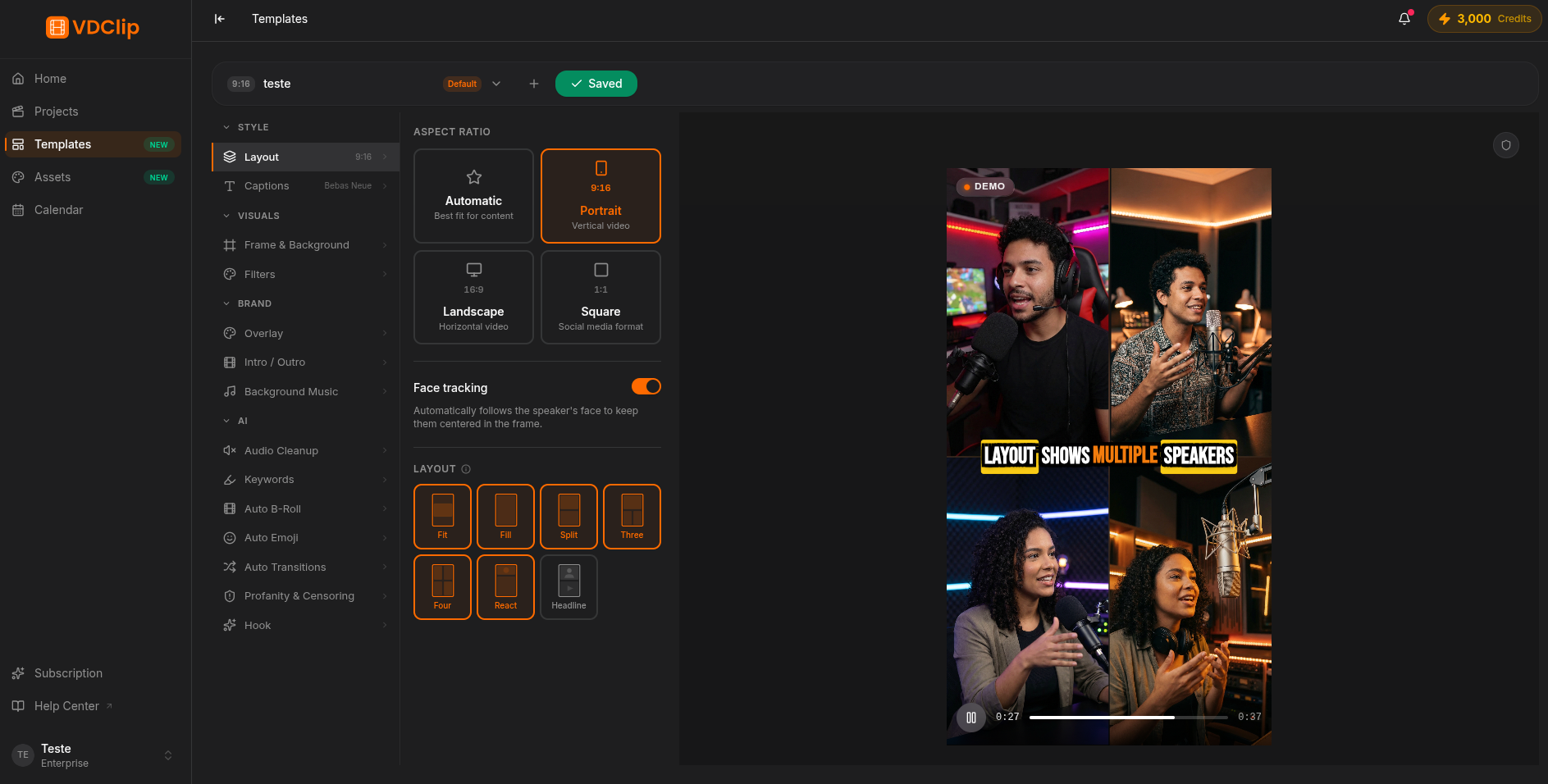
Template editor sections
The side menu is split into four sections. Each one has its own dedicated page with all the details.
Recommended flow
Start with the format
Set the aspect ratio and layout first. This choice changes how captions and other elements occupy the frame.
Adjust the captions
Pick a preset close to the result you want and refine font, color, position, animation, outline, and shadow.
Review branding and AI
Configure the brand (logo, intro, and music) and the AI automations like Auto Emoji, B-roll, keywords, audio cleanup, and transitions based on the type of content.
Preview and save
Check the preview before processing videos. Click Save to persist the template; the current editor does not auto-save.
Preview
The preview on the right shows the result of the template in real time, before saving or processing any video. Use it to validate layout, captions, brand, and AI without spending credits.
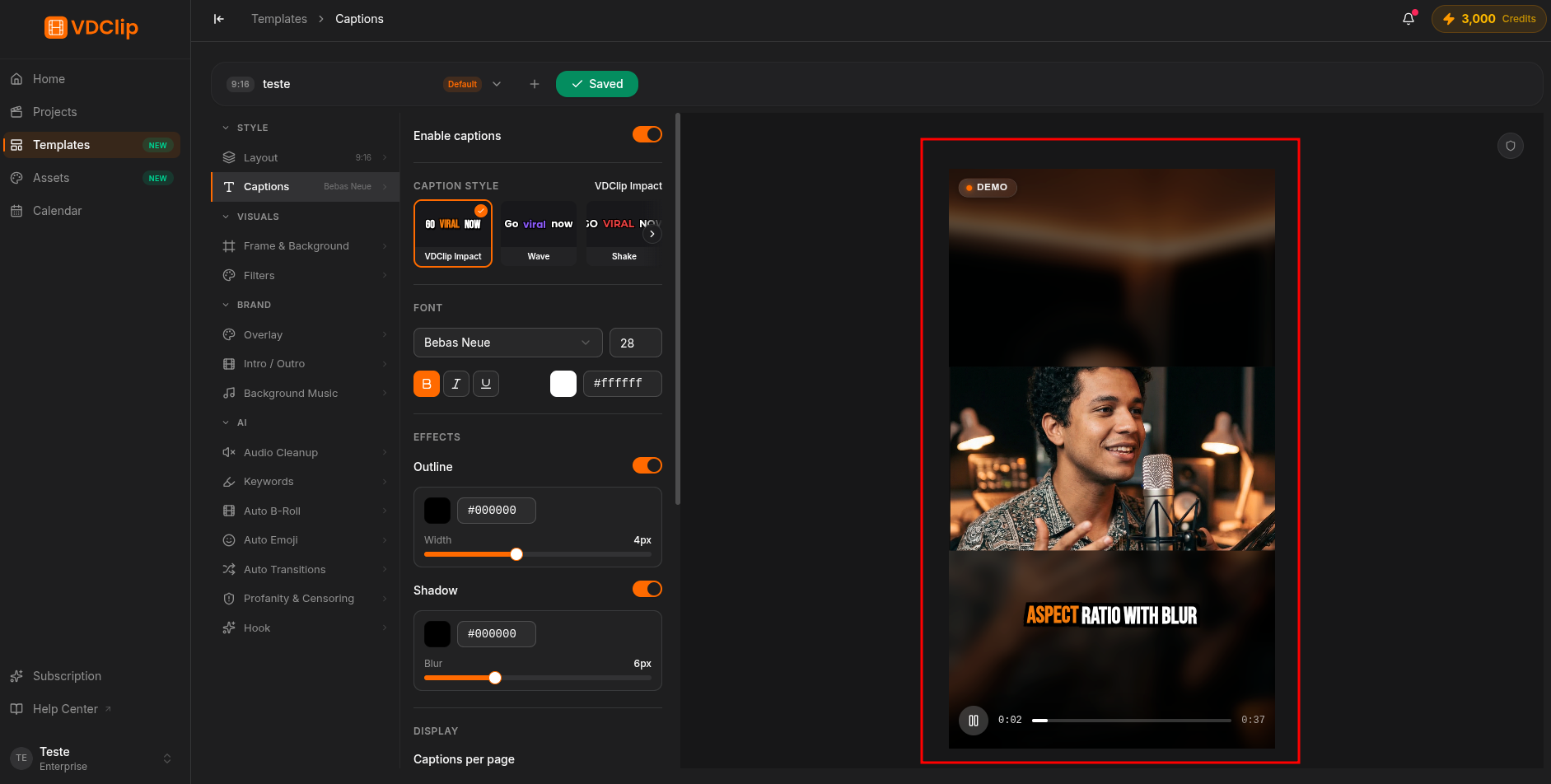
Saving the template
Changes are not saved automatically. Click Save in the toolbar to persist the configuration. Unsaved changes stay as long as the tab is open, but are lost if you close it without saving.
Managing templates
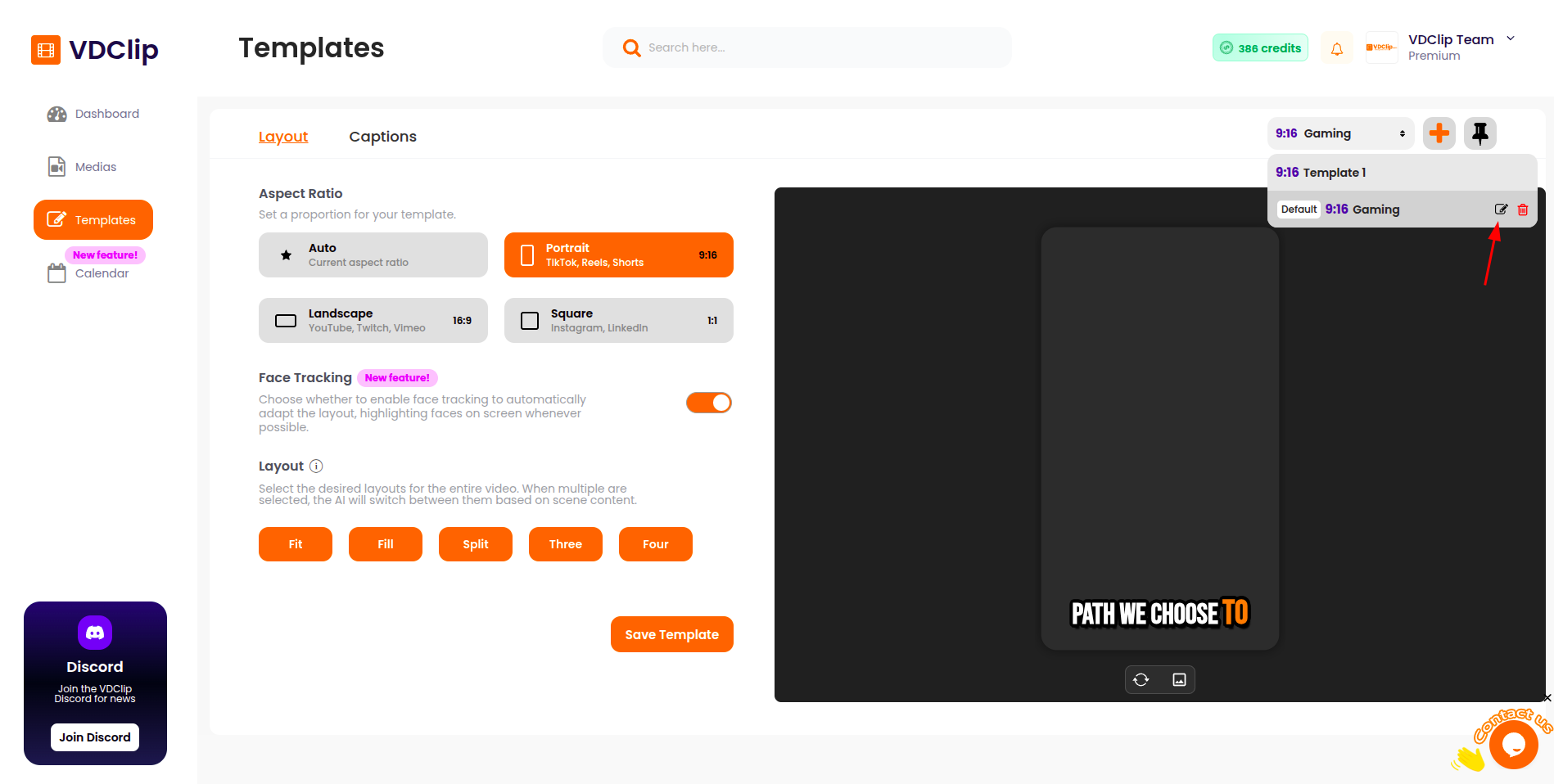
The top bar lists your templates and gives access to creating, saving, and opening the action menu for each one.
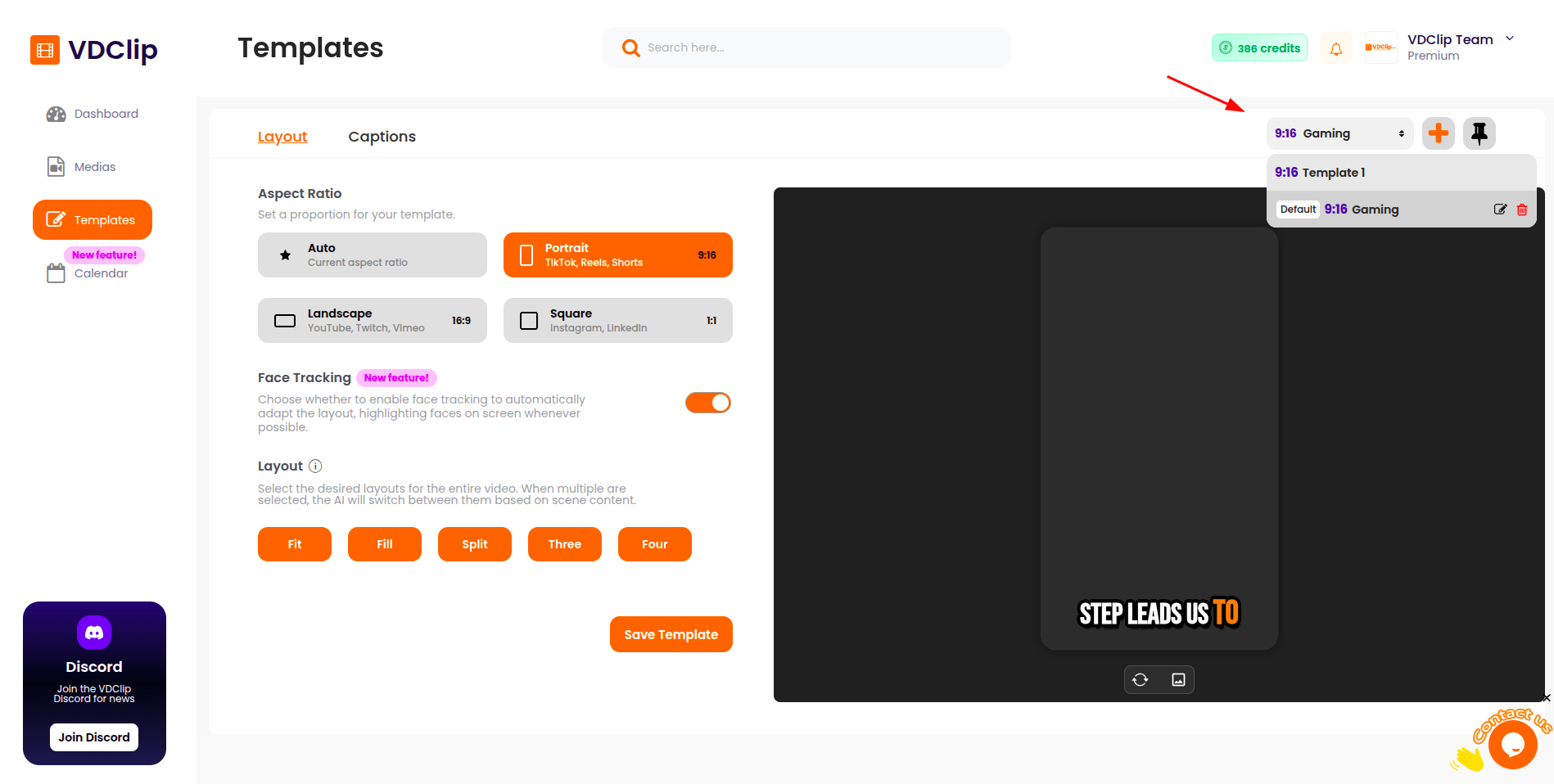
Create a template
Start a brand-new template from the top bar and configure the editor sections.
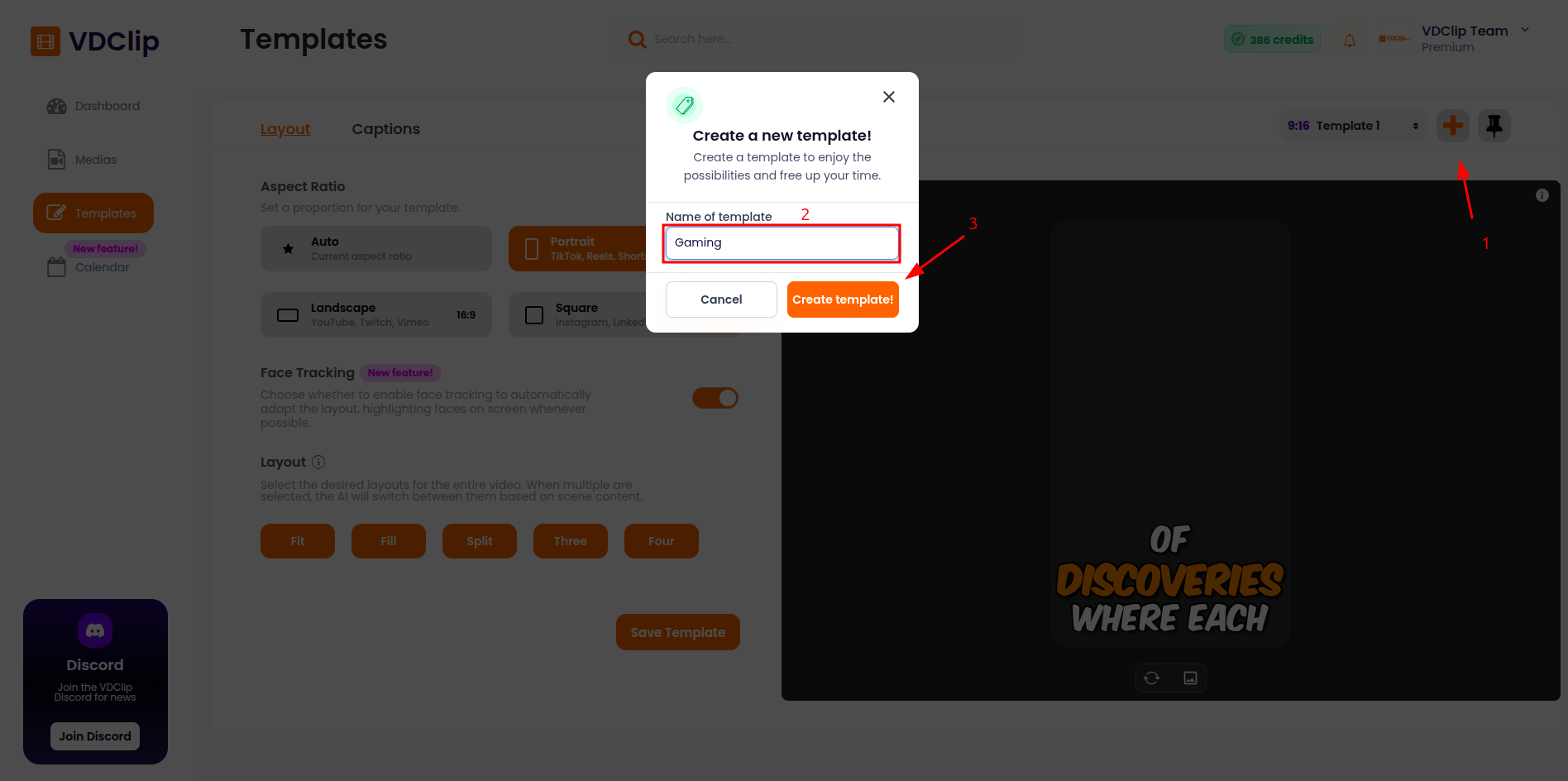
Rename
Give it a clear name to find the template quickly in your library.
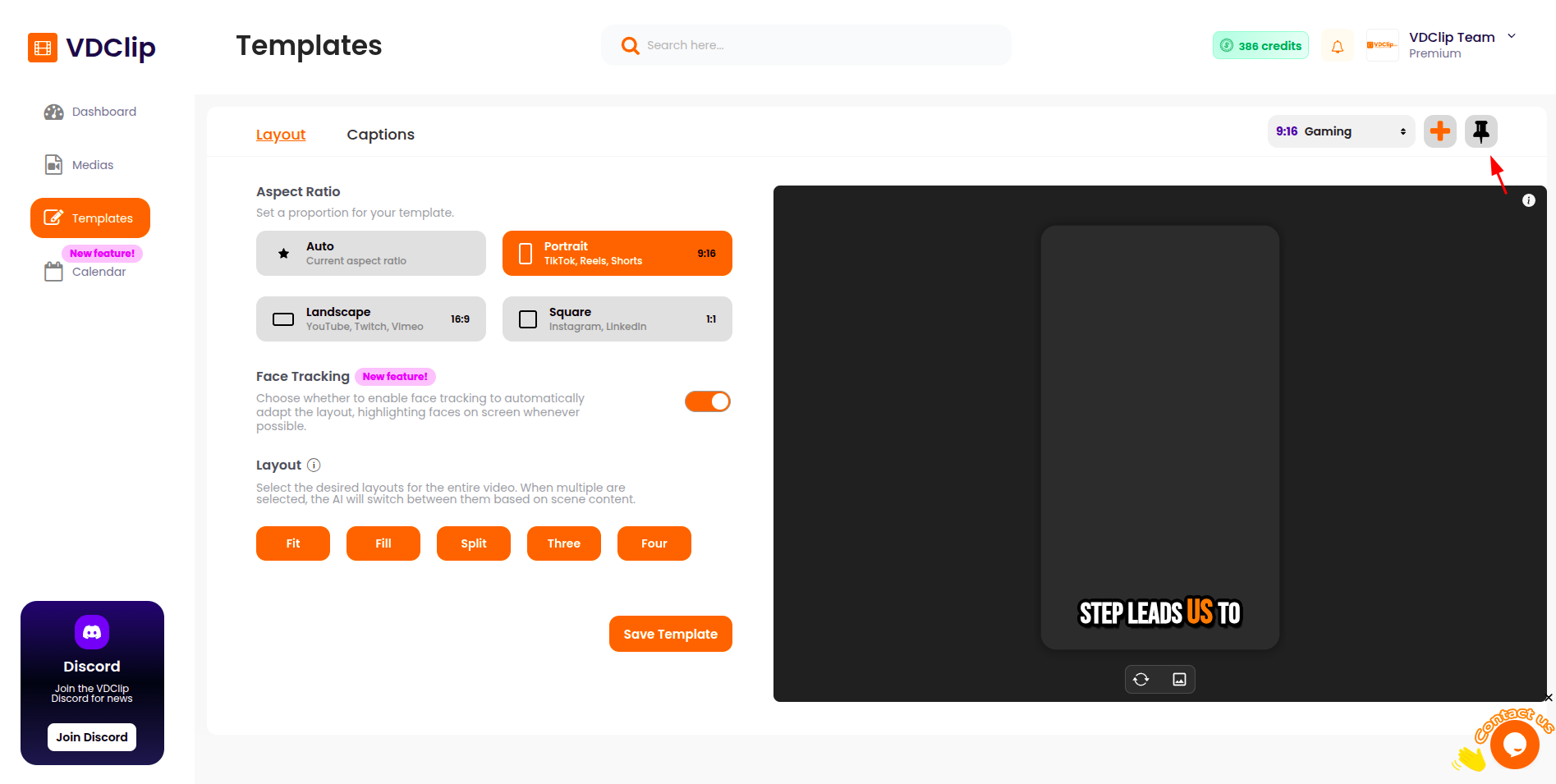
Set as default
The default template is applied automatically when you process new videos.
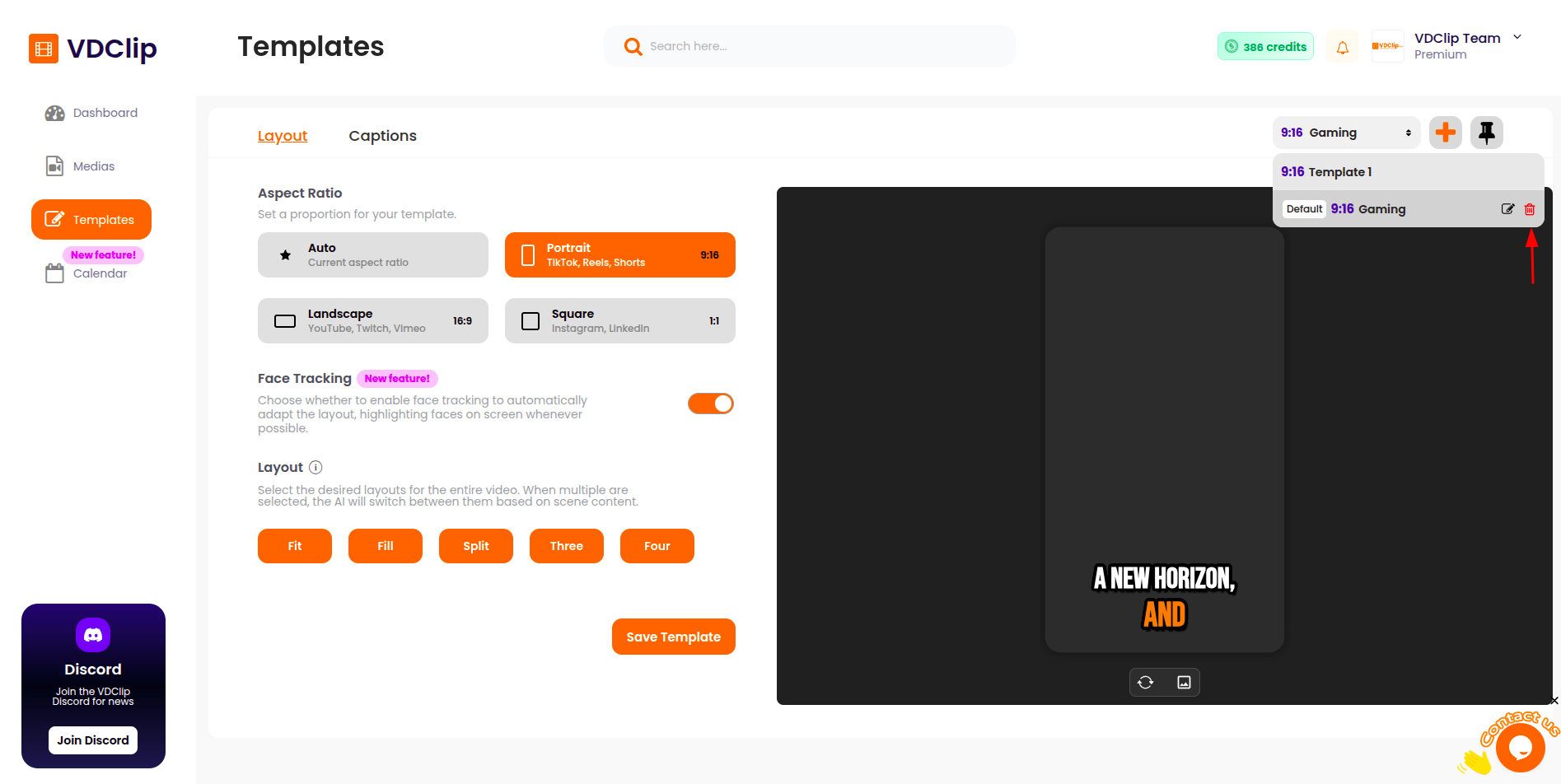
Delete
Remove the templates you no longer use. Deletion is blocked on the default template.
The number of templates available depends on your plan. Some advanced settings may show an upgrade notice. See the pricing page.