Assets
Assets gather what you reuse across templates: fonts, media (logos, intros, and music), censored-word lists, and vocabulary corrections. Register once and use in any template.
How to add an asset
Open the Assets page
Go to Assets and choose the area: Fonts for typography or Media for logos, intros, outros, and music.
Upload the file
Drag and drop the file in the upload area, or click to pick from your computer. The upload is direct and safe, and a preview appears as soon as it is ready.
Name it and save
Name the asset to find it quickly later and confirm. It only joins the list when the upload finishes successfully.
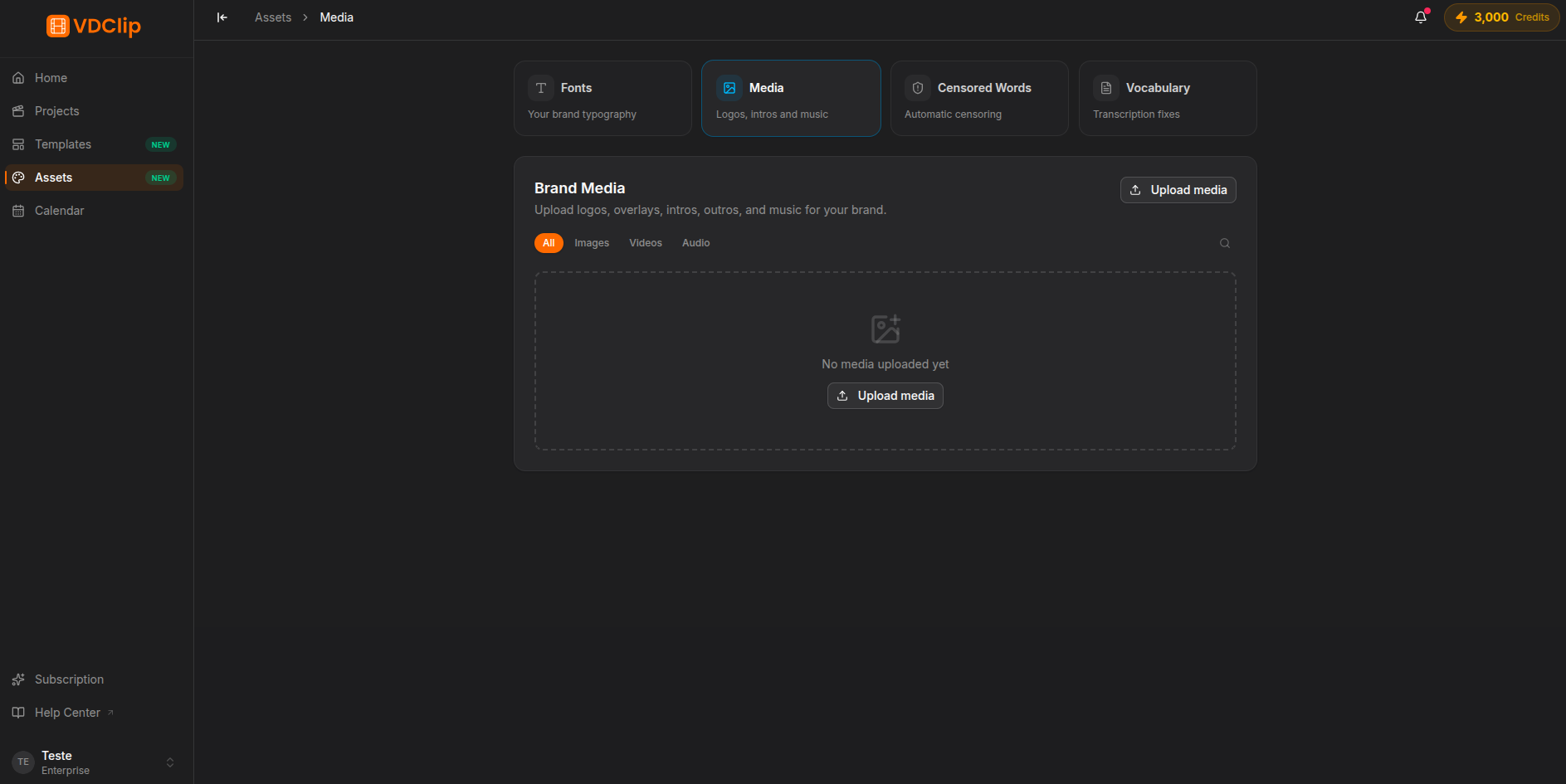
The four areas
The Assets page is divided into four areas:
- Fonts: your brand typography (TTF or OTF), applied to captions and template text.
- Media: logos, overlay images, intros, outros, and background music.
- Censored words: lists of words for the automatic profanity filter applied in templates.
- Vocabulary: transcription corrections, so the AI spells proper nouns and specific terms your way.
How templates use assets
Uploading an asset does not change any video on its own. Inside a template panel you pick which asset to use, for example which image is the logo or which track is the background music. The Assets page is where you store the files; the template is where you decide how each one is applied.
How many assets and how much space you can use depends on your plan. When you hit a limit, uploads are blocked with a message explaining why. See the pricing page for the limits of each plan.