Social Connections
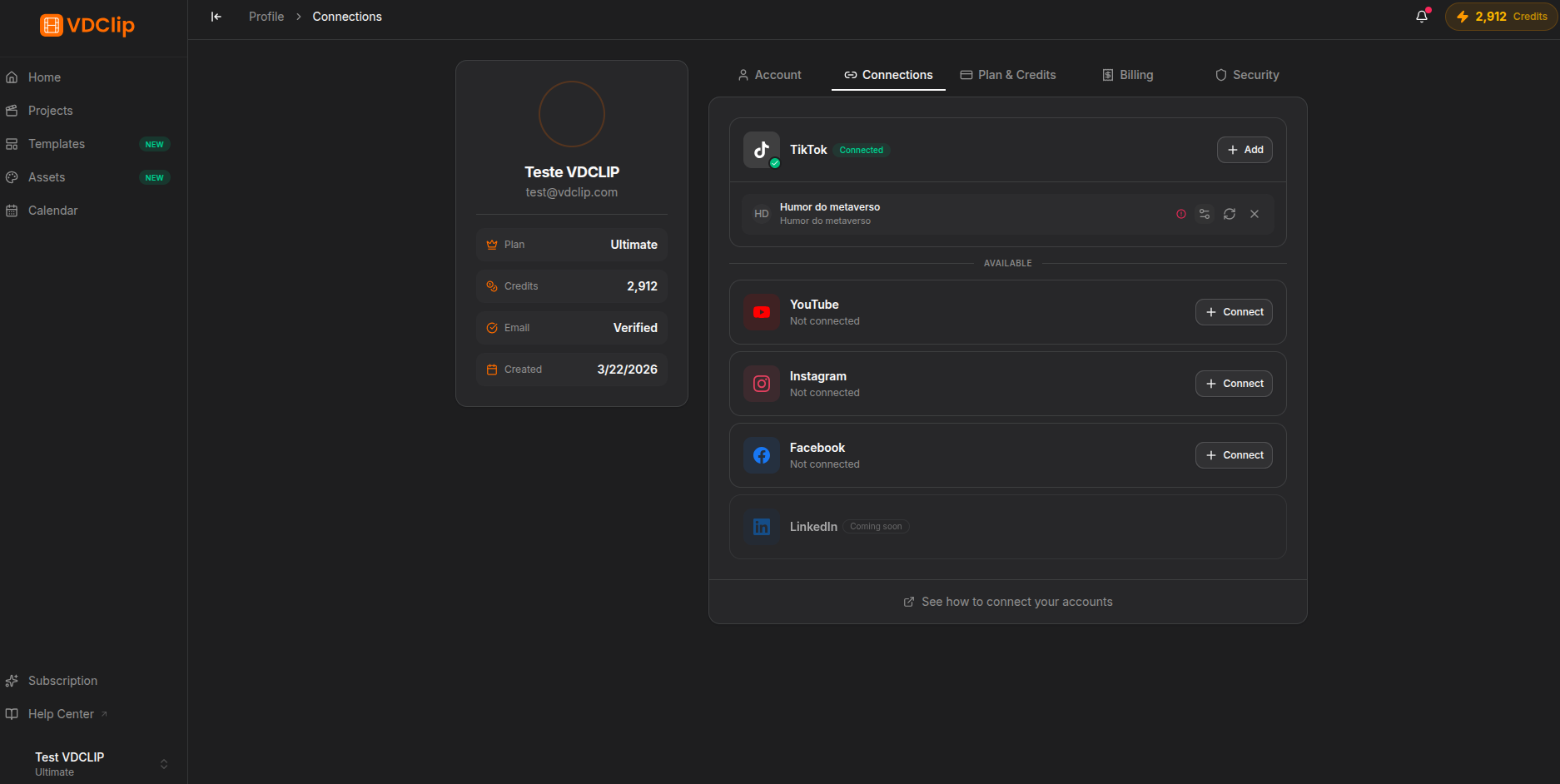
The Connections tab lets you link your social media accounts to VDClip. Once connected, you can publish videos directly to your platforms without leaving the dashboard. VDClip supports YouTube, TikTok, Instagram, and Facebook.
Connection Limits
The number of social accounts you can connect to VDClip depends on your subscription plan. Each plan has a specific limit for how many accounts you can link across all platforms. If you reach your limit, you will need to disconnect an existing account before adding a new one, or upgrade your plan. Check the pricing page for specific limits per plan.
Supported Platforms
YouTube
Connect your YouTube channel to upload videos and Shorts directly from VDClip. Requires a Google account with an active YouTube channel.
TikTok
Link your TikTok account to publish videos straight to your TikTok profile. You will authorize VDClip through the TikTok login flow.
Connect your Instagram Business or Creator account to post Reels and videos. You can now connect Instagram directly without needing a Facebook Page. If you previously connected via Facebook, your connection will continue to work. See the Instagram connection guide for step-by-step instructions.
Link your Facebook Page to share videos and Reels directly. You will authorize VDClip through Facebook Login and select the page to connect.
Instagram Connection Methods
VDClip offers two ways to connect your Instagram account:
Direct Instagram Connection
Connect your Instagram account directly through the Instagram login flow, without needing a linked Facebook Page. This is the simplest method and is recommended for most users. Your Instagram account must be a Business or Creator account.
Connection via Facebook
Connect your Instagram through the Facebook authorization flow. This method links your Instagram via your Facebook Page and is the legacy connection method. Accounts connected this way will display a “via Facebook” badge next to them.
What Does the “via Facebook” Badge Mean?
When you see a “via Facebook” badge next to a connected Instagram account, it means that the account was connected through the Facebook authorization flow rather than directly through Instagram. Both methods work the same way for publishing. If you prefer, you can disconnect and reconnect using the direct Instagram method. The badge is purely informational and does not affect functionality.
Connecting a Social Account
Open the Connections tab
Go to your profile and select the Connections tab from the sidebar.
Choose a platform
Find the platform you want to connect and click the Connect button next to it.
Authorize VDClip
You will be redirected to the platform’s login page. Sign in with your account and grant VDClip the necessary permissions.
Confirm the connection
After authorizing, you will be redirected back to VDClip. The platform will now show as connected with your username displayed.
Connection Status
Each connected platform displays the following information:
- Connection status indicating whether the account is actively linked
- Username of the connected account
- Connection method badge (for Instagram: “direct” or “via Facebook”)
- Reconnect button to refresh the connection if permissions have expired
- Disconnect button to remove the linked account
Account Validation
Before VDClip publishes a video to a connected account, it performs validation checks to make sure the connection is healthy. These checks include:
- Token validity: Verifying that the authorization token is still active and has not expired
- Permission check: Confirming that VDClip still has the required permissions to post on your behalf
- Account status: Ensuring the connected social account is still active and accessible
If any of these checks fail, VDClip will alert you and the post will not be sent. You will need to reconnect the account to restore access.
Reconnecting an Account
Sometimes a social platform connection may expire. This can happen for several reasons:
- You changed your password on the social platform
- You revoked VDClip’s permissions from the platform’s app settings
- The platform’s authorization token expired naturally (most tokens have a limited lifespan)
- The platform updated its security policies and invalidated existing connections
When this happens, VDClip will indicate that the connection needs to be refreshed.
Identify the expired connection
Look for a warning indicator next to the platform that needs reconnecting.
Click Reconnect
Click the Reconnect button on the platform card.
Re-authorize VDClip
You will be redirected to the platform’s login page again. Sign in and grant permissions just like the first time.
If a connection expires, scheduled posts for that platform will not be published until you reconnect. Check your connections regularly, especially before scheduling content.
Disconnecting an Account
To unlink a social account from VDClip:
Find the connected platform
Go to the Connections tab and locate the platform you want to disconnect.
Click Disconnect
Click the Disconnect button on the platform card.
Confirm the action
Confirm that you want to remove the connection. The platform will immediately be unlinked from your VDClip account.
Important: Disconnecting a social account will prevent VDClip from publishing to that platform. Any scheduled posts targeting the disconnected account will not be delivered.
Tips and Best Practices
Setting up all your social connections when you first configure your account saves time later when you want to publish content.
Before scheduling a batch of posts, verify that all target platforms show as connected to avoid failed deliveries.
If you change your password on a social platform, reconnect it in VDClip right away to prevent interruptions.
Once your accounts are connected, use the Calendar feature to schedule and publish to multiple platforms simultaneously. See the [Calendar guide](/en/calendar) for details.
If you are connecting Instagram for the first time, use the direct connection method. It is simpler and does not require a Facebook Page.
Keep track of how many accounts you have connected relative to your plan limit. If you need more connections, consider upgrading your plan.