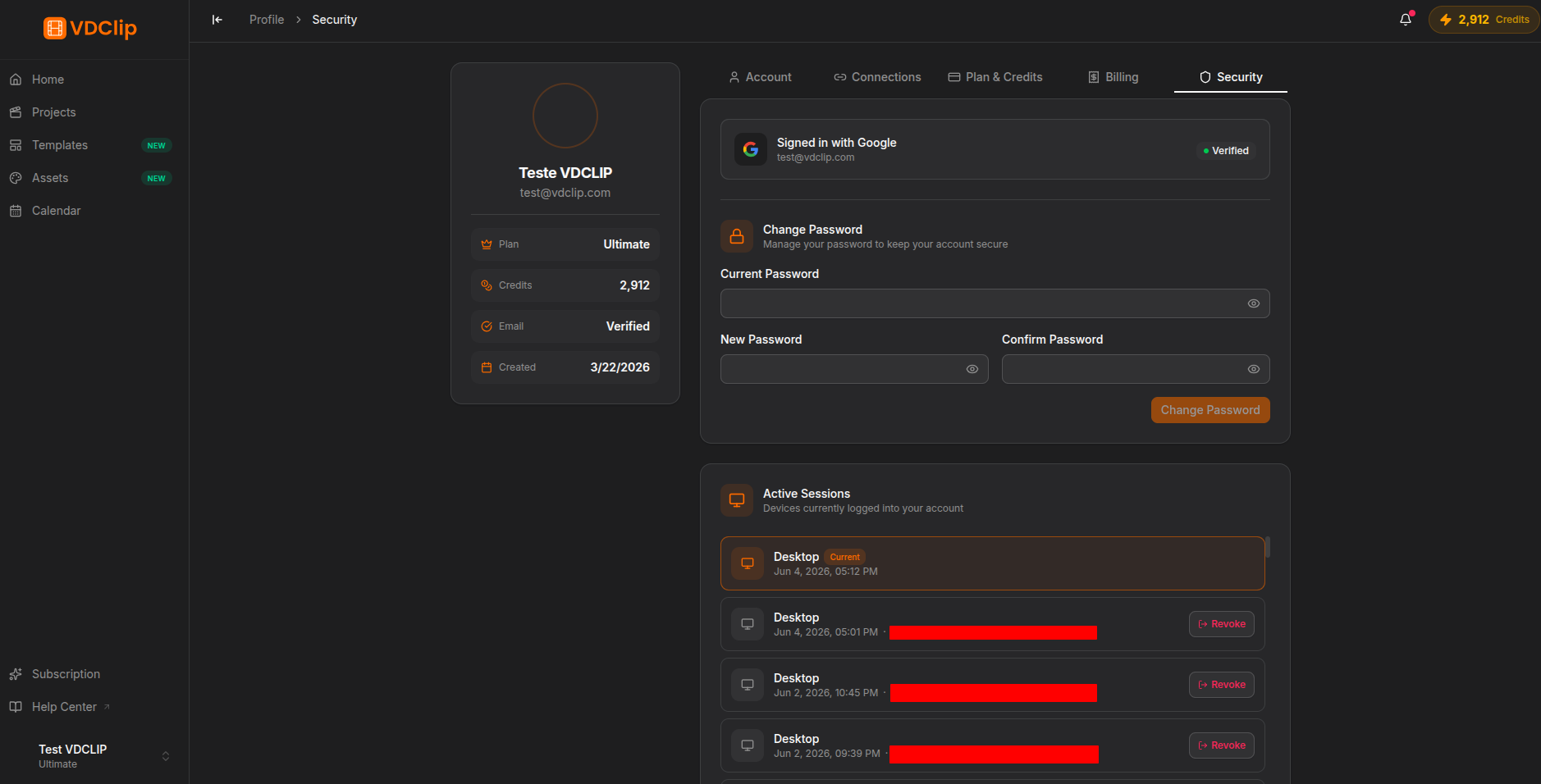
Security
The Security tab brings together the protection controls for your account: here you change your password and review all connected sessions. Check this tab from time to time to spot suspicious access early.
Changing Your Password
Open the Security tab
In your profile, select Security from the sidebar.
Confirm your current password
Type the password you use today in the Current password field. This confirms your identity before any change.
Set the new password
Enter the new password in New password and repeat it in Confirm password. Use a strong combination of letters, numbers, and special characters.
Save the change
Click Change Password. The new password takes effect immediately.
The new password must be different from the current one. Prefer a unique password, one you do not use on other sites, to reduce the risk of compromise.
Active Sessions
The active sessions section lists every device and browser connected to your account. Each entry shows:
- IP address where the session was started, useful for identifying the network location of the login.
- Browser and version used, for example Chrome on Windows or Safari on macOS.
- Last activity, with the date and time of last use, indicating whether the session is recent or idle.
- Revoke button, which ends that login right away and signs the user out of the session.
Revoking a Suspicious Session
Review the sessions list
Look for entries with an IP, browser, or time you do not recognize.
Click Revoke
Click Revoke next to the suspicious session. It is ended immediately.
Change your password
If the session was unknown, change your password right after to prevent a new unauthorized login.
Important: revoking a session disconnects that device right away. If you revoke your own current session by mistake, you will need to log in again.