Logo Overlay
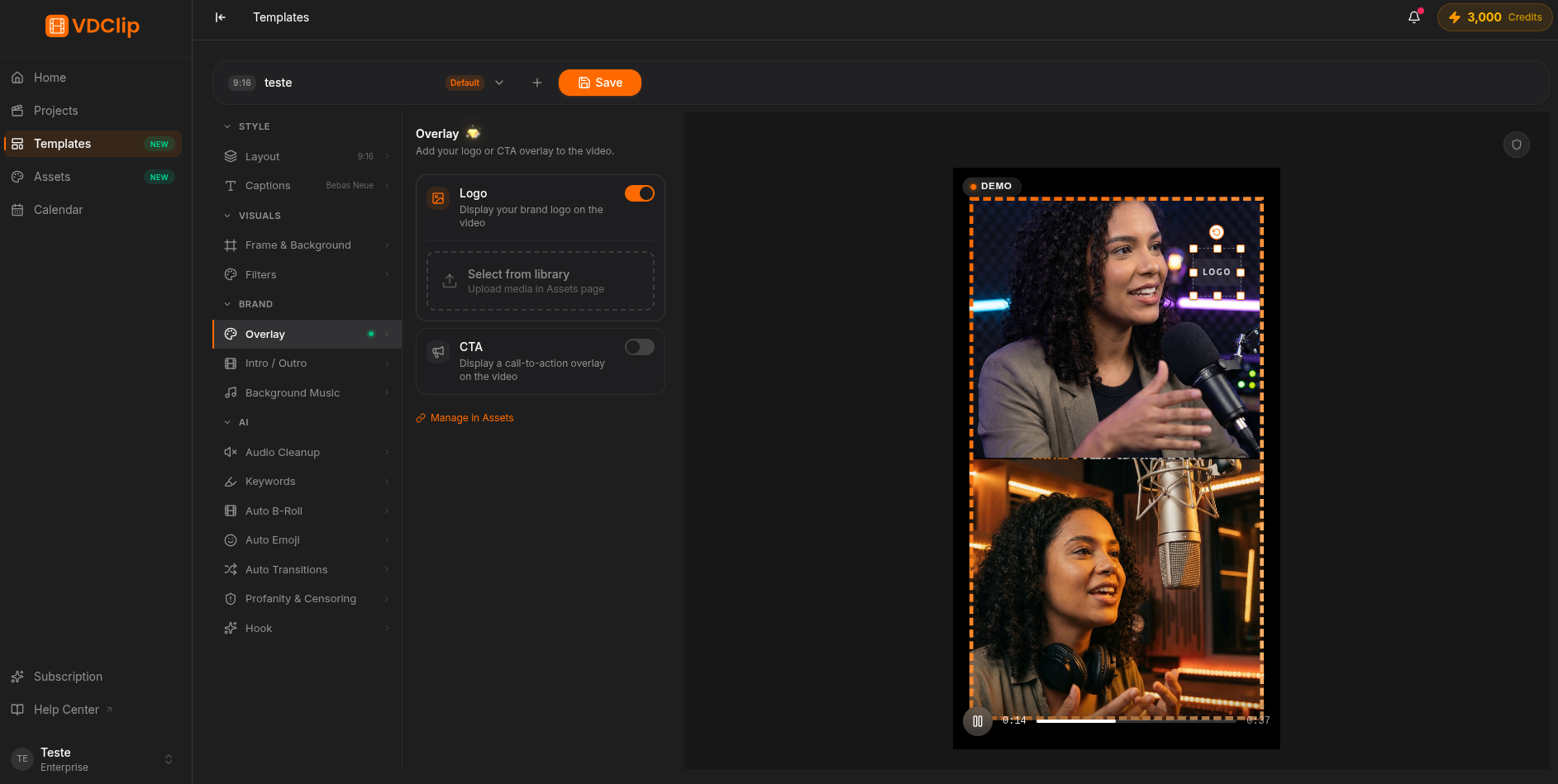
The overlay places a logo or CTA image over every clip generated by the template, keeping your brand visible without covering the content. Pick the asset, position it, and confirm everything in the preview.
How to set it up
Pick the logo or overlay
In the Overlay panel, click the asset you want to show. Logos come from your library: to upload a new one, go to the Assets page first. Use a transparent PNG so it blends with any video background.
Position and resize
Drag the overlay directly in the preview to pick the corner and size. Keep it small and away from captions so it does not block the scene. Position uses relative coordinates, so it scales at any export resolution.
Pick an entrance animation
Define how the overlay enters the frame: Fade (appears softly), Slide (slides in from the edge), or Scale (grows from zero). Adjust opacity as well to make the logo subtle or solid.
Turn on dynamic mode (optional)
Enable dynamic mode when the clip uses full screen. It switches the logo between two positions on a set interval, preventing it from always blocking the same part of the action.
Timing
You decide when in the clip the overlay stays visible: throughout the whole clip (watermark), only in the first seconds (intro), only in the last seconds (closing CTA), or after a defined delay in seconds.