Connecting LinkedIn
Connect your LinkedIn personal profile or company page to publish and schedule content from VDClip. Use the account type that matches your posting target, then return to the calendar to manage it.
Before You Start
Before you connect LinkedIn, keep these requirements ready:
- ✓LinkedIn profile or company page
Pick the account type that matches your publishing target. Personal profiles and company pages are connected separately.
- ✓Access to the target page or profile
Make sure you can publish to the profile or page you want to connect before starting OAuth.
Step-by-Step Connection Guide
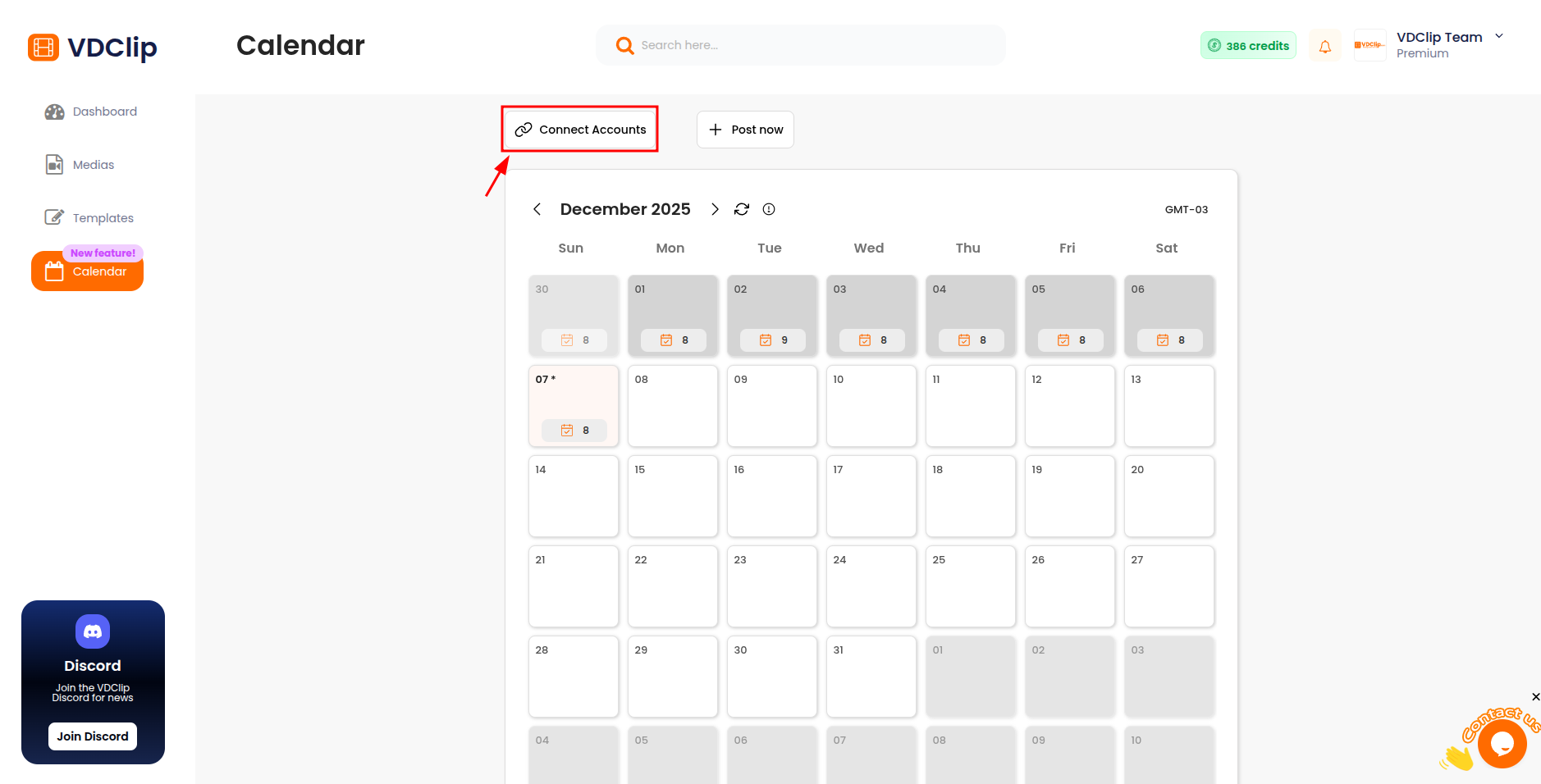
Step 1: Open Social Accounts
Go to the Calendar and open Social Accounts.
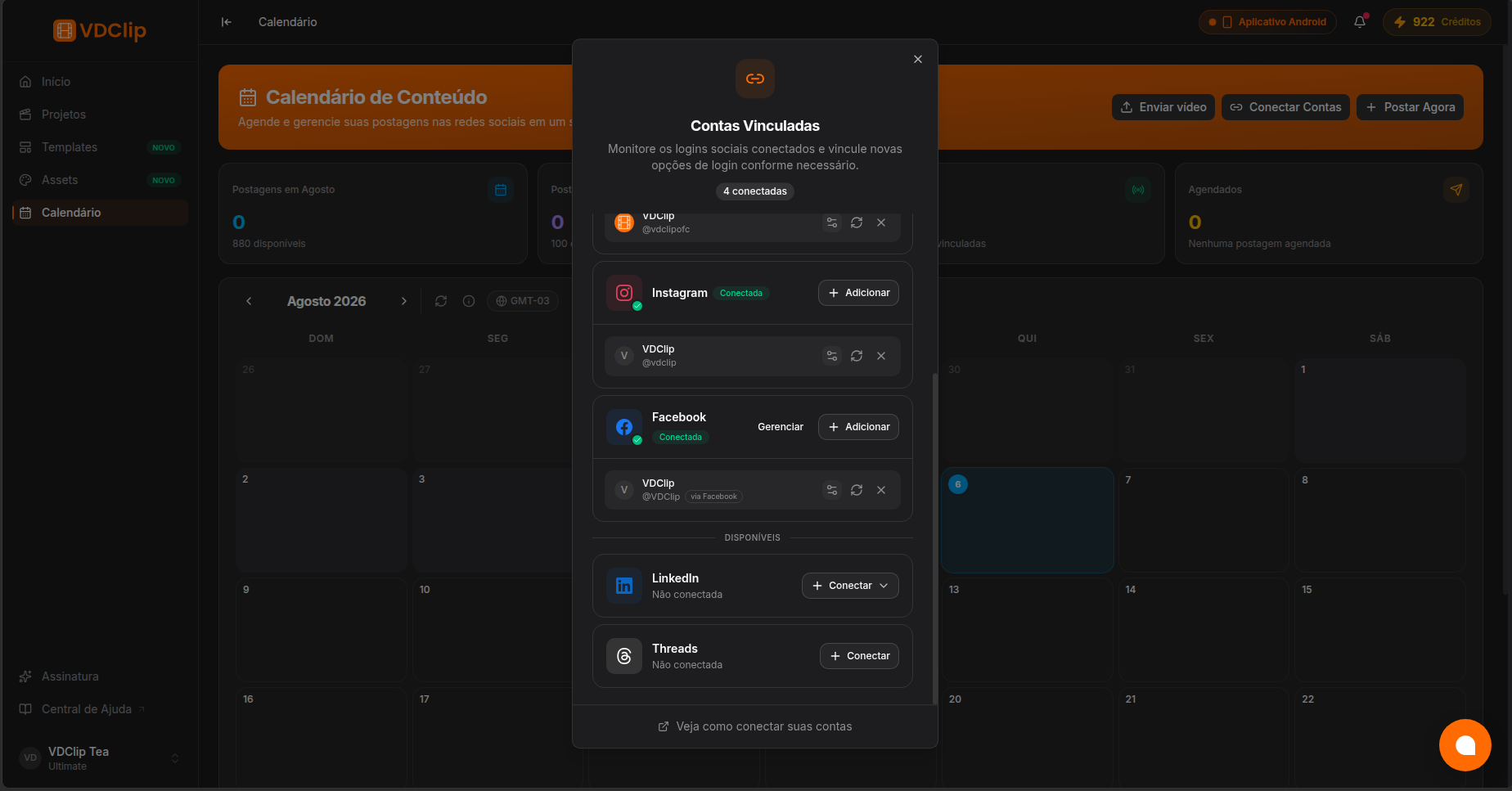
Step 2: Choose LinkedIn
Click Connect Account, then pick LinkedIn from the platform list.
Step 3: Select account type
Choose Personal profile or Company page, then continue to authorization.
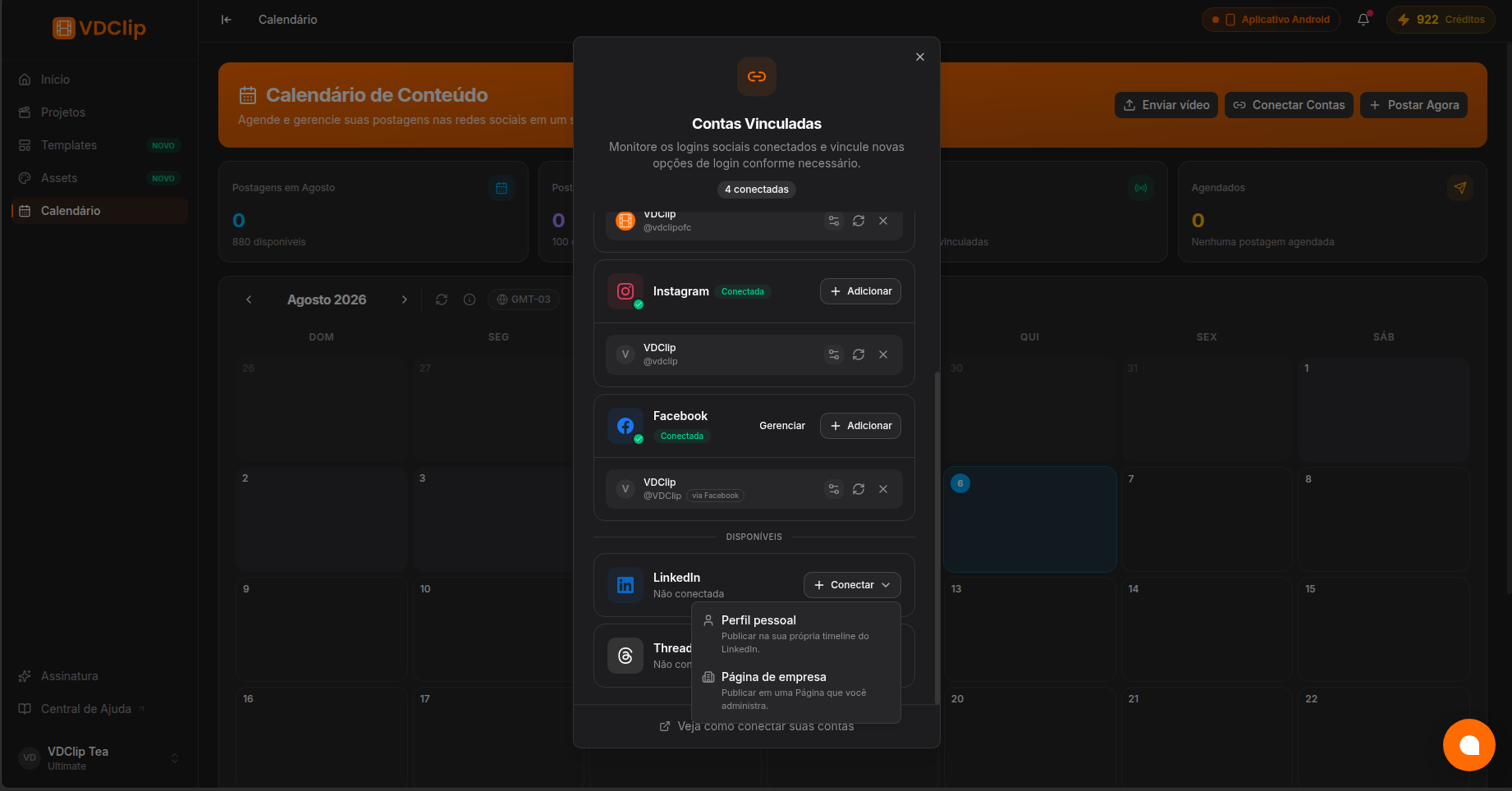
Note: Personal profiles and company pages are separate connections. Pick the one you actually publish to.
Step 4: Finish authorization
Accept LinkedIn permissions and return to VDClip. The connected account appears in Social Accounts and can be used in publishing flows.
Reauthorizing Accounts
Reauthorize LinkedIn when access expires or permissions change. Use it to restore publishing without creating a new connection.
When to Disconnect
Disconnect LinkedIn when you stop publishing through that profile or page, or when you want to reconnect from scratch. Scheduled posts tied to that connection stop using it.