Managing Media
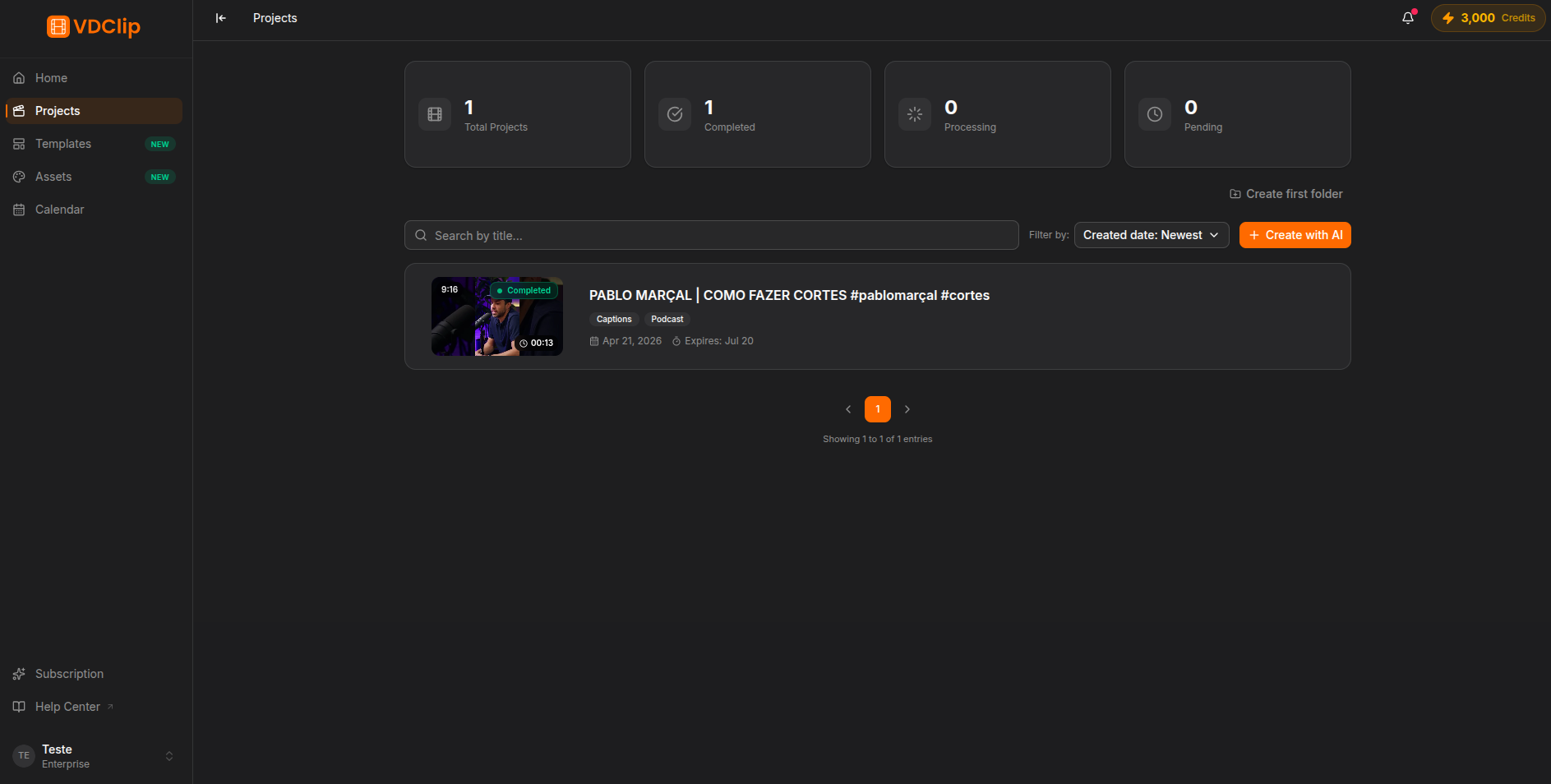
The Projects page is your media library: it brings together all the videos you have processed in VDClip. Use search, the status filter, and pagination to quickly find what you need and open the generated clips.
What Each Card Shows
Each video appears as a card with the essential information:
- Thumbnail and title of the video or file.
- Status: completed, processing, failed, limited, or expired. See what each status means.
- Date of processing and duration of the original video.
- AI type used (AI Clipping, AI Captions, among others).
- Actions menu (three dots) with the delete option.
At the top of the page, a stats bar summarizes the whole library: total videos, completed, processing, and failed.
Finding a Video
Search by title
Type any part of the name in the search bar at the top. The library filters in real time as you type.
Filter by status
Use the status filter to show only videos in one state: Completed, Processing, Failed, Limited, or Expired. Choose All to go back to the full list.
Navigate between pages
When there are many videos, the results are split into pages. Use the pagination controls at the bottom of the grid to move forward and back.
Open the video
Click a completed card to open the results page with the generated clips. For videos still in progress, the click opens the processing page to track progress.
Deleting a Video
Open the card menu
Click the menu icon (three dots) on the card of the video you want to delete.
Select Delete
Choose the Delete option in the menu.
Confirm the action
Confirm when prompted. The deletion is permanent: the video and all its clips, renders, and associated data are removed and cannot be recovered. Download important renders before deleting.