Captions
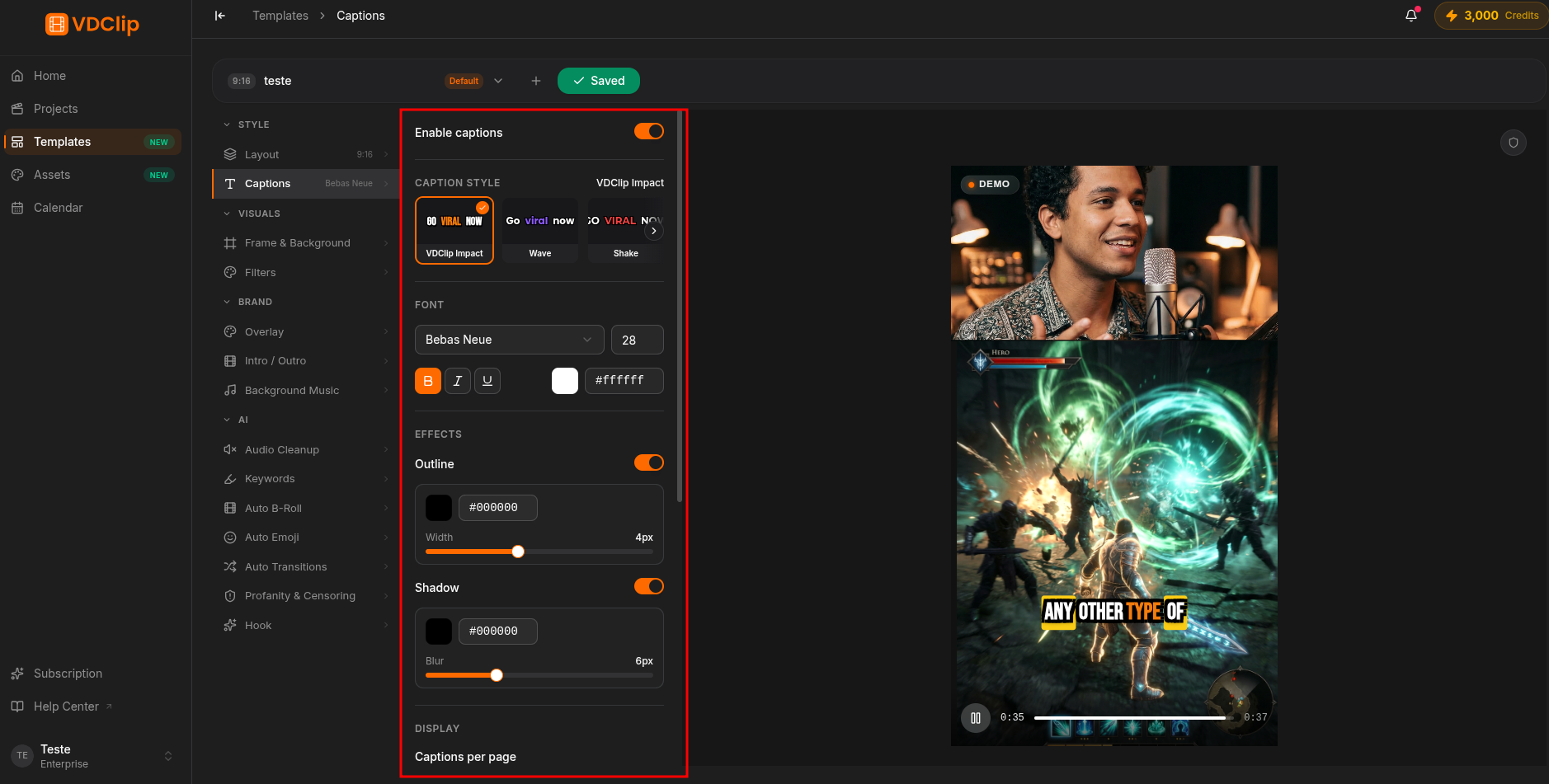
Captions turn the speech in your clip into on-screen text. Enable them, pick a ready-made style, and adjust whatever you need while watching the live preview.
How to set it up
Enable captions
In the Captions panel, turn on Enable captions. Once captions are on, every style control appears below.
Pick a preset style
In Caption style, click a preset to apply font, colors, animation, and highlight in one go. There are several, including VDClip Impact, TikTok Viral, Hormozi, Karaoke Classic, Neon, and Clean. Nothing is locked: edit any field after applying.
Tune font and legibility
Pick the font (family, size, and color) and reinforce readability with outline (color and width) and shadow (color and blur). These keep the text legible over any video. To use your own font, add it first on the Assets page.
Set the display
Choose an animation (Bounce, Karaoke, Pulse, Scale, Box, Word Box, and others), a highlight color, and a position (Auto, Top, Middle, or Bottom). Enable one word at a time when you want maximum impact.
Text handling
Three options change the text before it appears:
- Remove punctuation strips commas, periods, and other symbols.
- All uppercase converts the whole caption to capital letters.
- Vocabulary correction fixes words that automatic transcription misread, like proper nouns and specific terms.