Bulk Editing Clips
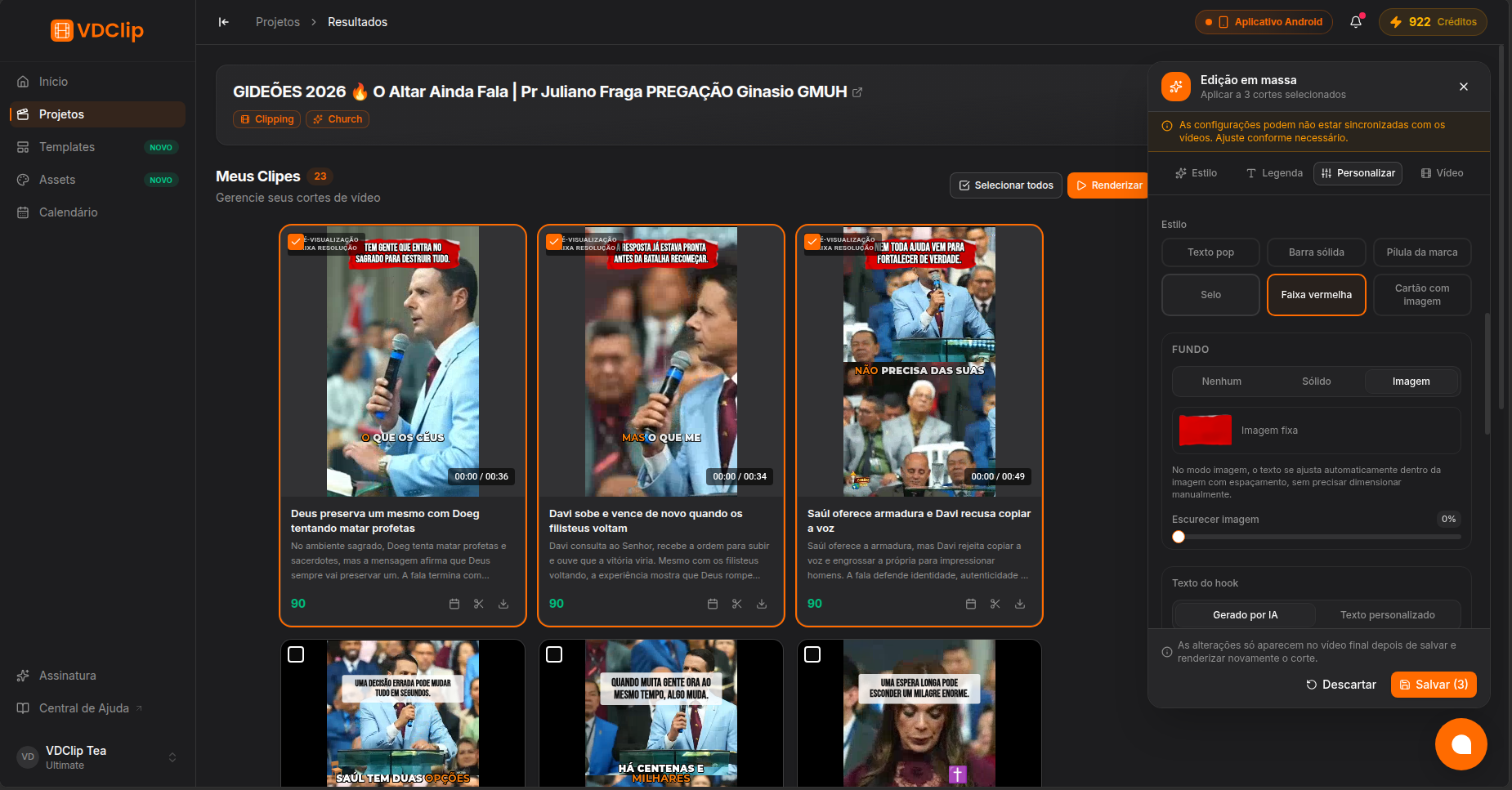
Bulk edit applies the same look and settings to several clips at once from the results view, so you do not have to open each clip in the editor. Select the clips, adjust them across four tabs, and save.
Before You Start
Select at least two clips. Bulk edit is available on paid plans, and some of its sections also depend on your plan. See the pricing page for details.
Step-by-Step
Select the clips
In the results view, tick the clips you want to change together, or use Select all.
Open Bulk edit
Click Bulk edit to open the panel for the selected clips. It shows how many clips it will apply to.
Adjust across the tabs
Move through the Style, Caption, Customize, and Video tabs and change what you need.
Save and re-render
Click Save to apply your changes to every selected clip, then re-render the clips so the changes appear in the final videos.
What Each Tab Does
- Style - apply a ready-made style, or one of your saved templates, to every selected clip in one click.
- Caption - change the caption look for all clips. Turning captions on does not create captions on a clip that has none; to add captions, generate the transcription in the editor first. Turning captions off can remove them permanently, and you would then need to create them again.
- Customize - the overlay (your logo and call to action), automatic emoji, the hook text (AI-generated or your own), and the music.
- Video - the frame, filters, and transitions.
Good to Know
Saving applies your changes to the clips, but they only appear in the final video after you render each clip again. If a clip was already exported, you need to export it again in the editor for the changes to take effect.
- A note may warn that the settings are not synchronized with the videos. Adjust them as needed before saving.
- A logo or call to action left without an image is saved as disabled.
- If a project was generated without punctuation in its captions, punctuation adjustments have no effect.