Removing Filler Words
Filler words are spoken words without real meaning, like “um”, “uh”, or “you know”. The editor detects them in your captions and removes them, cutting the video at those points so the speech tightens up.
Before You Start
You need captions. Filler words are detected from the clip captions. If the clip has none, generate them first with the caption transcription in the editor, which works in many languages.
Step-by-Step
Open Remove filler words
Select the video item on the timeline, then open Remove filler words from the timeline toolbar or by right-clicking the item.
Choose a detection level
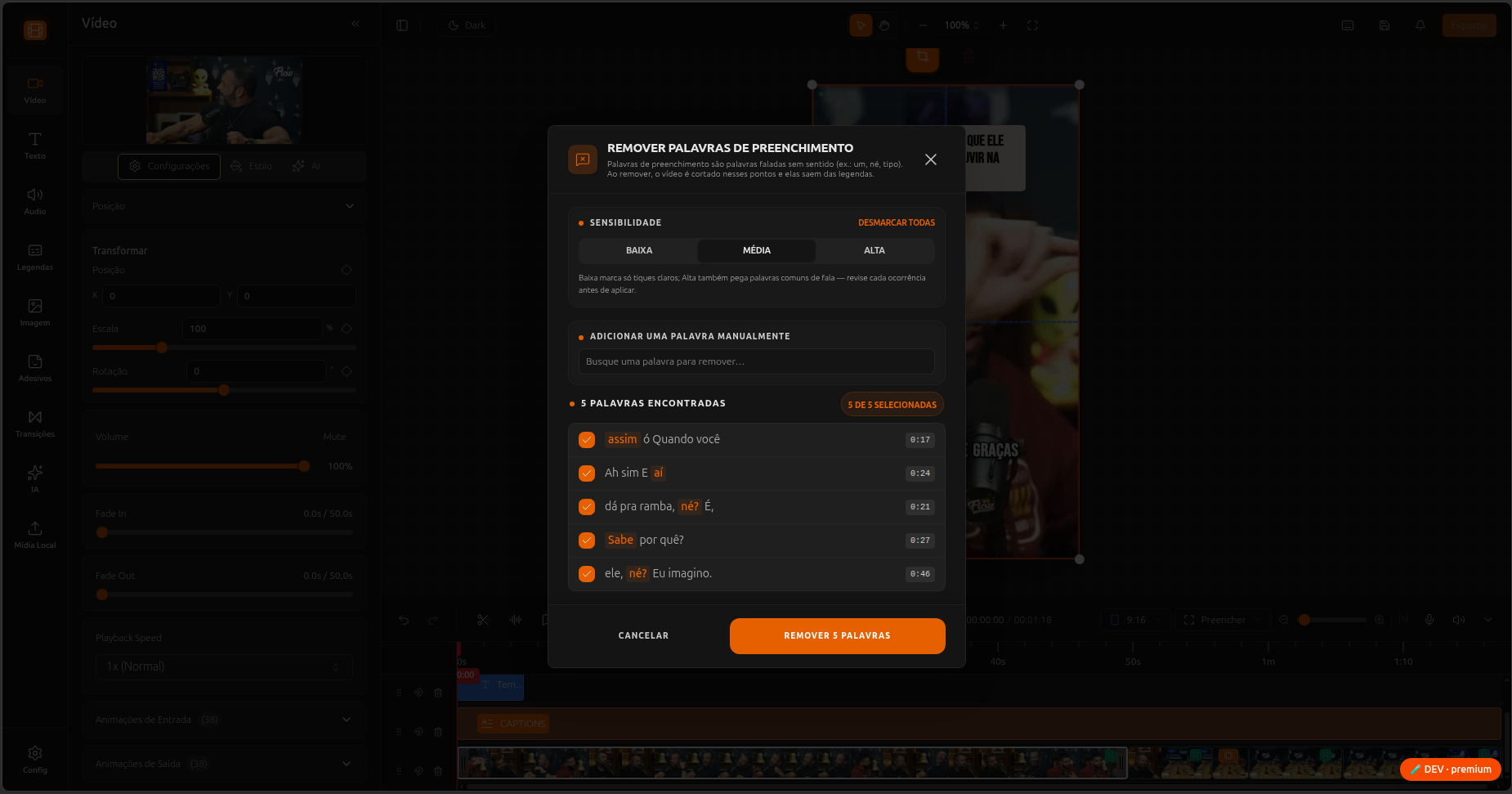
Pick a sensitivity: Low, Medium, or High. Low flags only clear tics, while High also catches common discourse words, so review each match before applying at higher levels.
Choose which words to remove
The tool lists every detected word with its timestamp, all selected by default. Uncheck any you want to keep, or use Deselect all to start from none. You can also search and add a word manually to remove one the detector did not flag.
Apply
Applying removes the selected words from the captions and cuts the video at those points.
In the Editor vs During Processing
This removes filler words after the fact, inside the editor, on the clip you have open. You can also remove filler words earlier, during generation, with the processing enhancement. Use whichever fits your workflow.