Connecting Threads
Connect your Threads account to publish and schedule content from VDClip. Threads posts are public, so once the account is connected you can queue posts straight from the calendar.
Before You Start
You need: a Threads account you can publish to. You connect one Threads account, and everything you schedule to it is published publicly.
Step-by-Step Connection Guide
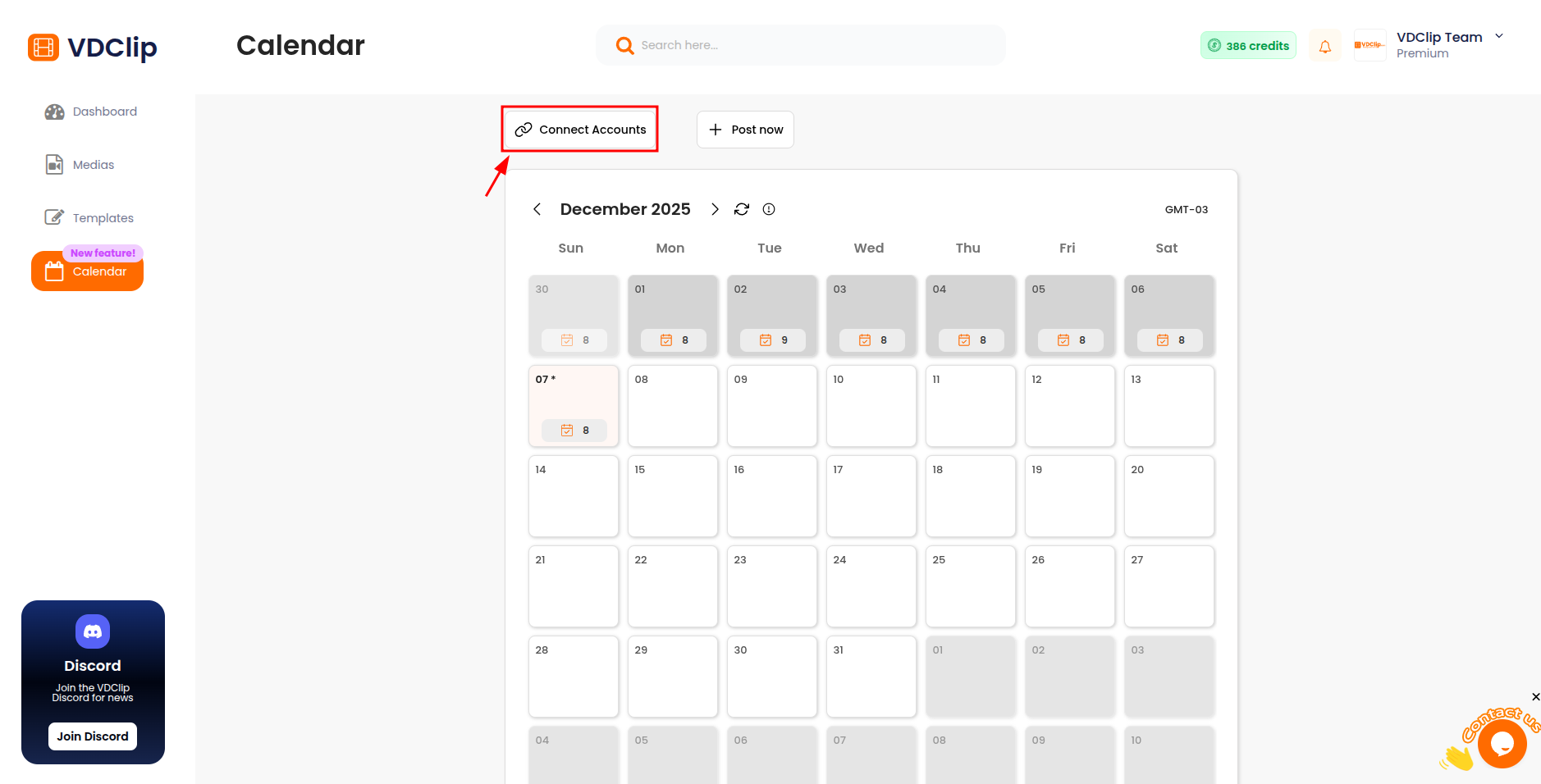
Open Social Accounts
Go to the Calendar and click Connect Accounts.
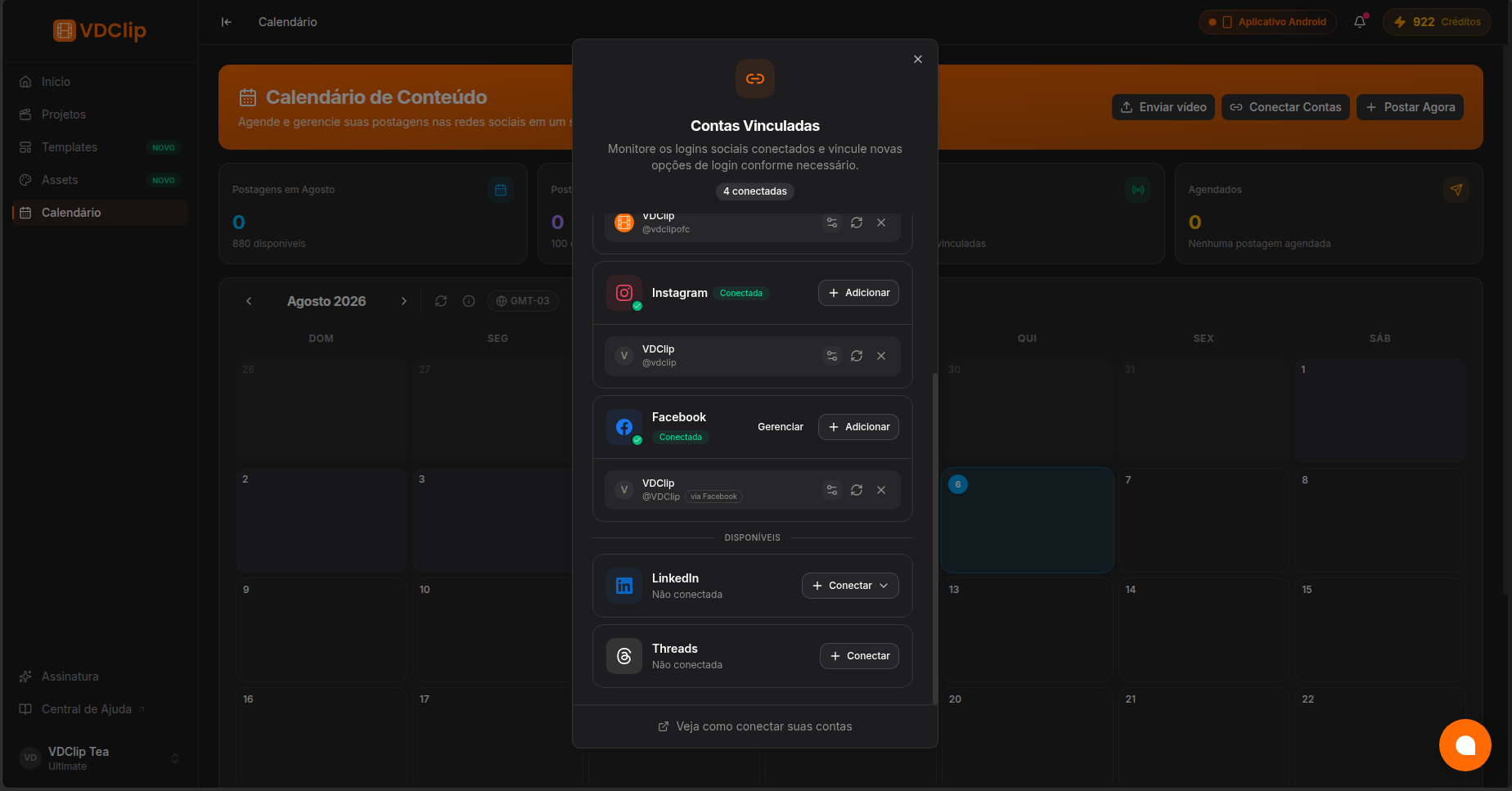
Choose Threads
In the platform list, pick Threads, then click Connect Account.
Authorize on Threads
You are redirected to Threads. Accept the requested permissions to link the account.
Confirm the connection
After authorizing, you return to VDClip. The connected Threads account appears in Social Accounts and can be used when scheduling posts.
Publishing to Threads
Every post you schedule to Threads is public. Threads does not offer per-post privacy or audience options, so there is nothing extra to configure for a Threads post beyond its text and media.
Reauthorizing Accounts
Reauthorize Threads when access expires or permissions change. Find the account in the Calendar, click Reauthorize, and complete the same authorization steps to restore publishing without creating a new connection.
When to Disconnect
Disconnect Threads when you stop publishing through that account or want to reconnect from scratch. Find the account in the Calendar, click Remove, and confirm.
⚠️ Warning: Disconnecting an account will cancel any scheduled posts for that platform.