Manual Cut
Manual cut lets you create a new clip from your original source video by choosing exactly where it starts and ends. It is useful when you want a moment the AI did not turn into its own clip.
Before You Start
You need the source video. Manual cut uses the project’s original video, so it must still be available. Manual cut is available on paid plans. See the pricing page for details.
Step-by-Step
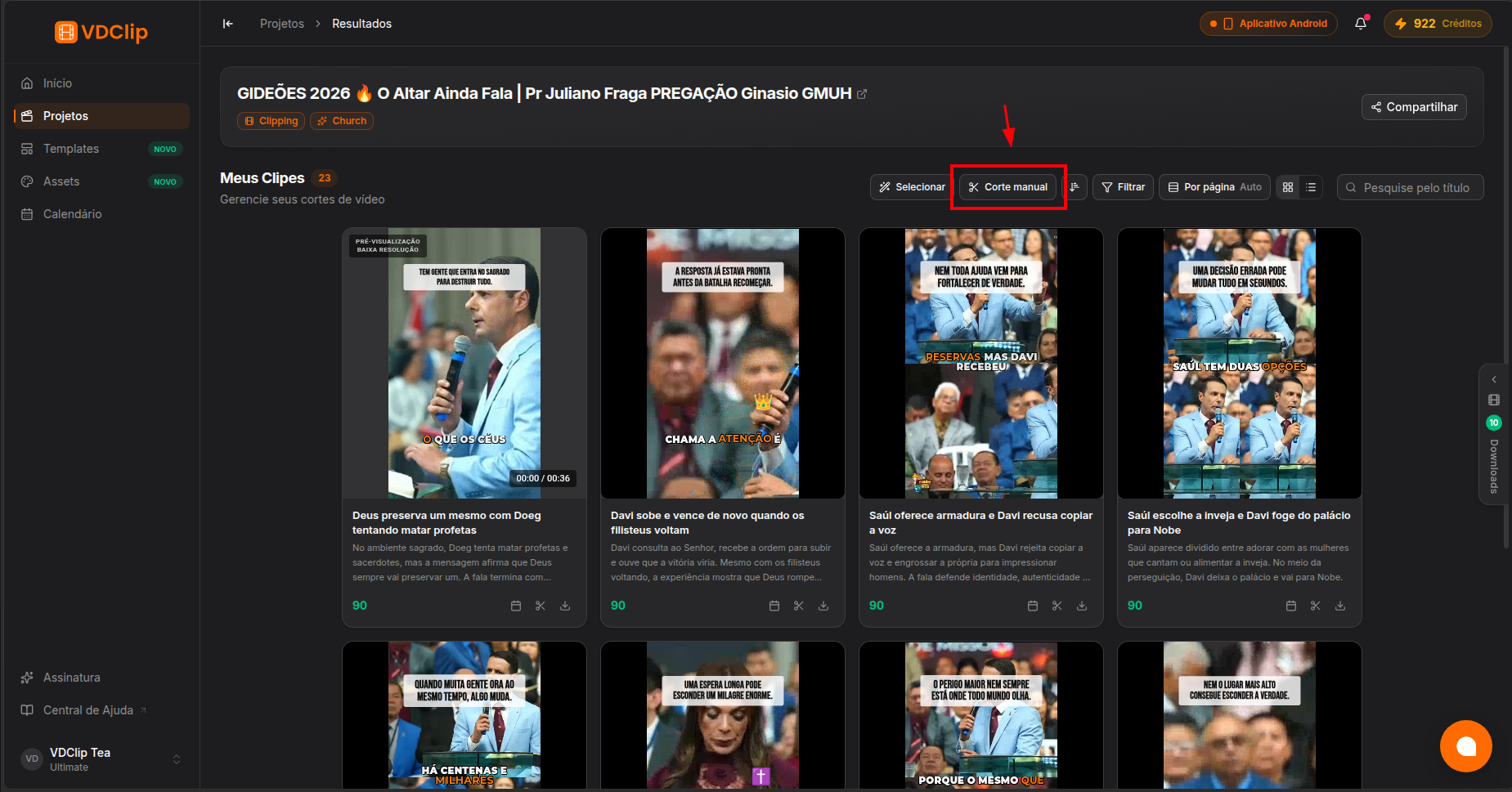
Open Manual cut
In the results view, open Manual cut from the clips toolbar. The dialog loads your full source video.
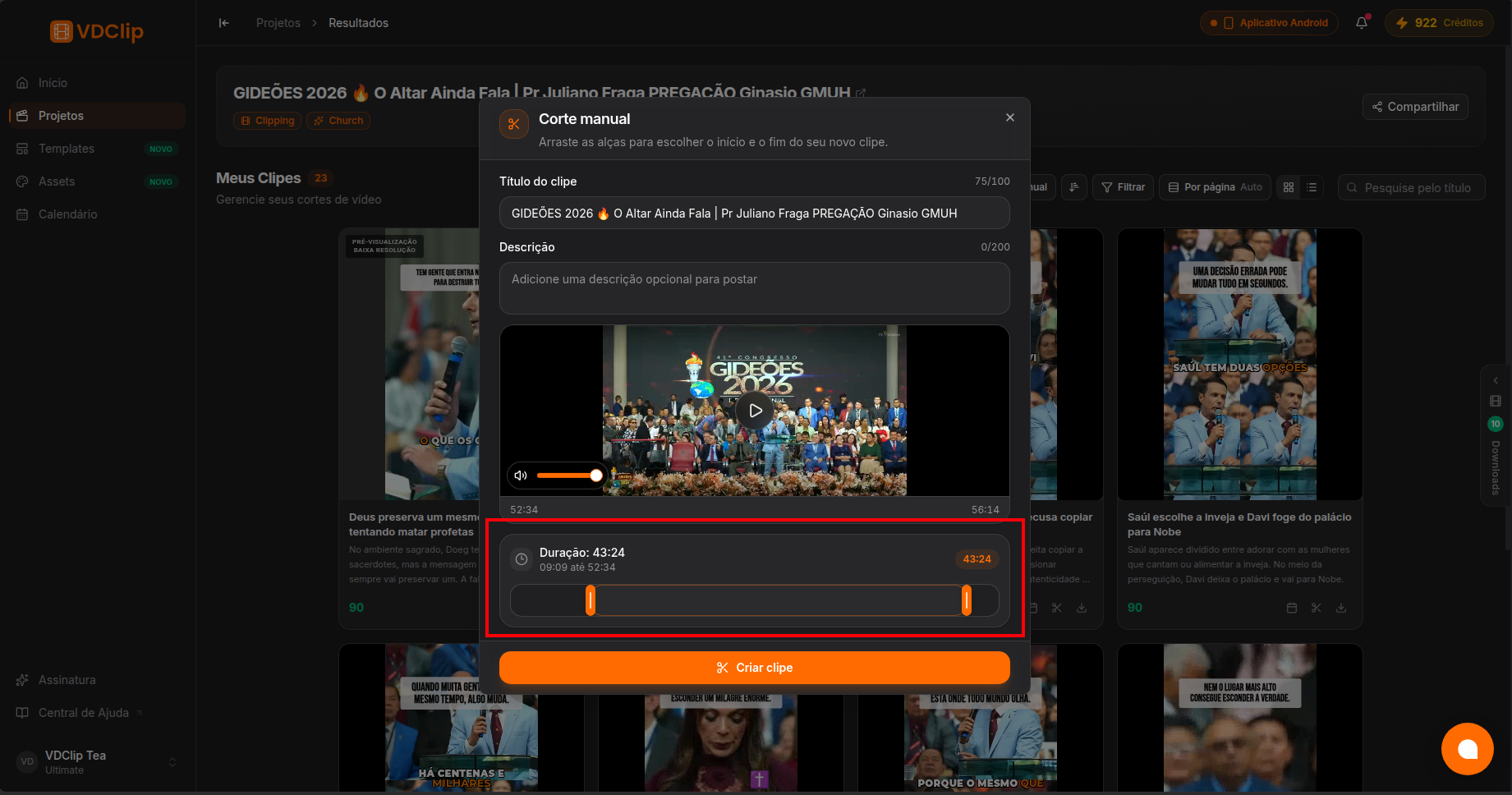
Set the range
Drag the start and end handles to choose exactly where your new clip begins and ends. The dialog shows the selected range and its duration, and clips have a minimum length.
Name and adjust the clip
Give the clip a title and an optional description for posting. Preview it, and mute it or adjust the volume if needed.
Create the clip
Click Create clip. It is queued and appears in your project once it finishes preparing, ready to render, edit, or post like any other clip.
Good to Know
- Manual cut adds a new clip to your project. It does not change or replace your original video.
- You cannot create a new clip while other videos in the project are still processing. Wait for them to finish, then create the clip.